

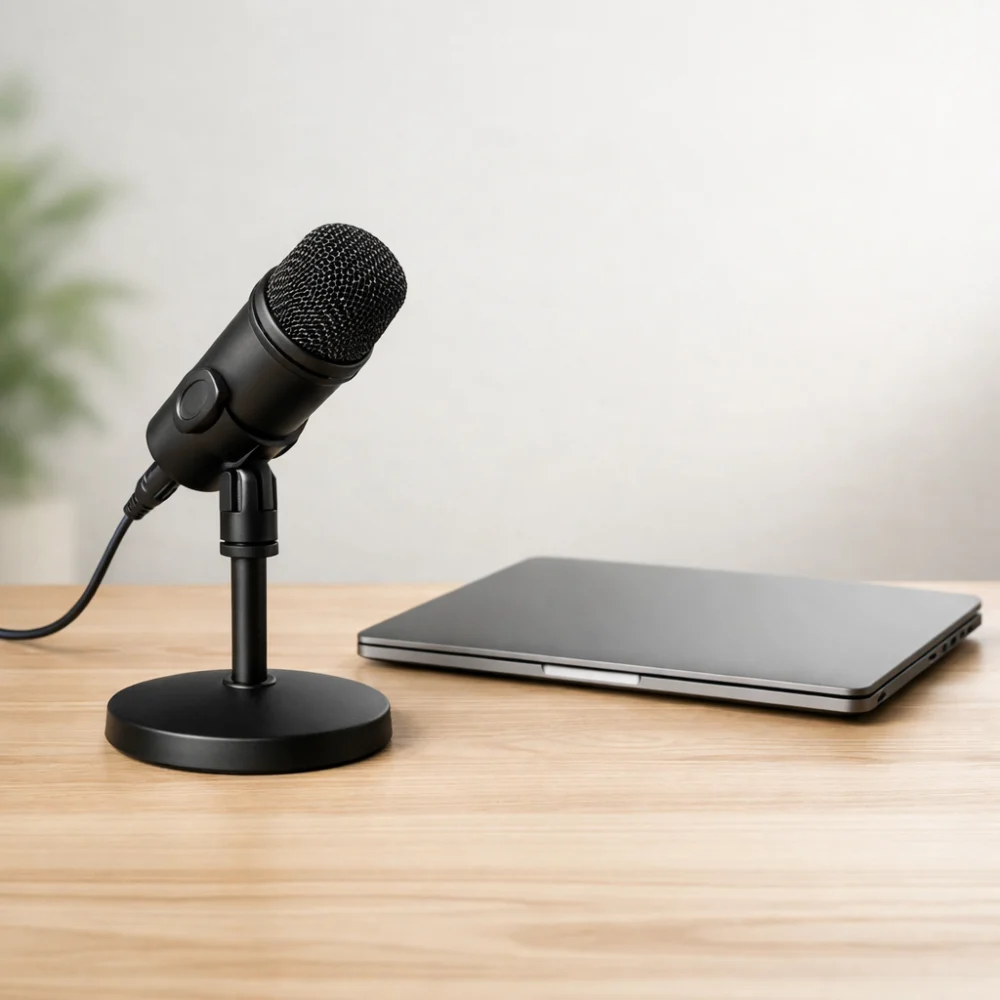
A computer microphone captures your voice for calls, gaming, recording and other computer-based activities. Choosing one means balancing convenience, placement, the sound you need and the connection your computer can use.
This guide focuses on standalone microphones and the practical checks that help distinguish them. A microphone that suits a fixed desk setup may be less convenient to move between devices, while extra controls or accessories are only useful if they fit your needs.
What should you prioritise when choosing a computer microphone?
Start with the way you plan to use it and where you can place it. Check that its connection works with your computer and that the microphone can be positioned appropriately for your voice and surroundings. Then compare pickup pattern, controls and included mounting options, weighing convenience against any extra setup they require.
Computer microphone features compared
| Feature | What it means | Why it matters | What to check |
|---|---|---|---|
| Connection | How the microphone sends audio to a computer, such as through USB or an analogue connection. | A convenient connection is of little use if your computer cannot accept it as described. | Connector type, any required adapter or interface, and stated computer compatibility. |
| Pickup pattern | The directions from which a microphone is designed to capture sound. | It can affect how well the setup suits one speaker or sound coming from more than one direction. | Whether a pattern is specified and what the product information says it is intended to capture. |
| Placement and mounting | Where the microphone sits and how it is supported. | Position can affect convenience, desk space and how much nearby sound reaches the mic. | Included stand or mount, the space it occupies and whether it suits your intended position. |
| Controls | On-device options may include mute or input-level adjustment. | Controls can make changes easier during a call or recording, but their layout and operation vary. | Which controls are present, how they work and whether their position is convenient. |
| Accessories | Some microphones may be supplied with items such as a pop filter or stand. | Included accessories can affect setup and whether you need to source compatible items separately. | Exactly what is included and whether it suits your intended use. |
How to compare the main buying criteria
Connection and computer compatibility
USB can be convenient for a direct computer connection, but check the actual connector and the computer requirements listed for the product. USB connector shapes and computer ports differ, and an adapter may not be included. For an analogue microphone, check whether your computer has a suitable input or whether another audio device is required. Do not assume that a connector alone confirms compatibility with your computer or chosen software.
Specifications vary by model, so always check the individual product page before buying.
Pickup pattern and your surroundings
A pickup pattern describes the directions from which a microphone is designed to capture sound. A directional pattern, such as cardioid, is generally intended to favour sound from the front; an omnidirectional pattern is intended to pick up sound from a broader area around the microphone. These descriptions do not guarantee how a microphone will sound in your particular room.
For one person speaking at a desk, a directional option may suit a setup where you can keep the microphone in front of you. If several people or sources need to be heard, consider whether the stated pattern fits that arrangement. Room noise, distance and position also matter, so check the product details rather than choosing on the pattern name alone.
Position, stand and desk space
A desktop stand keeps a microphone within reach but takes up surface space. A mount intended for another position may free the desk, but check what is included and how it is meant to be fitted. Consider your screen, keyboard and speaking position together: a microphone should be practical to place without obstructing the activities you use the computer for.
Placement can change the balance between your voice and nearby sounds. If you move around while speaking, think about whether a fixed desktop position will remain convenient. Check whether the product information describes a stand or mount as included; do not assume an accessory shown in a picture is supplied.
Controls and accessories
A mute control can be useful when you need to silence the microphone quickly, while an input-level control can provide an adjustment on the device. Check which controls are actually specified and whether they are easy to reach in your setup. A status light may help show a setting, but its meaning depends on the individual product.
A pop filter or similar accessory may be relevant to some speaking or recording setups, but it does not remove every unwanted sound. Compare the stated contents and intended use, rather than treating a longer accessory list as proof of better results.
Common computer microphone types
- Standalone desktop microphones: A practical option for a fixed computer position, such as a desk used for calls, gaming or recording. They need a suitable place on or near the desk and may pick up surrounding sounds depending on their pattern and placement.
- Microphones with a separate stand or mount: These can offer more choice about positioning if the included support suits your workspace. Check how the mount is used and what is supplied; it may take more setup or space than a simple desktop stand.
- Microphones with built-in controls or bundled accessories: These may make particular tasks more convenient, but the value depends on whether you will use those features. Check the control functions and included items for the individual product.
A microphone built into a headset is a different kind of setup: it keeps the microphone with the headset rather than on a separate stand. Decide whether you prefer that arrangement before comparing standalone computer microphones with other audio options.
Choose for the way you use your computer
| Use case | Priorities to consider | Trade-off to weigh |
|---|---|---|
| Video calls or online meetings | Simple connection, a convenient mute option and a position that fits your desk. | On-device controls may help, but are not essential if your computer or calling software provides the controls you need. |
| Gaming or group chat | Compatibility with your computer and communication setup, plus a comfortable position for longer sessions. | A desk microphone may leave you free to use separate headphones, but needs a stable, accessible place. |
| Voice recording or streaming | Pickup pattern, adjustable placement and the connection or controls needed for your recording setup. | More setup choices can take extra space or require closer attention to compatibility and positioning. |
| Shared workspace or more than one speaker | Whether the stated pickup pattern and placement suit the number and position of speakers. | A pattern suited to one speaker may not fit a group arrangement; check the product description and plan the positions. |
Common buying mistakes to avoid
- Choosing by connection name alone. Check the connector, computer requirements and whether any adapter or additional audio device is needed.
- Assuming a pickup pattern guarantees a quiet recording. The pattern describes direction, not a promise that room sounds will disappear. Consider placement and the surrounding environment too.
- Overlooking where the microphone will go. A stand or mount can affect desk space and access. Check its form and the stated contents before deciding it suits your setup.
- Paying attention only to bundled extras. Accessories matter when they fit your intended use; compare their purpose and included status rather than counting them.
- Assuming every computer or app will recognise a microphone in the same way. Check stated compatibility and the connection requirements for the computer and software you plan to use.
Suitability and compatibility checks
Computer microphones are generally straightforward peripherals, but suitability still depends on the computer, connection and intended use. Confirm the product’s stated operating-system or device support where relevant, and check whether your preferred calling or recording software can use an external microphone. Compatibility can vary by model and setup, so avoid relying on an assumption based on another microphone.
If you need the microphone for a particular work, accessibility or recording requirement, compare the product information against that specific need. A feature name alone does not establish that a device will meet a specialist requirement.
Care, storage and ongoing use
Consider where the microphone and cable will sit when not in use, especially if your desk is shared or regularly cleared. A permanent position can be convenient, while a portable setup may need room for the microphone and any supplied accessories. Follow the individual product’s care guidance; materials and cleaning recommendations can differ, and not every microphone is suitable for the same cleaning method.
Check whether the product draws power through its connection or has another stated power requirement. Do not assume that every model works the same way, and keep any supplied cable or accessories together if you expect to move the microphone between setups.
A practical buying process
- Write down the main task: calls, gaming, recording or another computer-based use.
- Check the computer’s available connections and identify any stated compatibility requirements.
- Choose a suitable placement and consider whether a desktop stand or another included mount fits the space.
- Compare pickup pattern, controls and accessories against what you will actually use.
- Review the individual product information for compatibility, included items and any setup requirements before deciding.
Computer microphone buyer checklist
- Does the stated connection suit your computer, including any adapter or interface requirements?
- Does the listed compatibility cover your device and intended software?
- Is the pickup pattern appropriate for your speaking position and the number of sound sources?
- Will the stand or mount fit your workspace and leave controls within reach?
- Are the mute or other controls you want actually specified?
- Have you checked which accessories are included and what care or power guidance applies?
Frequently asked questions
Is a USB computer microphone the simplest option?
USB can be convenient when the computer has a suitable port and the product supports that device. Check the exact connector and compatibility information, since a USB label by itself does not confirm that every setup will work without an adapter or other requirement.
What is the difference between cardioid and omnidirectional pickup?
Cardioid describes a directional pattern intended to favour sound from the front, while omnidirectional describes pickup from a broader area around the microphone. Which is more suitable depends on where speakers are positioned and what sounds you want the microphone to capture.
Do I need a microphone with a mute button?
A device mute can be handy if you want a physical control within reach during calls or recordings. If you are comfortable using the controls in your computer or software, it may be less important. Check how the individual microphone’s mute function is described.
Can I use a computer microphone for gaming and video calls?
Many computer microphones are intended for voice communication, but compatibility and controls vary. Check the product information against your computer and the software you plan to use, and consider whether its position works for both activities.
Will a pop filter remove background noise?
A pop filter is an accessory associated with speaking or recording, but it should not be treated as a general solution for room noise. Check what the accessory is intended to do and consider the microphone’s placement and pickup pattern separately.
Should I choose a standalone microphone or a headset microphone?
A standalone microphone sits separately from headphones and needs a suitable position on or near your workspace. A headset microphone stays with the headset. Your preference depends on how you use your computer, the space available and whether you want a separate microphone setup.