

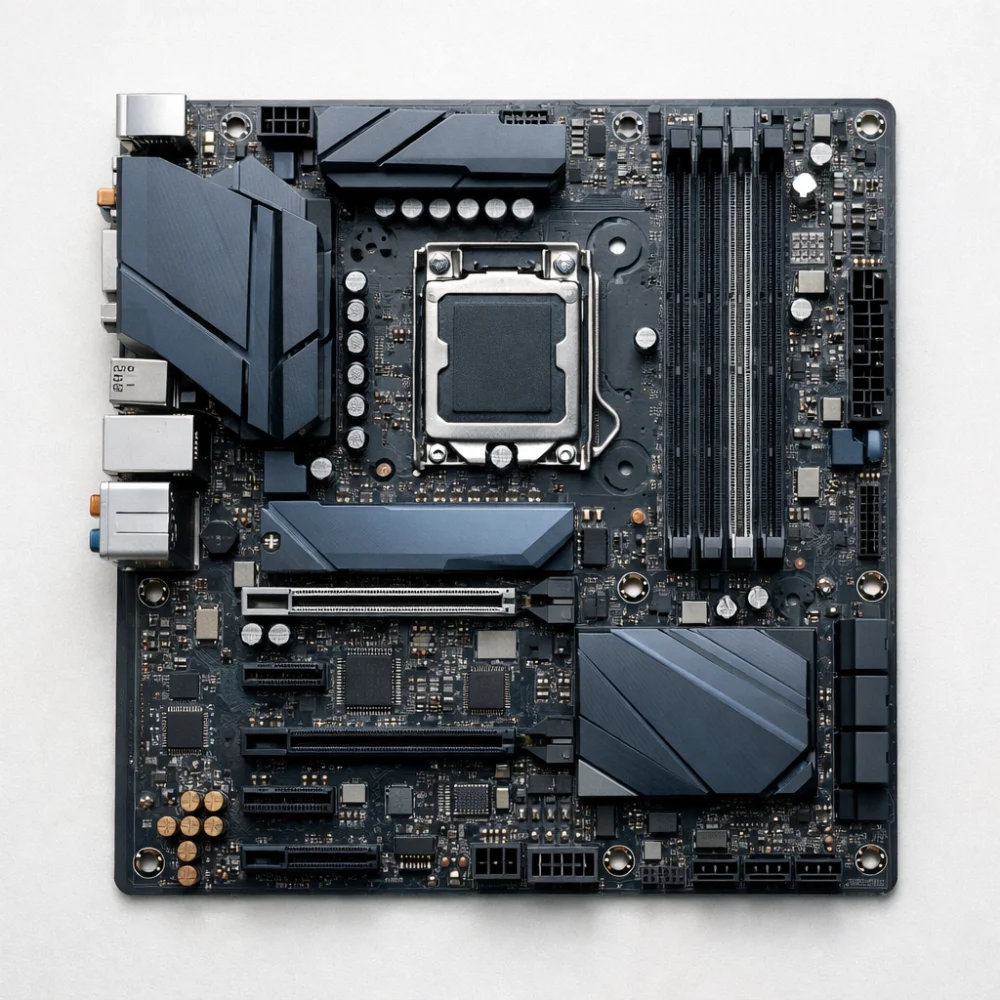
A motherboard connects a computer’s processor, memory, storage and other components. Choosing one is mainly a compatibility decision: the board must suit the processor and memory you intend to use, fit the case and provide the right connections for your build.
This guide is useful when planning a new PC or replacing a board. Start with the components you already own or have chosen, then check the exact board details rather than relying on a product name or a single headline feature.
Which motherboard should you choose?
Start with the exact processor and memory, because motherboard support depends on the board’s platform and specifications. Next, confirm the board’s form factor fits your case and that its storage, expansion and rear connections suit your intended setup. A board with more features may offer flexibility, but it is not a better choice if it is incompatible or its extra connections will go unused. Specifications vary by model, so always check the individual product page before buying.
Motherboard features compared
| Feature | What it means | Why it matters | What to check |
|---|---|---|---|
| Processor support | The supported processor platform, socket and specific CPU models. | An incompatible processor will not work with the board. | Check the exact CPU support information and whether a particular BIOS version is required. |
| Memory support | The memory generation and the board’s supported memory configuration. | Memory must match the board, and the number of slots affects upgrade options. | Confirm the memory type, slot count and supported capacities or speeds against the exact board and memory details. |
| Form factor | The board’s physical size and layout standard. | The board needs to fit the case, and size can affect the available slot layout. | Check the case’s supported motherboard sizes and the board’s listed form factor. |
| Storage connections | Connectors for storage devices, such as M.2 sockets and SATA ports. | The number and type of connections determine which drives can be installed. | Check the drive interface, connector count and any shared-connection notes in the board documentation. |
| Expansion slots | Slots for graphics and other add-in cards. | Slot availability and spacing can affect which cards can be fitted together. | Compare the slot layout with the size and connection needs of the cards you plan to use. |
| Rear and internal connections | Ports on the back of the board and headers inside the case. | These determine how peripherals and case features can connect. | Check the specific USB, display, audio and internal header connections you need. |
| Networking | Wired networking and, on some boards, wireless connectivity. | The connection options should suit where and how the PC will be used. | Verify which networking features are included on that exact board; do not infer them from a product family name. |
What to check before choosing
Processor and BIOS compatibility
Match the board to the exact processor model, not just a broad processor family. The socket and platform are important, but they may not be enough on their own: support can depend on the board’s chipset and BIOS version. Check the manufacturer’s support information for the specific board and CPU, including whether an update is needed for that combination.
Memory type and upgrade room
Motherboards support particular memory generations and configurations; memory types are not interchangeable simply because a module looks similar. Check that the memory you plan to use is listed as supported, and consider how many slots and what capacity the board provides if you may upgrade later. Supported speeds can depend on the processor, memory kit and board configuration, so verify the relevant details rather than assuming a headline speed applies to every setup.
Case fit and board layout
ATX, microATX and Mini-ITX describe common motherboard form factors, but a case’s supported sizes and the board’s actual layout still need checking. Smaller boards can provide fewer expansion options, although the precise layout varies by model. Compare the case’s compatibility information with the board’s listed form factor and check that your planned cards and connectors have room.
Storage and expansion
Count the connections you need for current drives and any likely additions. M.2 sockets and SATA ports have different physical connections, and an M.2 socket’s supported drive interfaces can vary by board. Some boards also share resources between connections, so using one socket may affect another; check the board documentation for those conditions. For add-in cards, look at the number, position and spacing of the available expansion slots.
Ports, networking and display connections
Compare the board’s rear ports and internal case headers with the devices and case features you intend to connect. Check the exact connection types rather than relying on general descriptions such as “USB” or “wireless”. A motherboard display output only provides a usable picture when the installed processor supports integrated graphics; verify this before relying on it instead of a separate graphics card.
Power and cooling connections
Check the motherboard’s power connections and the headers needed for your chosen case and cooling setup. The board, power supply and other components must be suitable for one another, and connector requirements differ between products. If you are reusing parts, verify their exact connectors and requirements rather than assuming they will match a replacement board.
Common motherboard types and variants
- ATX: A standard form factor that may suit a build needing a broader selection of slots or connections. Its size needs to be supported by the case.
- MicroATX: A smaller form factor that can suit a more compact build. Slot count and layout vary, so check that it accommodates the planned components.
- Mini-ITX: A compact option for builds designed around that size. Its smaller layout can limit expansion, making careful checks of slots, storage connections and case fit especially important.
- Different processor platforms and feature sets: Boards are made for particular processor platforms and may differ in networking, storage and rear connections. Match the platform first, then compare only the features relevant to your build.
Choose for your build
- Replacing a failed or outdated board: Identify the exact processor, memory, case and drives you intend to keep. A replacement may need to preserve several existing connections as well as support the processor.
- Building a PC around a chosen processor: Check that the board supports that exact CPU and its BIOS requirements, then choose compatible memory and a board size your case supports.
- Planning future upgrades: Consider spare memory slots, storage connections and expansion capacity, but balance these against cost and case fit. Extra capacity is useful only if it supports upgrades you may actually make.
- Building a compact system: Prioritise case compatibility and check the space and layout available for the planned cooler, cards and drives. A compact board is not automatically compatible with every compact case.
- Using wireless networking or processor graphics: Confirm that the specific board includes the wireless feature you want. If you plan to use a motherboard display output, verify that the processor supports integrated graphics.
Common buying mistakes
- Choosing by socket alone: A matching socket does not establish support for every processor that uses it. Verify the exact CPU, chipset and BIOS support.
- Mixing memory types: Check the memory generation and supported configuration for the specific board before choosing or reusing modules.
- Assuming any board fits the case: Compare the board’s form factor with the case’s supported sizes, then review the layout for planned components.
- Counting only one type of storage connection: Confirm the interface and number of connections needed by each drive, and check for notes about shared resources.
- Assuming a feature from the product name: Names may not state every connection or included feature clearly. Verify wireless networking, ports and other requirements in the individual specifications.
- Overlooking the rest of the build: A compatible board still needs to work with the power supply, case, cooling and planned cards. Check these parts together rather than in isolation.
Safety and suitability
Motherboards are technical components, so suitability depends on the complete build rather than the board alone. If you are unsure whether an existing part is compatible, check the board and component documentation or seek help from someone suitably experienced. Do not assume that a connector, processor or memory module will work because it appears similar to another one.
Ownership, maintenance and storage
For purchase planning, consider whether the board’s firmware support information and documentation will be accessible for your chosen processor and components. Keep the exact model details with your build records, since support and connection layouts differ between boards. If the board will be stored before use, follow its supplied handling and storage guidance; packaging and care requirements can vary.
A practical buying process
- List the exact processor, memory, case, drives and cards you plan to use or reuse.
- Find boards that support the processor and memory, checking exact model and BIOS requirements.
- Confirm the board’s form factor fits the case and that the layout suits the planned components.
- Compare storage, expansion, networking and other connections against your actual needs.
- Review power and cooling connections, plus any shared-resource notes in the board documentation.
- Check the individual product information and relevant manufacturer support details before deciding.
Motherboard buyer checklist
- Does the board support the exact processor, including any BIOS requirement?
- Does its memory type and configuration match the memory you plan to use?
- Is the form factor supported by your case?
- Are there enough suitable storage and expansion connections, with any sharing limitations understood?
- Does it provide the ports, headers and networking features you need?
- Do the board’s power and cooling connections suit the rest of the build?
Frequently asked questions
How do I know if a motherboard is compatible with my processor?
Check the exact processor model against the motherboard’s CPU support information. Confirm the required platform and BIOS version as well as the socket; a socket match alone does not confirm support.
Can I reuse my existing memory with a new motherboard?
Only if the memory type and configuration are supported by the new board and processor. Check the memory generation and the board’s specifications before buying, as visually similar modules may use different standards.
Will any motherboard fit in my PC case?
No. Compare the motherboard’s form factor with the sizes supported by the case. Also check the board layout against your planned cards, drives and cooling components.
Does every motherboard have built-in Wi-Fi?
No. Wireless networking varies by board. Check the exact product details if you need it, and consider whether the listed connection options suit your setup.
Can I connect a monitor directly to the motherboard?
Only if the motherboard has a suitable display output and the installed processor supports integrated graphics. Check both the board and processor information before relying on this connection.
Are M.2 drives and M.2 sockets all the same?
No. The M.2 form factor does not by itself confirm that a particular drive interface is supported. Check the board documentation for each socket’s supported drive types and any shared-resource limitations.
Do I need a particular BIOS version?
Some processor and motherboard combinations require a specific BIOS version for support. Check the manufacturer’s CPU support information for the exact board and processor before choosing.
Should I choose the motherboard with the most features?
Not necessarily. Extra connections or expansion options are useful when they match your planned build or future upgrades, but they do not compensate for incompatible components or a board that does not fit your case.