
Computer Cases
Computer Cases are used to house and organise the main components of a desktop PC, helping keep your build protected, accessible and easier to manage. Whether you are building a gaming PC, upgrading an office computer, replacing an old tower or planning a compact workstation, the right case should suit your components, cooling needs and available space.
This category includes computer cases in different sizes, layouts and styles. Depending on the product, you may find tower cases, mid tower cases, mini tower cases, gaming PC cases, office PC cases, cases with glass panels, mesh front panels, fan mounts, cable management features and front connection ports where listed.
- Computer Cases
430 Pcs Computer Screw Set for PC Case, Motherboard, SSD and Laptop
£6.99 *View On Amazon* - Computer Cases
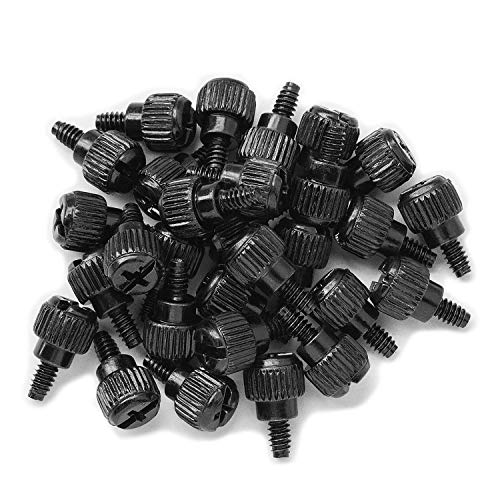
VAPKER 50pcs M3.5 6-32 x 6mm PC Computer Case Thumbscrews, Black Zinc
£14.48 *View On Amazon* - Computer Cases
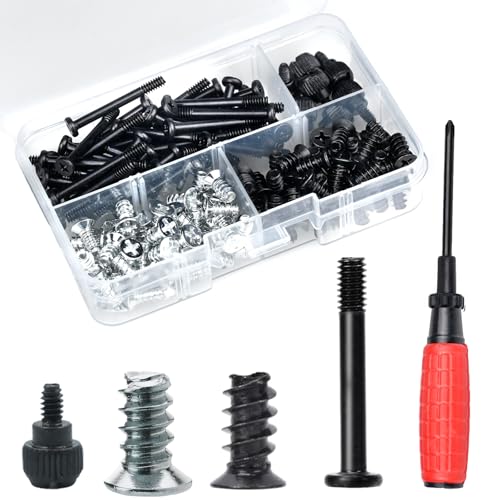
350 Pcs Computer Screw Set for PC Case, Motherboard and Drive Mounting
Original price was: £9.99.£8.99Current price is: £8.99. *View On Amazon* - Computer Cases
Fractal Design Meshify 2 Mini Black TG Dark Tint
Original price was: £109.99.£71.54Current price is: £71.54. *View On Amazon* - Computer Cases
EsportsMJJ 20pcs Computer PC Case Cooling Fan Mount Screws, Black
Original price was: £5.99.£4.02Current price is: £4.02. *View On Amazon* - Computer Cases
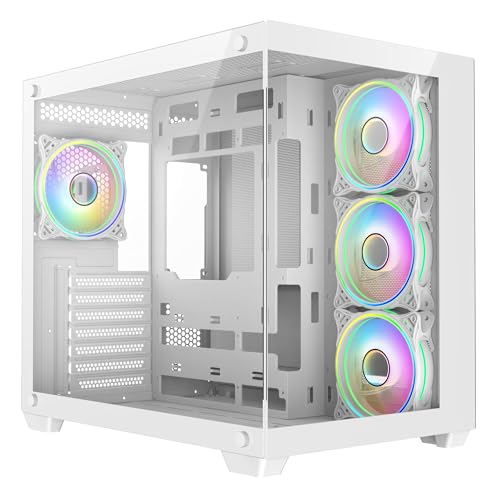
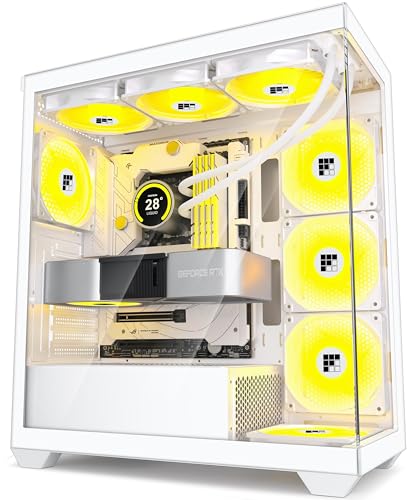
FOIFKIN F3 PC Case, White, ATX Mid-Tower Gaming Case with Type-C
£49.99 *View On Amazon* - Computer Cases
FOIFKIN M9 PC Case, Walnut Front Panel, Black, ATX Mid-Tower Gaming Case with 3 PWM ARGB Fans and 270° Panoramic Glass
Original price was: £89.99.£67.99Current price is: £67.99. *View On Amazon* - Computer Cases
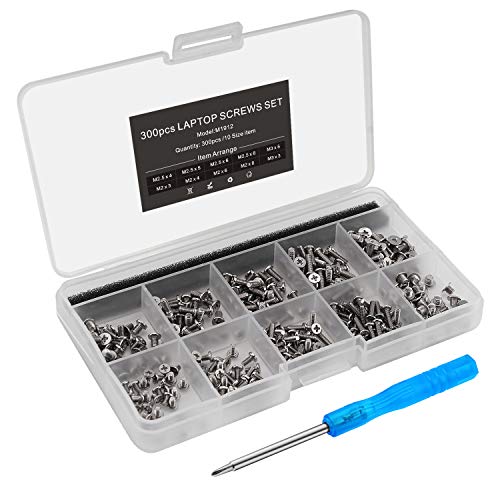
Mcsher 300pcs Laptop Notebook Screws Set Kit
Original price was: £7.19.£6.79Current price is: £6.79. *View On Amazon* - Computer Cases
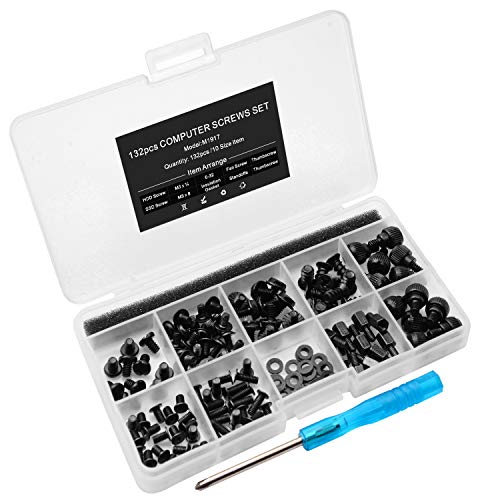
132-Piece Personal Computer Screw Standoffs Set Kit with Screwdriver
Original price was: £8.99.£8.09Current price is: £8.09. *View On Amazon* - Computer Cases
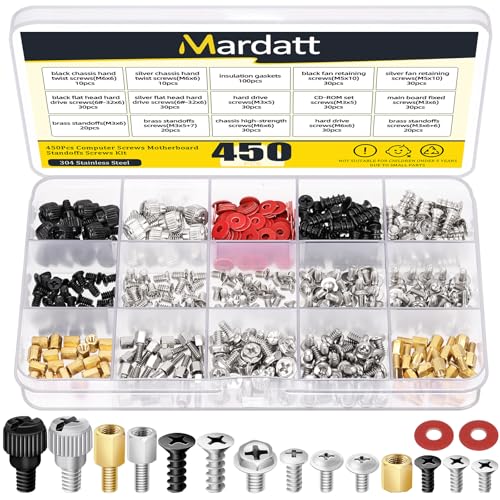
Mardatt 450-Piece Computer Screws Kit with Motherboard Standoffs
Original price was: £7.99.£4.43Current price is: £4.43. *View On Amazon*










What Are Computer Cases?
Computer cases are the outer housing for desktop PC components. They usually hold the motherboard, power supply, storage drives, graphics card, cooling fans and other internal parts where compatible.
A case is more than just a box. It affects how easy the computer is to build, how neatly cables can be routed, how much airflow the system can have and how much room there is for future upgrades.
Different cases suit different builds, so compatibility should always be checked before buying.
What Computer Cases Are Used For
Computer cases are used for building new PCs, upgrading existing systems, replacing damaged cases, improving airflow, organising components and creating cleaner desk or floor setups.
For gaming builds, a case may need more space for graphics cards, cooling fans and cable management where listed. For office PCs, a simple and compact case may be more suitable. For creative workstations, storage space, airflow and component clearance may matter more.
A good case can also make future maintenance easier because it gives you better access to parts, dust filters, panels and cables where included.
How To Choose The Right Computer Case
Start with the motherboard size. Common motherboard formats may include ATX, Micro ATX and Mini ITX where listed, but the case must support the specific board you plan to use.
Next, check component clearance. Graphics card length, CPU cooler height, power supply size, storage drive mounts and cooling support can all vary by case. Always compare the case details with your existing or planned components.
Finally, consider where the PC will sit. A larger case may be easier to build in and upgrade, while a smaller case may suit desks, bedrooms, offices or compact setups. Make sure there is enough room for airflow around the case once it is in place.
Key Features To Compare
Case size is one of the most important features. Larger cases often give more internal space, while compact cases save room but may need more careful component planning.
Airflow is also worth comparing. Mesh panels, fan mounts, vent placement and internal layout can affect how easily air moves through the case where listed.
Cooling support matters if you are building a higher powered system. Check fan positions, radiator support where listed and clearance around the CPU and graphics card before choosing.
Cable management can make the inside of a PC much tidier. Routing channels, rear space, tie points and PSU shrouds may help where included.
Storage support is another practical detail. Check whether the case supports the number and type of drives you need where listed.
Front ports, USB connections, audio ports, power buttons, lighting controls and panel access may also affect everyday use.
Tower Cases Compared With Compact Cases
Tower cases usually offer more space for components, cooling and cable routing. They can be easier for first time builders because there is more room to work inside.
Compact cases are useful when space is limited or when you want a smaller desk setup. They can look neat and save room, but they often require closer attention to compatibility, cooling and cable routing.
The trade off is space against convenience. Larger cases are often easier to build and upgrade, while smaller cases can be tidier in the room but less forgiving during installation.
Gaming Computer Cases Compared With Office Computer Cases
Gaming computer cases often focus on airflow, graphics card space, cooling support and appearance. Some may include glass panels, lighting support or more visible internal layouts where listed.
Office computer cases usually focus on practical size, simple styling and everyday reliability. They may not need as much space for large graphics cards or advanced cooling.
The best choice depends on the computer’s purpose. A gaming PC may need better cooling and upgrade room, while a home office PC may benefit from a quieter, simpler and more compact design.
Glass Panel Cases Compared With Mesh Cases
Glass panel cases are often chosen for appearance because they let you see the internal components. They can work well for clean builds, lighting and display focused setups where listed.
Mesh cases are often chosen for airflow because they may allow more air to pass through the front or side panels where listed. This can be useful for systems that generate more heat.
The trade off is style against airflow priority. A glass case may look cleaner, while a mesh case may be more practical for cooling focused builds. Some cases include both design ideas, depending on the product.
Beginner Regular Builder And Experienced User Guidance
Beginners should focus on compatibility, internal space and ease of building. A case with clear access, useful cable routing and enough room for standard components can make the first build less stressful.
Regular builders may want to compare panel access, drive mounts, cooling support, dust filters and cable management more carefully. These features can save time during upgrades and maintenance.
Experienced users often look closely at airflow layout, radiator clearance, fan positioning, component spacing, acoustic behaviour where listed and how easily the case supports future upgrades.
Use Cases By PC Setup
For gaming PCs, compare graphics card clearance, airflow, fan support, cooling options and cable management. A powerful build needs enough space for parts and heat management.
For home office PCs, consider a case that is practical, tidy and suitable for the desk or floor space available. Front ports and easy access may be useful.
For creative workstations, storage support, cooling and room for larger components may matter depending on the software and hardware being used.
For compact desk setups, a smaller case may be suitable where compatible, but check component fit carefully.
For upgrade projects, measure and check all existing components before buying a new case. Older parts may not always fit modern layouts, and modern components may need more clearance.
Fit Sizing And Compatibility
Compatibility is essential when choosing a computer case. Check motherboard support, power supply fit, graphics card clearance, CPU cooler height and drive bay support where listed.
Make sure the case supports the parts you already own or plan to buy. A case may look suitable but still be too small for a long graphics card, tall cooler or certain cooling layout.
Also check front panel connections. USB ports, audio connections and other case features need to work with your motherboard headers where compatible.
If you are unsure, compare the case specifications with your component specifications before ordering.
Cooling Airflow And Fan Support
Cooling is one of the biggest reasons to choose a case carefully. A case with suitable airflow can help components run more comfortably, depending on the full build and cooling setup.
Look at fan mount locations, included fans where listed, vent areas, dust filters and internal space. More fan mounts can give flexibility, but fan size and placement need to suit the case and components.
If using liquid cooling, check radiator support where listed. Radiator size, thickness and clearance can vary, so compatibility should not be assumed.
Good airflow also depends on cable management, room placement and keeping vents clear during use.
Cable Management And Internal Layout
Cable management can make a PC easier to build, maintain and clean. Cases with space behind the motherboard tray, cable routing holes and tie points may help create a tidier internal layout where listed.
A clean layout can also improve airflow by reducing clutter around fans and components. This is especially useful in builds with larger graphics cards, multiple drives or extra cooling.
Internal layout affects how easy it is to install parts. Removable panels, tool free drive bays where listed, PSU shrouds and clear access points can all make the build process smoother.
Safety And Practical Considerations
Computer cases should be used with compatible components and assembled carefully. Always switch off and unplug the PC before working inside the case.
Take care with sharp edges, screws, glass panels and electrical components. If the case has tempered glass panels where listed, handle them carefully and avoid placing them on hard surfaces where they may be damaged.
Keep vents clear and avoid placing the case where airflow is blocked. A PC pushed tightly against walls, curtains or clutter may not cool as intended.
Make sure cables are routed safely and do not touch fans. Loose cables can interfere with moving parts or make maintenance more difficult.
Care Cleaning And Maintenance
Computer cases need occasional cleaning to help keep the system tidy and practical. Dust can build up around vents, filters, fans and internal components over time.
If the case has removable dust filters where listed, clean them according to the product guidance. Do not use excessive liquid inside the case, and avoid cleaning electrical components unless you know the correct method.
Check fans, panels, screws and cable routing occasionally, especially after moving the PC or upgrading parts.
Keep the outside of the case clean with suitable methods for the material. Glass panels, metal panels and plastic sections may need different care where listed.
Storage Placement And Desk Setup
Think about where the computer case will sit before choosing. A large tower may need floor space, while a smaller case may sit on a desk or shelf where suitable.
Leave room around vents for airflow. Avoid placing the case directly against soft furnishings, tight corners or dusty areas if this blocks cooling.
Cable routing around the desk also matters. Make sure monitor cables, power cables, keyboard cables, mouse cables and network leads can reach safely without pulling on ports.
If the case is heavy or large, consider how easy it will be to move for cleaning, upgrades or access to the rear ports.
Useful Accessories To Consider
Useful accessories for computer cases may include case fans, dust filters where compatible, cable ties, cable sleeves, screw kits, fan splitters, storage drives, power supplies, cooling parts and monitor cables.
For new PC builds, you may also want to compare motherboards, processors, memory, graphics cards, power supplies and storage options where suitable.
For tidy desk setups, cable management clips, monitor stands, USB hubs and surge protected power leads may also be useful depending on the setup.
Why Buy From YPC?
At YPC, we understand active lifestyles and the need for practical products that work in real use. Computer cases should be chosen for compatibility, airflow, build space, cable management and the way the PC will actually be used.
YPC brings together a wide range of computer, electronics and lifestyle products so you can compare available computer cases by size, layout, features, compatibility and practical use. Browse the Computer Cases category to compare the range and choose the right case for your PC build, upgrade or workspace setup.
FAQs
What is a computer case used for?
A computer case houses the main parts of a desktop PC, including the motherboard, power supply, storage drives, cooling parts and other components where compatible.
How do I choose the right computer case?
Start by checking motherboard size, component clearance, power supply fit, cooling support and where the PC will be placed. Always compare the case details with your planned components.
Do all motherboards fit all computer cases?
No. Computer cases support specific motherboard sizes where listed, such as ATX, Micro ATX or Mini ITX. Check both the motherboard and case compatibility before buying.
Does a computer case affect cooling?
Yes, a case can affect airflow, fan placement and how easily heat moves away from components. Mesh panels, vents, fan mounts and internal layout can all matter where listed.
Are gaming computer cases different from normal cases?
Gaming cases often include more space for graphics cards, better cooling support, cable management features or style focused panels where listed. Office cases may be simpler and more compact.
Is a bigger computer case better?
A bigger case can be easier to build in and may offer more upgrade space, but it takes up more room. A smaller case can be neater but needs more careful compatibility checking.
What should I check before buying a PC case?
Check motherboard support, graphics card clearance, CPU cooler height, power supply compatibility, drive mounts, fan support, front ports and overall size where listed.
How do I clean a computer case?
Switch off and unplug the PC first. Clean dust filters, vents and outer panels according to the product guidance. Avoid excessive liquid and take care around fans, cables and electrical components.
 Getting ready for Summer? View our Home and Garden Products

Heading outdoors this winter? Take a look at our Outdoor Clothing.