

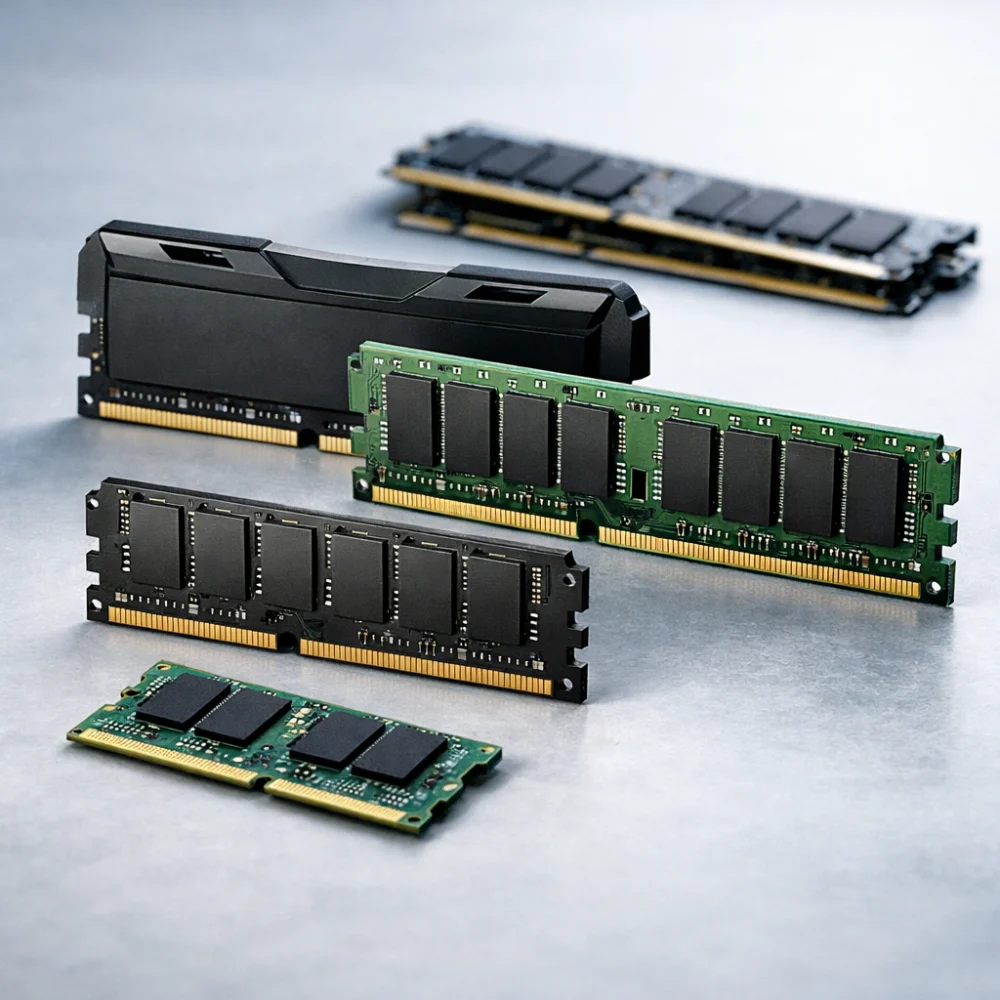
RAM is a computer’s short-term working memory: it holds information the system is using, rather than storing files for long-term access. Choosing an upgrade or replacement means matching the memory to the computer as well as considering the work it needs to handle.
This guide explains the checks that matter for desktop PCs, laptops and systems with more specialised memory requirements. Compatibility comes first; a module with attractive capacity or speed figures is not a suitable choice if the computer does not support it.
How do you choose the right RAM?
Start with the exact computer or motherboard model and confirm its supported memory type, module format and capacity limits. Then choose a suitable total capacity for your workload, checking how modules are arranged and whether any speed or error-correction features are supported. The key trade-off is that a higher headline speed or larger capacity is only useful if the rest of the system can use it.
RAM buying factors at a glance
| Feature | What it means | Why it matters | What to check |
|---|---|---|---|
| Memory generation | The DDR type, such as DDR4 or DDR5 | Different generations are not interchangeable | The supported generation for the exact computer or motherboard |
| Module format | The physical design, commonly DIMM for desktops or SO-DIMM for many laptops | The module must fit the system’s memory slots | The required format; do not rely on the computer being a desktop or laptop alone |
| Capacity | The amount of memory, stated for an individual module or kit | More memory can help with demanding or simultaneous workloads, within system limits | Supported total capacity, slot count and the existing configuration |
| Data rate and timings | Measures relating to memory transfer and response | They can affect performance, but results depend on system support and settings | Supported speeds and whether any advertised profile requires enabling |
| Error correction and buffering | Features such as ECC and registered or unbuffered memory | These are system-dependent requirements, not universal upgrades | Whether the processor, board and intended system support that memory type |
| Module arrangement | How many modules make up the total capacity | Slot use and supported channel configurations can affect upgrade options | Available slots, existing modules and the system maker’s recommended configurations |
What to check before choosing RAM
Compatibility: generation and format
Confirm the memory generation and physical module format against documentation for the exact computer or motherboard. A system’s age or general description is not enough to identify the right RAM: similar-looking systems can require different memory. Existing modules can offer clues, but the device specifications are a better basis for a replacement or upgrade.
Capacity for the way you use the computer
Consider the software and tasks you run together, rather than choosing capacity by a single headline figure. Everyday browsing and office work have different demands from workloads involving large projects, virtual machines or substantial creative applications. More RAM may help when a workload is constrained by memory, but it does not automatically make every computer or task faster.
Check the computer’s supported maximum and how much memory is already installed. Also establish whether memory is replaceable or upgradeable in that particular system; the design varies, especially among compact computers and laptops.
Speed, timings and profiles
Memory speed and timings are useful comparison points, but they should be considered alongside system support. A computer may run memory below its advertised rated speed, and advertised performance profiles may depend on support from the motherboard, processor and firmware settings. A higher figure is not a guarantee of a noticeable improvement in every workload.
Specifications vary by model, so always check the individual product page before buying.
Number of modules and kit configuration
Check whether capacity describes one module or a multi-module kit, and compare it with the current slot layout. Some systems support particular multi-channel arrangements, but the appropriate configuration depends on the board and processor. A matched kit can make it clearer which modules are intended to work together; mixing separately sourced memory can lead to the system using a common supported setting rather than each module’s advertised profile.
ECC, registered and unbuffered memory
ECC memory is designed to detect and correct certain kinds of memory errors, while registered and unbuffered describe different module designs. These terms matter most when replacing or specifying memory for a system that requires a particular type. Do not assume that a feature is supported because it appears on a module: verify requirements for the complete system, including its processor and motherboard.
RAM types and variants
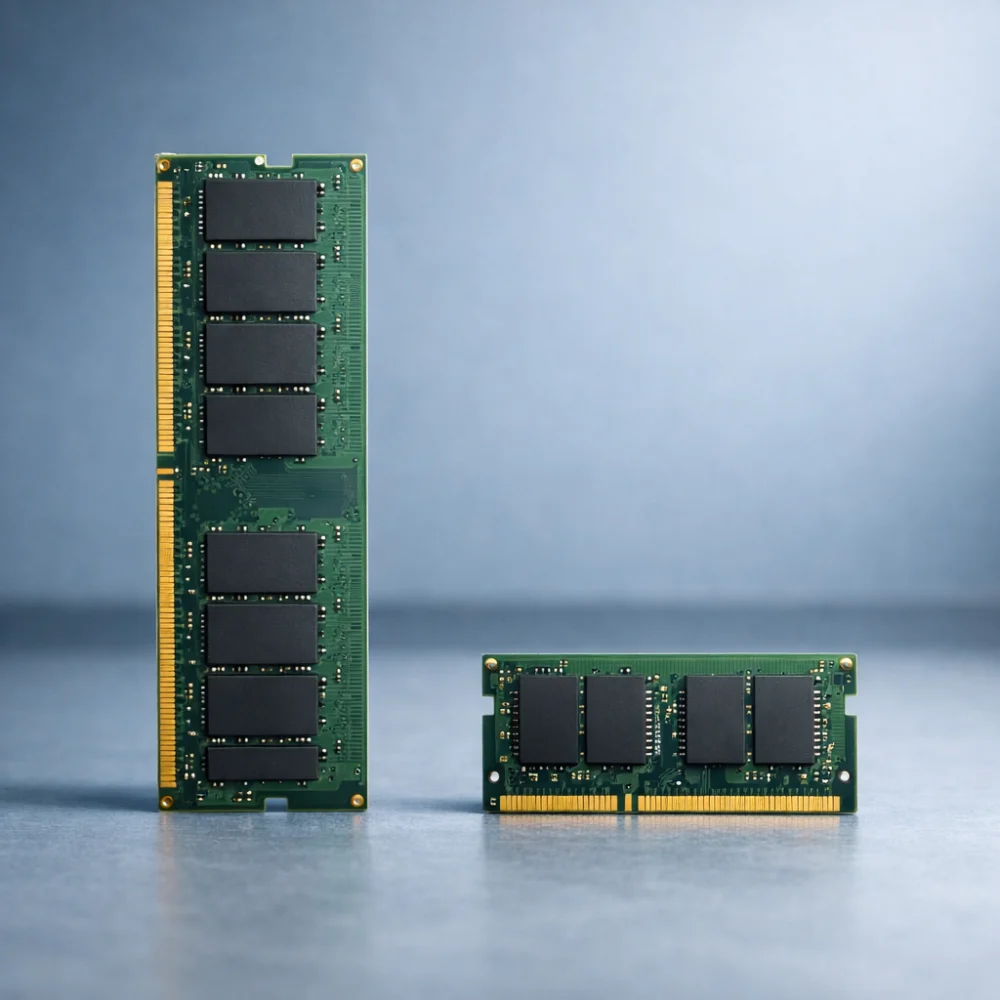
DIMM: A full-size module commonly used in desktop computers. It is not a substitute for a smaller module merely because the memory generation is the same.
SO-DIMM: A shorter module used in many laptops and compact computers. The exact system still determines which generation and specifications are suitable.
ECC or registered memory: Options for systems designed to support those features. They are not automatically a better choice for a standard desktop or laptop; compatibility and the intended system requirements decide.
Choosing RAM for different needs
| Use or situation | Useful priority | Trade-off or check |
|---|---|---|
| Replacing a failed or outdated module | Match the computer’s supported memory type and configuration | Do not assume a module from another computer will be compatible |
| General home or office use | Choose suitable capacity for the applications and tasks used together | Extra capacity may not improve a workload that is not memory-limited |
| Creative or technical workloads | Check application needs and the system’s supported capacity | Memory is only one part of performance; other system limits may remain |
| A server or workstation with specific memory requirements | Match ECC, buffering and capacity requirements precisely | Confirm support across the processor, board and memory configuration |
Common RAM buying mistakes
- Choosing by capacity alone: A large module can still be the wrong generation or format. Confirm compatibility before comparing capacity.
- Assuming faster RAM always runs at its advertised speed: The system may limit the operating speed. Check its supported memory settings and any profile requirements.
- Confusing module capacity with kit capacity: Read whether the stated total refers to one module or the complete kit, then compare it with your required arrangement.
- Mixing memory without checking support: Existing and new modules may have different specifications and can affect the supported configuration. Check system guidance before combining them.
- Treating ECC or registered memory as a universal upgrade: These features are useful only where the system supports and requires the relevant type.
- Relying on a broad device name: A product family can include different hardware configurations. Verify the exact model and, where relevant, its existing configuration.
Suitability and compatibility
Choose memory for the intended computer and its documented requirements. If the device’s exact model, memory limits or existing configuration are unclear, check its manufacturer documentation or seek qualified advice before buying. For systems used in a business or specialist environment, confirm any required memory features with the person responsible for the system.
Ownership, care and storage
RAM has no routine consumables to replace. If keeping spare modules, use suitable protective packaging and follow the manufacturer’s storage and handling guidance. Any installation or handling should follow the computer and memory manufacturers’ instructions; seek competent assistance if you are unsure.
A practical buying process
- Identify the exact computer or motherboard model and whether the purchase is a replacement or an upgrade.
- Check the supported memory generation, module format, capacity and any ECC or buffering requirements.
- Review the installed modules and available slots, then decide on a suitable total capacity and module arrangement.
- Compare speed, timings and any advertised profiles against what the system supports.
- Confirm the product’s full specifications and kit contents on its individual product page before deciding.
RAM buyer checklist
- Have I identified the exact computer or motherboard model?
- Does the memory generation and module format match its requirements?
- Is the total capacity within the system’s supported limit?
- Have I checked the existing modules, slot layout and intended kit arrangement?
- Are the speed, timings and any performance profiles supported?
- Does the system require or support ECC, registered or unbuffered memory?
- Have I checked whether the memory is upgradeable in this computer?
Frequently asked questions
Can I use DDR4 memory in a DDR5 system?
No. DDR generations use different module designs and are not interchangeable. Check the required generation for the exact computer or motherboard.
How much RAM do I need?
It depends on the applications you use and how many you run at once. Check software guidance and your computer’s limits, then consider whether your current workload is constrained by memory.
Can I mix RAM modules?
That depends on system support and the modules’ specifications. Mixed modules may operate at a shared supported setting or configuration, so check the computer’s documentation and the details of both modules before combining them.
Is a higher RAM speed always better?
Not necessarily. The system may limit the speed, and the benefit depends on the workload and other hardware. Compare supported settings rather than choosing on the largest advertised speed alone.
What is the difference between DIMM and SO-DIMM?
They are different physical module formats: DIMM is full-size and SO-DIMM is shorter. The computer’s memory slots determine which format is required.
Do I need ECC memory?
Only if the system and its intended use call for it. Check the specifications of the processor, motherboard and computer before choosing ECC memory.
Does RAM retain my files when the computer is switched off?
No. RAM is working memory used while the computer is running; it is not a replacement for long-term file storage.
Will adding RAM make my computer faster?
It can help if the computer’s workload is limited by available memory, but it will not address every performance bottleneck. Consider the tasks you run and check that the system supports the proposed upgrade.