

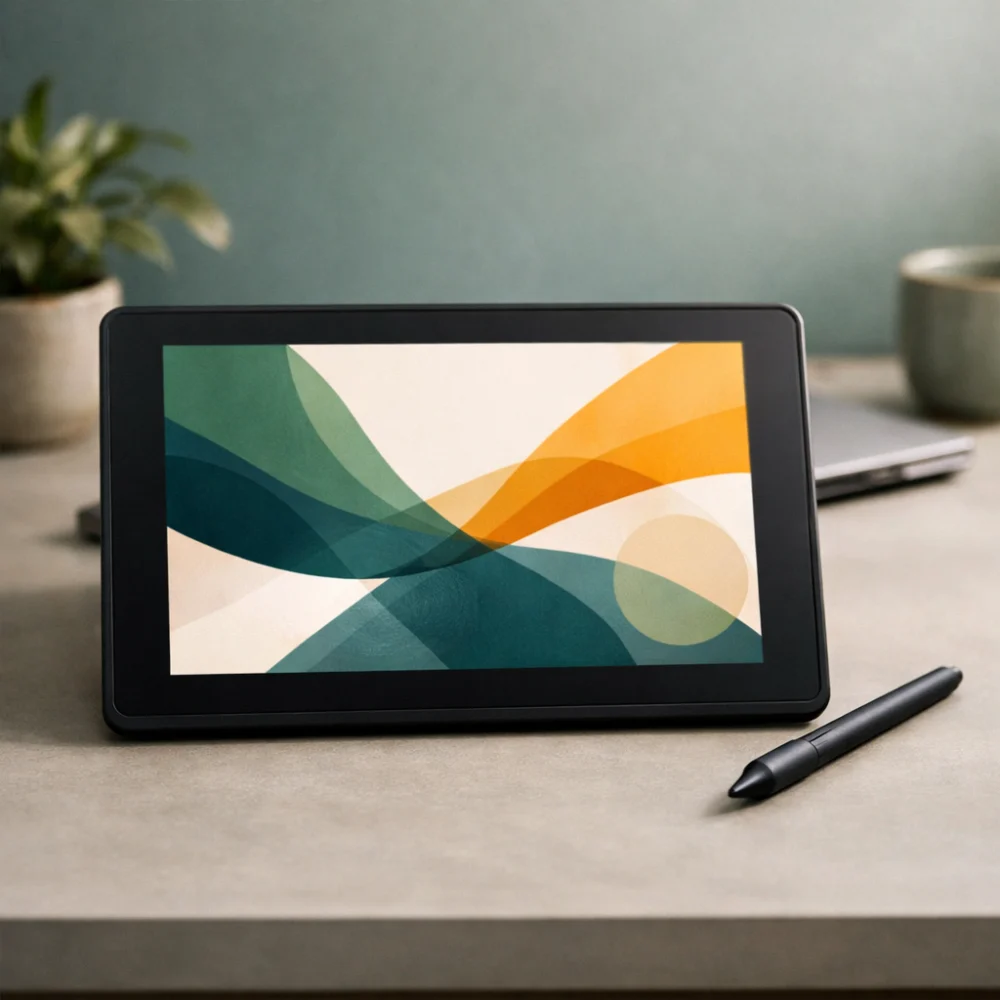
Drawing tablets and stylus pens can make sketching, illustration, handwriting and other precise screen input feel more direct. The category includes different ways to work: some tablets are used with a separate screen, while others show the image beneath the pen; a stylus may also be bought for a compatible touchscreen device.
The right choice depends on your existing computer or tablet, the apps you intend to use and whether you want to look at a separate display or at your drawing surface. Check the specific device and software requirements before choosing, rather than assuming that a pen or tablet will work with every touchscreen.
Which drawing tablet or stylus should you choose?
Start with the device you already plan to use and confirm that the tablet or pen is compatible with it and your intended software. Then decide whether you want a non-display tablet used alongside a computer screen, a display tablet you draw on directly, or a stylus for a supported touchscreen. Prioritise the drawing area, pen behaviour and connection that suit your work; added controls matter only if they fit your workflow. The main trade-off is between a direct drawing surface and a setup that uses a separate screen.
Compare the buying factors
| Feature | What it means | Why it matters | What to check |
|---|---|---|---|
| Device and software compatibility | Whether the tablet or stylus works with your computer, touchscreen device and intended apps. | A suitable drawing surface is of little use if it cannot work with your setup. | Supported operating systems, device models, connection requirements and app compatibility on the individual product page. |
| Display or non-display design | Whether you draw on a screen or use a tablet surface while viewing a separate monitor. | These setups feel different and can affect desk space and how you coordinate hand and image. | Whether a display is built in and what else is required to use the product. |
| Active or basic stylus | A stylus may use device-specific electronic functions, or act more like a simple touchscreen pointer. | Pen response and available functions depend on the pairing of pen and device. | Exact supported device or tablet, power requirements and stated pen functions. |
| Drawing area and working position | The usable surface and the way the tablet sits in your workspace. | A surface that suits your typical strokes and posture may be more comfortable to work with. | Published active-area dimensions, display arrangement and whether a stand or separate support is needed. |
| Pen response | Depending on the model, this may include pressure response, tilt support or other input behaviour. | These functions can affect how naturally a pen works in compatible drawing software. | Which functions are specified, and whether both the tablet, pen and app support them. |
| Connection and power | How the product connects and whether it needs a separate power source or charging. | Connection needs affect portability and the number of cables or charging tasks in your setup. | Connection type, included requirements and whether power or charging is needed for the particular model. |
What to check before choosing
Compatibility comes first
Check compatibility as a combination of tablet or stylus, host device and software. A pen that works with one touchscreen is not necessarily suitable for another, and a tablet may have specific computer or app requirements. Look for explicit support for your device and the software you intend to use; do not rely on a general description such as “for tablets”. Specifications vary by model, so always check the individual product page before buying.
Choose the drawing arrangement
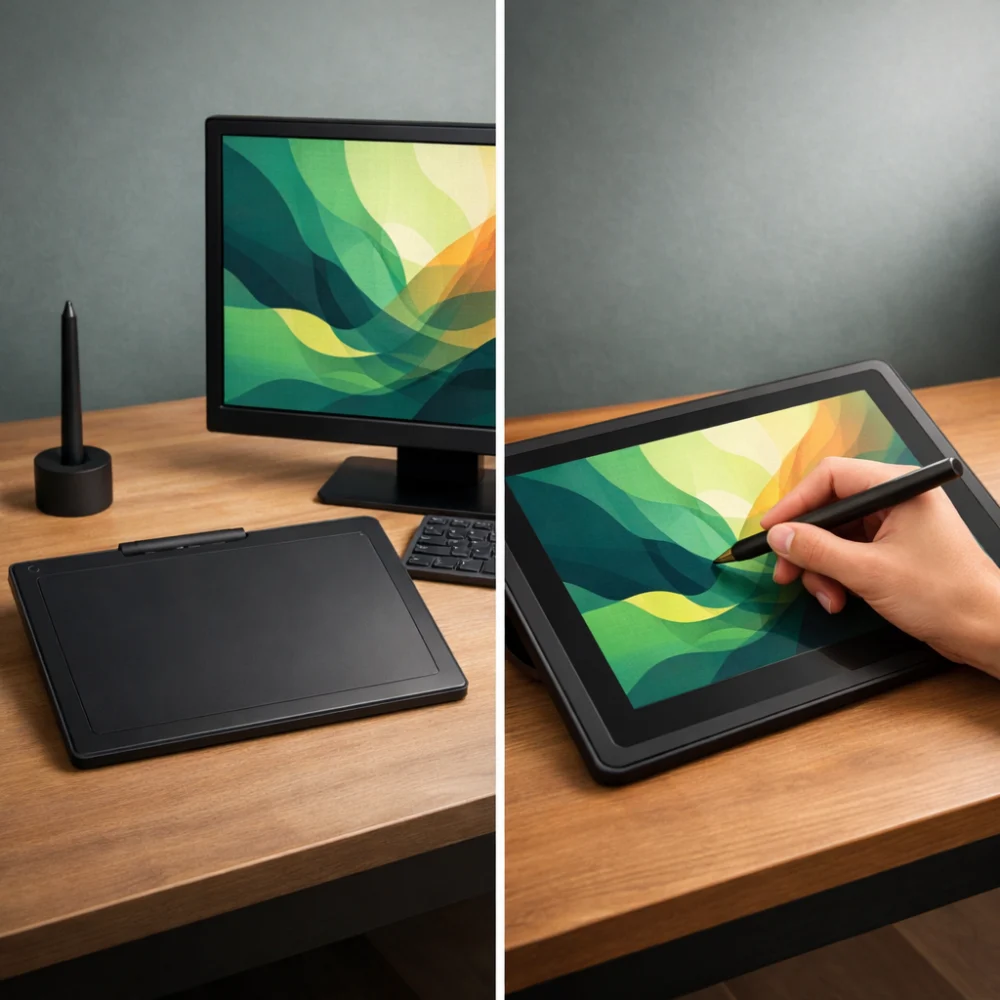
A non-display tablet lets you draw on its surface while viewing the result on a separate screen. A display tablet places the image and drawing surface together, which may suit people who prefer to see the mark beneath the pen. Consider how much desk space you have and whether you are comfortable working with a separate monitor. A tablet with a display does not, by itself, establish what computer, software or cables are needed.
Match pen behaviour to your work
Pressure response and tilt support can matter for drawing techniques that use variations in a stroke, but they are useful only when the pen, tablet and software support them together. For simple pointing or handwritten input, those functions may be less important than basic compatibility and comfort. Check which pen functions are stated for the specific combination, rather than assuming every stylus offers the same response.
Consider the working area and controls
Think about whether you mainly make small edits, write notes or create broader strokes. Compare the stated active area with your desk and preferred hand movement; a larger surface can take more space, while a compact one may constrain some gestures. Shortcut buttons or a stand may be useful for a particular workflow, but should not outweigh compatibility or drawing comfort if you will not use them.
Types of drawing tablets and stylus pens
- Non-display drawing tablets: These use a drawing surface and a separate screen. They may suit a desk setup where a computer monitor is already part of the workflow; coordinating hand movement with a separate image may take some adjustment.
- Display drawing tablets: These let you draw on a screen. They may suit buyers who prefer a direct view of the work beneath the pen, but check the required connections and host-device support.
- Active stylus pens: These are designed to work with specified compatible devices and may offer functions such as pressure or tilt support. Compatibility is device-specific, so check the stated pairing.
- Basic touchscreen styluses: These can provide a pen-shaped alternative to finger input on compatible touchscreens. They may not offer the drawing controls or response of a supported active pen.
Choose for the way you plan to use it
| Need | Characteristics to prioritise | Trade-off to consider |
|---|---|---|
| Learning digital drawing at a desk | Clear computer and software compatibility, a suitable drawing area and a setup that fits your monitor arrangement. | A non-display tablet can be a separate surface to coordinate with the screen; a display model has different connection and workspace needs. |
| Drawing directly on a screen | A display tablet or compatible touchscreen-and-stylus pairing, with the relevant app support confirmed. | Confirm what host device and connections are required rather than assuming the drawing screen works independently. |
| Notes or occasional touch input | A stylus explicitly compatible with the device, with a comfortable form and functions appropriate to the task. | A simple stylus may be enough for basic input, but may not offer advanced drawing response. |
| Replacing a pen or adding one to an existing setup | Exact compatibility with the current tablet or touchscreen and confirmation of any required charging or pairing. | A similar-looking pen is not necessarily interchangeable with the one designed for your device. |
Common buying mistakes
- Assuming any stylus works with any screen: Check the exact device compatibility, since supported functions can differ between devices.
- Choosing by feature names alone: Pressure or tilt support is useful only when the pen, tablet and software support it together. Verify the complete setup.
- Overlooking the display arrangement: Decide whether you want to draw on a separate tablet surface or directly on a screen, and account for the required host device.
- Focusing only on surface size: Compare the active drawing area with available desk space and your typical work, not just the product’s overall footprint.
- Assuming the tablet is a standalone computer: Check whether a computer or other host device is required and what connections the particular product needs.
- Buying a replacement pen by appearance: Confirm its stated compatibility and any required pen functions instead of relying on shape or a broad touchscreen claim.
Safety and suitability
Choose a product for its intended devices and tasks, and check the individual product information for suitability, connection and power requirements. If buying for someone else, confirm that their device and software support the intended tablet or stylus before selecting it. Keep any supplied pen or small accessories appropriate to the intended user and follow the product information.
Care, storage and ongoing needs
Consider how you will store the pen and tablet between sessions, particularly if they will be carried with other equipment. A pen may have model-specific power or replacement-tip needs, so check the product details for those requirements. Follow the care guidance supplied for the particular screen or drawing surface, rather than assuming all finishes can be cleaned in the same way.
A practical buying process
- Write down the computer or touchscreen device and drawing software you intend to use.
- Decide whether you want a non-display surface, a display tablet or a compatible stylus for a device you already own.
- Filter out options without clear support for your device and intended software.
- Compare drawing area, pen functions, connection and power requirements against your workspace and usual tasks.
- Check the individual product information for included requirements, compatibility and any ongoing pen needs before deciding.
Buyer checklist
- Does the product explicitly support the device and software I plan to use?
- Do I want a separate drawing surface or a screen to draw on directly?
- Are the active area and overall setup suitable for my desk and working habits?
- Are the pen functions I need supported by the tablet and my software?
- Have I checked connection, power, charging and any replacement-tip requirements?
- Have I confirmed what else is needed to use the product?
Frequently asked questions
Do drawing tablets need a computer?
Many drawing tablets are intended to connect to a computer, but requirements vary by product. Check whether the specific model needs a host device, what connections it uses and whether it supports your operating system and software.
What is the difference between a display and non-display drawing tablet?
A non-display tablet uses a separate screen to show the work, while a display tablet has a screen that serves as the drawing surface. The choice is mainly about working style, available space and setup requirements.
Will any stylus work with my tablet?
No. Stylus compatibility depends on the particular touchscreen or drawing tablet, and a pen may not provide its intended functions on an unsupported device. Check the specific device or model compatibility before buying.
Do I need pressure sensitivity for drawing?
It depends on the kind of work and software you use. Pressure response can be helpful for techniques that vary a stroke, but may be unnecessary for basic pointing or notes. Confirm that the pen, tablet and app all support the function if it matters to you.
Can a basic touchscreen stylus replace an active pen?
Not necessarily. A basic touchscreen stylus may be suitable for simple input, whereas an active pen may be designed for specific drawing functions on supported devices. Compare the stated functions and compatibility with your intended use.
What should I check when replacing a stylus?
Check the replacement pen’s exact compatibility with your current device and confirm any required functions, power or charging. Similar appearance or a general touchscreen description does not establish that a pen will work with your setup.