Drawing tablets and stylus pens are designed to help you draw, sketch, write, edit and control compatible devices with greater precision than a mouse or finger. Whether you are creating digital art, editing photos, taking notes, designing graphics or learning creative software, the right tablet or pen can make your workflow feel more natural and controlled.
This category can include graphics tablets, pen tablets, screen drawing tablets, tablet stylus pens, replacement pens, active styluses, nibs and related accessories, depending on the products listed. Features vary widely, so always check compatibility, connection type, device support, pressure sensitivity where listed, pen technology and software suitability before buying.
£14.93Original price was: £14.93.£13.99Current price is: £13.99.*View On Amazon*
What Are Drawing Tablets and Stylus Pens?
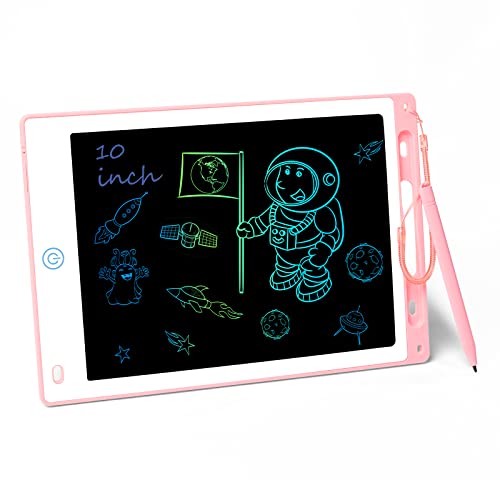
Drawing tablets are input devices used to draw, write or control a computer or compatible tablet using a pen style tool. Some drawing tablets do not have a display and are used with a monitor, while others include a screen so you can draw directly where the image appears.
Stylus pens are pen shaped accessories used with compatible tablets, phones, laptops or drawing devices. Some are simple touch pens, while others are active stylus pens with features such as pressure sensitivity, palm rejection or tilt support where listed.
What Are Drawing Tablets and Stylus Pens Used For?
Drawing tablets and stylus pens are used for digital drawing, illustration, graphic design, animation, photo editing, handwriting, note taking, marking documents, online teaching, digital signatures and creative practice.
For artists, they can make drawing lines, shading and brush control feel more natural. For designers, they can help with layout work, image editing and precision tasks. For students, a stylus may be useful for handwritten notes or diagrams where compatible. For office users, a pen input device can help with annotations, forms and presentations.
How To Choose The Right Drawing Tablet or Stylus Pen
Start by thinking about what device you want to use it with. Compatibility is the most important factor. A stylus that works with one tablet may not work with another, and a drawing tablet may need specific computer ports, drivers or operating system support where listed.
Next, decide whether you want a tablet with a screen or without a screen. A graphics tablet without a display can be more compact and may suit beginners or desk based work. A screen drawing tablet lets you draw directly onto the display, which can feel more natural for some users.
Then consider your creative needs. If you are sketching casually, a simple tablet or stylus may be enough. If you are doing detailed illustration, animation or photo editing, features such as pressure sensitivity, tablet size, pen accuracy, shortcut buttons and software compatibility may matter more where listed.
Key Features To Compare
Compatibility should always come first. Check whether the product works with your computer, tablet, phone, operating system and creative software where listed. Do not assume a pen or tablet is universal.
Tablet size is another useful comparison point. A smaller tablet may be easier to carry and fit on a desk, while a larger drawing area may feel more comfortable for detailed artwork or wider arm movement where suitable.
Pen features can vary significantly. Some pens may be battery free, while others may need charging or batteries where listed. Some may include pressure sensitivity, tilt support, palm rejection, side buttons or replaceable nibs where stated.
Connection type is also important. Drawing tablets may connect by USB, USB C, Bluetooth, wireless receiver or another method where listed. Make sure your device has the right connection or supports the required wireless setup.
Other useful features to compare include screen size where relevant, display resolution where listed, shortcut keys, stand options, cable length, nibs included, driver support, left hand or right hand settings, portability and care instructions.
Drawing Tablets Compared With Normal Tablets
A normal tablet is usually a complete portable device with its own screen, apps, battery and operating system. It may support drawing where compatible with a suitable stylus, but not every tablet is designed for serious pen input.
A drawing tablet may be made specifically for creative control. Some need to be connected to a computer, while others may include a display or work with certain devices where listed. They are often chosen for art, editing and design work.
The main trade off is standalone convenience versus dedicated creative input. A normal tablet can be useful for many tasks, while a drawing tablet may be better suited to focused digital art and design workflows where compatible.
Screen Drawing Tablets Compared With Pen Tablets
Screen drawing tablets let you draw directly on a display. This can feel more intuitive because the pen and image are in the same place. They may be useful for illustration, design and detailed creative work where listed.
Pen tablets without screens use a separate drawing surface while you look at a computer monitor. They can feel less natural at first, but many users adapt with practice. They may be more compact, simpler to store and useful for desk setups.
The main choice is direct drawing feel versus desk space and simplicity. A screen tablet may feel more familiar, while a pen tablet may be more practical for learning, travel or regular computer use.
Stylus Pens Compared With Mouse Control
A mouse is useful for general computer control, browsing, clicking and many everyday tasks. It can be accurate, but it may not feel natural for drawing curves, handwriting or brush strokes.
A stylus pen gives a more pen like input style. This can feel better for sketching, photo retouching, handwritten notes, signatures and creative work where fine movement matters.
The main trade off is general control versus natural hand movement. A mouse is practical for many tasks, while a stylus can be more suitable when drawing or writing is the priority.
Guidance For Beginners, Regular Users And Experienced Creators
Beginners should focus on compatibility, ease of setup and comfortable size. A simple drawing tablet or compatible stylus can be enough for learning digital sketching, note taking or basic photo editing.
Regular users may want to compare pen feel, shortcut buttons, tablet size, connection type and how well the product fits their desk or travel routine. If you use creative software often, small comfort details become more noticeable.
Experienced creators may look more closely at pressure sensitivity where listed, tilt support, display quality where relevant, colour guidance where stated, driver settings, pen response, nib options and workflow compatibility with specific creative software.
Use Cases By Creative And Practical Need
For digital art, drawing tablets and stylus pens can help with sketching, line work, colouring, shading and brush control. A comfortable pen and responsive drawing area can make practice more enjoyable.
For photo editing, a stylus can be useful for masking, retouching, selections and detailed adjustments where compatible with the software being used.
For graphic design, drawing tablets can help with layouts, shapes, lettering, icons and creative editing tasks, depending on the program and user skill.
For students and note takers, a compatible stylus pen can help with handwritten notes, diagrams, maths work and document annotation.
For online teaching or presenting, a pen input device may be useful for marking slides, drawing examples or writing on screen where the software supports it.
For office work, stylus pens can help with digital signatures, form filling and comments on documents where compatible.
Fit, Compatibility And Software Considerations
Before buying, check the devices you plan to use. A stylus pen may only work with certain tablets, laptops or phones. A drawing tablet may need drivers, specific operating system support or creative software compatibility where listed.
Check whether the product supports your preferred software. Programs for drawing, painting, editing, animation, note taking and design may use pen input differently. Some features may only work if the software and device both support them.
If buying a replacement stylus, make sure it matches the exact tablet or device model where required. Similar looking pens are not always compatible.
For computer based drawing tablets, check that your device has the required ports and that there is enough desk space for comfortable use.
Comfort, Pen Feel And Working Position
Comfort matters because drawing and writing can involve long sessions. The tablet should sit in a position that allows relaxed shoulders, wrists and hands.
Pen shape, weight and button placement can affect how natural the stylus feels. Some users prefer a thicker pen, while others prefer a slimmer design. Replaceable nibs where listed may also change the drawing feel over time.
If using a screen tablet, consider viewing angle and posture. A stand may be useful where compatible. If using a pen tablet without a screen, it may take time to coordinate hand movement on the tablet with the cursor on the monitor.
Safety And Practical Use
Drawing tablets and stylus pens should be used according to the product instructions. Keep cables tidy, avoid placing drinks near electronics and do not use damaged chargers, cables or ports.
For screen tablets, avoid pressing too hard unless the product guidance says it is suitable. Heavy pressure may wear nibs or affect the surface over time. For stylus pens with batteries or charging, follow the charging guidance carefully.
Keep small nibs, tips and accessories away from young children. Store the pen safely when not in use so it does not roll off the desk or become damaged.
Care, Cleaning And Maintenance
Always follow the care guidance for the specific tablet or stylus. Keep the drawing surface clean and free from grit, dust and sharp objects that could scratch it.
Clean screens or tablet surfaces with suitable cloths where recommended. Avoid harsh cleaners unless the product instructions say they are suitable.
Check nibs regularly. Worn nibs may feel scratchy or less accurate and may need replacing where compatible. If the pen has buttons, charging points or removable parts, handle them carefully.
For wireless products, keep batteries charged or replaced as instructed. For wired products, avoid pulling cables sharply or bending connectors.
Storage And Transport Tips
Store drawing tablets and stylus pens clean, dry and protected from knocks. A sleeve, case or desk organiser may help where compatible.
Keep stylus pens in a holder, case or magnetic storage area where provided so they are not lost. Replacement nibs and small accessories should be kept together in a labelled pouch or drawer.
If travelling with a drawing tablet, protect the screen or surface from pressure, keys, cables and other items in your bag. Do not place heavy objects on top of the tablet.
Useful Accessories To Consider
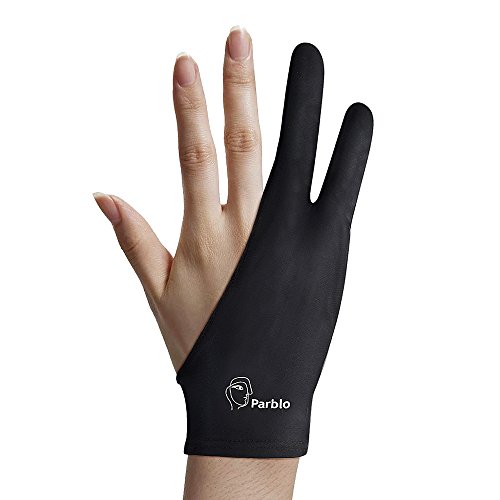
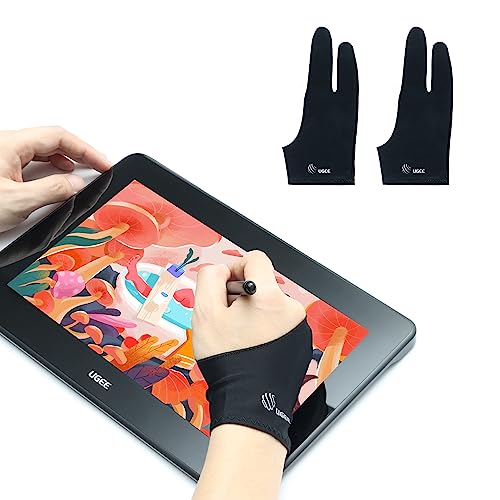
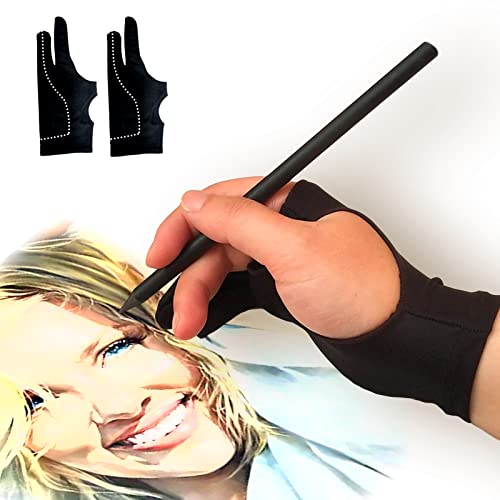
Useful accessories may include replacement nibs, pen holders, tablet stands, drawing gloves, screen protectors where compatible, USB cables, adapters, laptop stands, monitor arms, keyboard shortcut devices, carry cases and cleaning cloths.
For creative work, a comfortable desk setup can be just as important as the tablet itself. A suitable chair, monitor position, keyboard and mouse can help make longer sessions easier.
Why Buy From YPC?
At YPC, we understand active lifestyles and the need for practical products that work in real use. Drawing tablets and stylus pens can vary by compatibility, size, connection type, pen technology, pressure sensitivity where listed, software support and included accessories, so it helps to compare the details carefully before choosing.
YPC makes it easier to browse drawing tablets and stylus pens in a practical way, with options that can be compared by listed features, device needs and creative workflow. Whether you are buying for digital art, study, photo editing, design work, note taking or everyday pen control, you can browse and compare drawing tablets and stylus pens at YPC to find suitable options for your setup.
FAQs
What is a drawing tablet used for?
A drawing tablet is used for digital drawing, sketching, photo editing, design work, handwriting, animation and other tasks that benefit from pen input. It usually works with a computer or compatible device.
What is the difference between a drawing tablet and a stylus pen?
A drawing tablet is the input surface or display used for drawing. A stylus pen is the pen shaped tool used to write or draw on a compatible tablet, screen or drawing device.
Do drawing tablets need a computer?
Some drawing tablets need to connect to a computer, while others may work with certain tablets or devices where listed. Always check the product details to see how it is used.
Are drawing tablets good for beginners?
Yes, a simple compatible drawing tablet can be useful for beginners learning digital art, editing or handwriting. Beginners should focus on easy setup, comfortable size and software compatibility.
What does pressure sensitivity mean on a stylus?
Pressure sensitivity means the pen may respond differently depending on how hard you press, where this feature is listed and supported. It can help with line weight, shading and brush control in compatible software.
Will any stylus work with any tablet?
No. Stylus pens are not always universal. Compatibility can depend on the tablet model, screen technology, operating system and supported pen features, so check the listing carefully.
Should I choose a screen drawing tablet or a tablet without a screen?
A screen drawing tablet lets you draw directly on the display, which can feel natural. A tablet without a screen may be more compact and is used while looking at a separate monitor. The better choice depends on budget, space and preference.
Can drawing tablets be used for photo editing?
Yes, drawing tablets can be useful for photo editing where compatible with the software. They can help with retouching, masking, selections and detailed adjustments.
Do stylus pens need charging?
Some stylus pens need charging or batteries, while others may be battery free where listed. Check the product details before buying.
How do I care for a drawing tablet and stylus pen?
Keep the surface clean, avoid grit and sharp objects, store the pen safely and replace worn nibs where compatible. Follow the product care guidance for cleaning, charging and storage.
Heading outdoors this winter? Take a look at our Outdoor Clothing.
Manage Consent
To provide the best experiences, we use technologies like cookies to store and/or access device information. Consenting to these technologies will allow us to process data such as browsing behaviour or unique IDs on this site. Not consenting or withdrawing consent, may adversely affect certain features and functions.
Functional
Always active
The technical storage or access is strictly necessary for the legitimate purpose of enabling the use of a specific service explicitly requested by the subscriber or user, or for the sole purpose of carrying out the transmission of a communication over an electronic communications network.
Preferences
The technical storage or access is necessary for the legitimate purpose of storing preferences that are not requested by the subscriber or user.
Statistics
The technical storage or access that is used exclusively for statistical purposes.The technical storage or access that is used exclusively for anonymous statistical purposes. Without a subpoena, voluntary compliance on the part of your Internet Service Provider, or additional records from a third party, information stored or retrieved for this purpose alone cannot usually be used to identify you.
Marketing
The technical storage or access is required to create user profiles to send advertising, or to track the user on a website or across several websites for similar marketing purposes.