

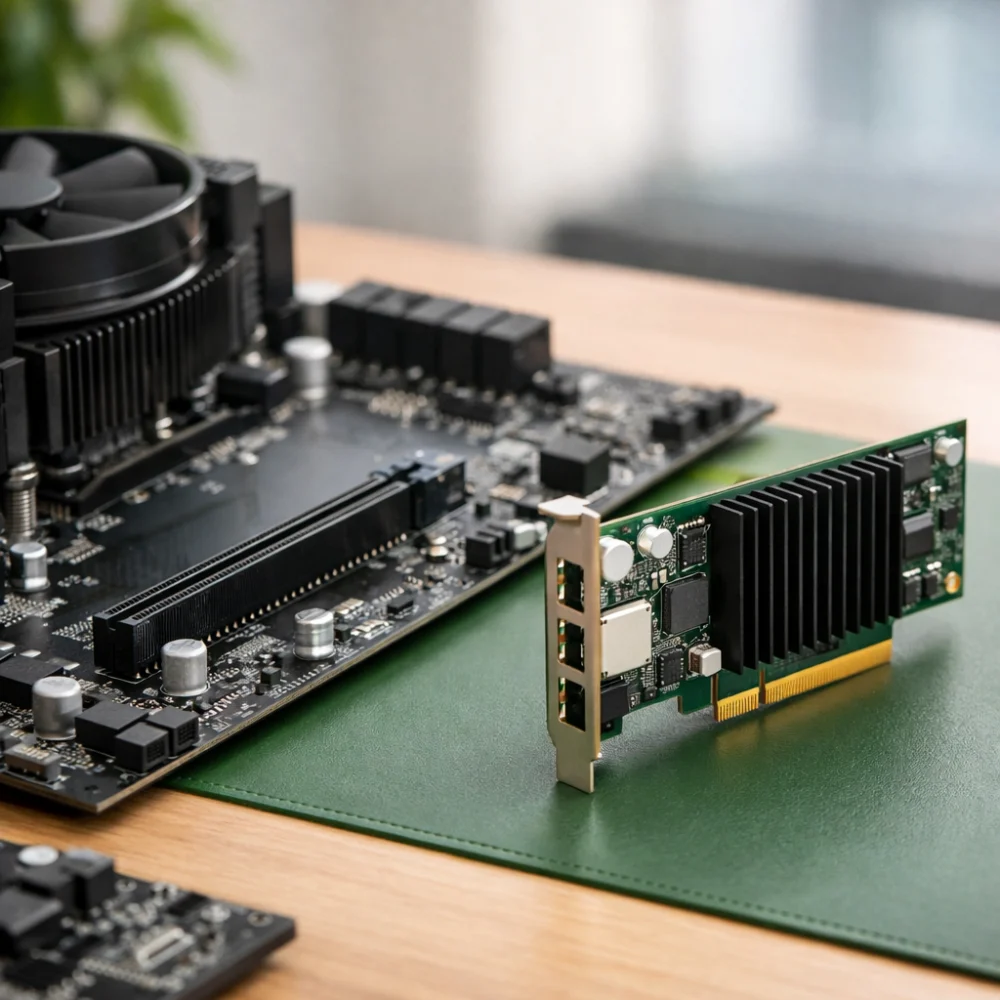

An expansion card fits inside a desktop computer to add or change a function, such as providing extra USB connections or support for another interface. The right choice depends not just on the ports you want, but on whether the card will work with your motherboard, case and operating system.
This guide focuses on choosing an internal add-in card for a specific PC. Start with the task you need it to handle, then check the computer’s available expansion slot and the card’s requirements before comparing features.
Compare Expansion Cards




As an Amazon Associate we earn from qualifying purchases.
Which expansion card should you choose?
Choose a card that provides the exact interface or capability you need, and confirm that your PC has a compatible slot and enough room for it. Check the card’s system and driver support, any additional power requirement, and how its ports or connectors are arranged. A higher speed or larger port count is useful only if the connected devices and the rest of the system can make use of it. When compatibility is uncertain, consult the computer or motherboard documentation before buying.
Compare the important buying factors
| Feature | What it means | Why it matters | What to check |
|---|---|---|---|
| Card function and interface | The capability and connection standard the card adds, such as USB ports or support for a legacy interface. | It determines which devices you can connect and whether their connection requirements are met. | Match the card’s stated interface and port types to the device and task you have in mind. |
| PCIe slot requirements | The physical connector and system connection the card is designed to use. | A card needs a suitable available slot; slot size alone does not confirm compatibility. | Check the card and motherboard documentation for slot compatibility, and whether another component occupies the required space. |
| Case clearance and bracket | The room inside the case and the card’s mounting arrangement. | A card may not fit if the case is too small or its bracket does not suit the available opening. | Compare the card’s dimensions and bracket type with the case and the PC’s layout. |
| Speed and shared bandwidth | The connection rate stated for the card and how its connections may use system resources. | Several ports or devices may share a connection, so a headline rate does not necessarily describe every device’s real-world transfer rate. | Check the individual product information and consider how many devices you expect to use at once. |
| Power and port arrangement | Whether the card needs additional power and where its ports or internal connectors are located. | Power needs and port placement affect installation suitability and how easily cables reach. | Look for any specified power connector, external ports, internal headers and their positions. |
| Operating-system support | Whether the card’s software or drivers support your computer’s operating system. | Support can vary by card and system, particularly for less common or older interfaces. | Check the stated operating-system and driver requirements for your setup. |
Check compatibility before comparing extras
Confirm the motherboard slot
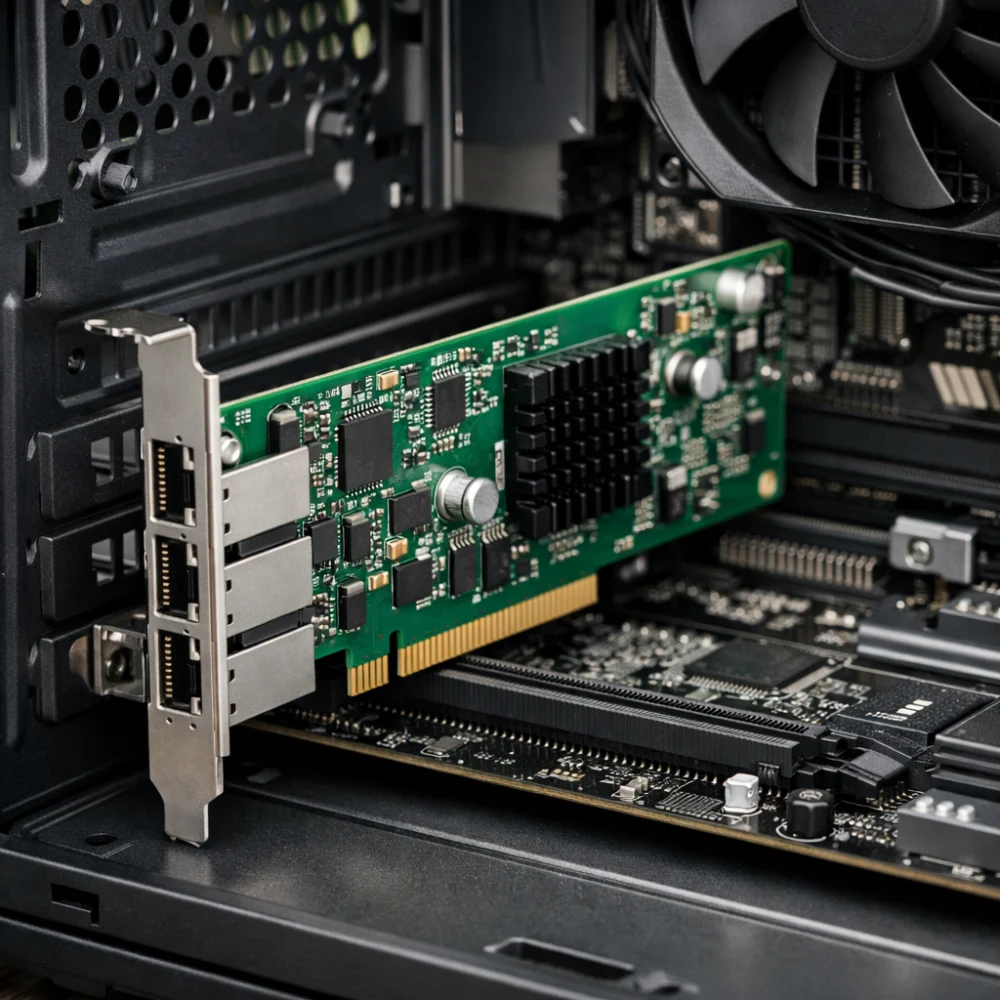
Many internal expansion cards use PCI Express (PCIe), but the required connector and compatibility depend on the particular card and motherboard. Check the available slot against the card’s stated requirements rather than assuming that any open slot will work. Also consider whether a graphics card or another component blocks the slot or leaves too little room for the card.
Specifications vary by model, so always check the individual product page before buying.
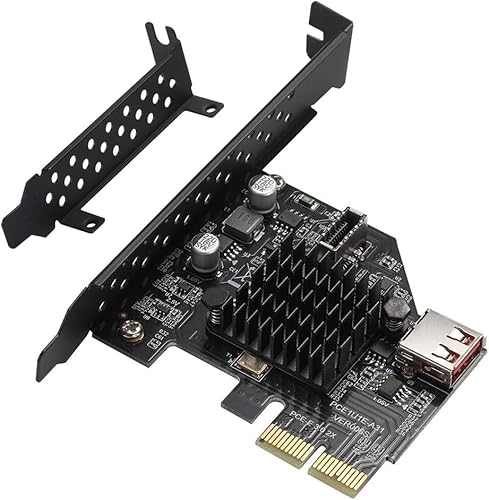
For a close-fitting case, check both the card’s dimensions and the bracket arrangement. A low-profile bracket is relevant only when it matches the case and the card is supplied or specified for that configuration.
Match the ports to the devices
Count the connections you actually need and check their exact types. USB Type-C describes a connector shape, not by itself a particular data rate or power capability. Check separately for any stated transfer standard or power-delivery feature if your device depends on it. For older peripherals, confirm that the card supports the required interface and that suitable drivers are available for your operating system.
Understand speed, power and drivers
Cards may state a connection speed, but that figure does not guarantee the same speed for every connected device or when several ports are in use. The device, cable, card and computer all affect what can be achieved. Check whether the product information describes shared connections or a particular power requirement, and do not assume an available motherboard slot provides all the power a card needs.
Driver support can be especially important for specialist or legacy interfaces. Verify support for the operating system you use and check whether a driver or other software is required. Do not infer support from the connector shape alone.
Common expansion-card types
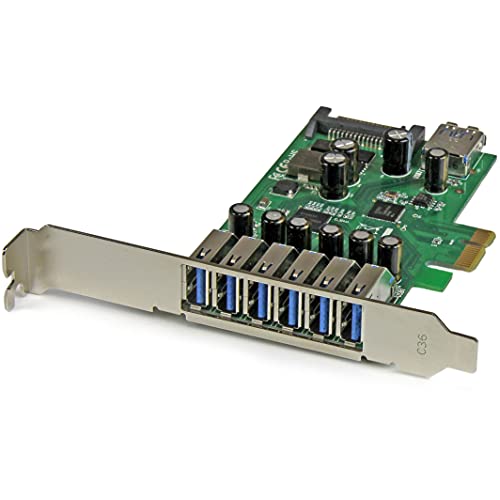
- USB port cards: Can add USB connections, with port count, connector type and stated standard varying by card. They suit a PC that needs more of a particular kind of USB connection; check system support, power needs and how ports share bandwidth.
- Legacy-interface cards: Can provide an interface needed by older or specialist equipment. They may be useful when the computer lacks that connection, but confirm the exact interface, device compatibility and operating-system support before choosing one.
- Other function-specific cards: Some expansion cards add a particular connectivity or system function. Identify the required standard and check compatibility with both the motherboard and the equipment you intend to connect.
Expansion cards are not interchangeable just because they fit inside a PC. This guide concerns add-in cards for specific functions; graphics cards are a separate component choice with their own compatibility considerations.
Choose for the job you need done
- Adding ports for several peripherals: Prioritise the right port types and a suitable port count. Check whether connected devices may share bandwidth and whether the card needs additional power.
- Connecting one specific device: Match its required interface and any stated speed or power needs. A card with more ports is not necessarily a better fit if it does not support the device’s requirements.
- Using older equipment: Verify the exact interface and confirm driver support for your operating system. Legacy connections can be more dependent on specific software support.
- Upgrading a compact PC: Check card dimensions, bracket type and clearance around the intended slot before comparing port features.
Common buying mistakes
- Choosing by connector shape alone: A familiar-looking connector does not confirm data speed, power capability or device support. Compare the stated standards and requirements.
- Assuming any open slot will do: The slot’s physical appearance does not establish that it meets the card’s requirements. Check both motherboard and card documentation.
- Ignoring case space: A compatible slot can still be obstructed or unsuitable for the card’s dimensions or bracket. Check the computer’s internal layout.
- Focusing only on the advertised speed: A stated rate may not apply to every port at once. Consider how you will use the card and check the product information for relevant limitations.
- Overlooking drivers or extra power: A card can be a poor fit if its system support or power requirements do not match your PC. Check these before purchase.
Suitability and safe selection
Internal cards are intended for compatible desktop systems, and suitability depends on the computer’s hardware and software. If you are unsure about the available slot, physical fit or system support, consult the PC or motherboard documentation or seek qualified help. Follow the card manufacturer’s guidance for installation and compatibility rather than assuming that a general category description applies to every model.
Care, maintenance and storage
Once selected, check whether the card’s requirements include drivers, software or an additional power connection, and keep any relevant product documentation for future reference. If the card is not being installed immediately, store it in a clean, dry place in suitable protective packaging. Care and software needs vary by product, so follow its supplied guidance.
A practical buying process
- Write down the device or function you need the card to support, including the exact connection standard if known.
- Check the computer’s available motherboard slot, case space and bracket arrangement.
- Compare cards that meet those requirements, then review port types, speed information and any power needs.
- Confirm operating-system and driver support, especially for a legacy or specialist interface.
- Read the individual product information and resolve any compatibility uncertainty before deciding.
Buyer checklist
- Does the card provide the exact interface and port types I need?
- Is the required motherboard slot available and compatible?
- Will the card and its bracket fit the case without being obstructed?
- Have I checked any additional power, driver and operating-system requirements?
- Do the stated speed and port arrangement suit how I will use connected devices?
- Have I checked the individual product information rather than relying on the category name alone?
Frequently asked questions
What does an expansion card do?
It is an add-in component that provides a particular function or connection in a compatible desktop computer. The exact capability depends on the card, so match its interface and requirements to your PC and devices.
Will a PCIe expansion card fit any PCIe slot?
Not necessarily. The card’s connector and system requirements, the motherboard’s slot and the available physical space all matter. Check both sets of documentation rather than relying on the slot’s appearance.
Does a USB Type-C port guarantee fast data transfer?
No. Type-C identifies the connector shape, while data capability and power features depend on the card and its stated specifications. Check the interface details against the needs of the device you intend to connect.
Can several devices use an expansion card at the same time?
That depends on the card and the connected devices. Some connections may share bandwidth or have specific power requirements, so check the product information if simultaneous use matters to you.
Do expansion cards need drivers?
Some do, and support can vary by card and operating system. Check the individual product information for driver or software requirements before choosing.
Are expansion cards suitable for laptops?
Most internal desktop expansion cards are designed for a compatible desktop system, not for installation inside a typical laptop. Check the computer’s documentation and the card’s stated intended use.
Is a low-profile card the same as a standard card?
Low-profile refers to a card’s mounting arrangement for suitable compact cases. Check the card dimensions, bracket configuration and case fit; do not assume a bracket or fit that is not specified.
More Expansion Cards
See all 227 Expansion Cards →


As an Amazon Associate we earn from qualifying purchases.