
Expansion Cards
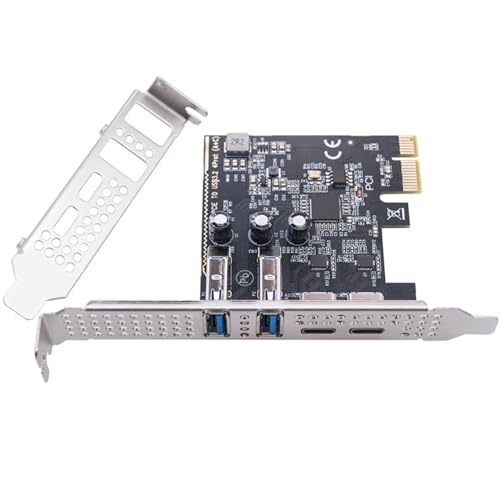
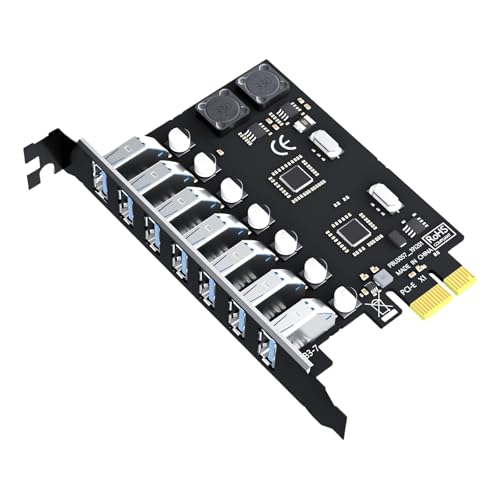
Expansion Cards are used to add extra functions, ports or performance features to a desktop computer. Whether you are upgrading an older PC, adding more USB ports, improving network options, installing a sound card, adding storage support or building a more capable workstation, the right expansion card can make your setup more useful without replacing the whole machine.
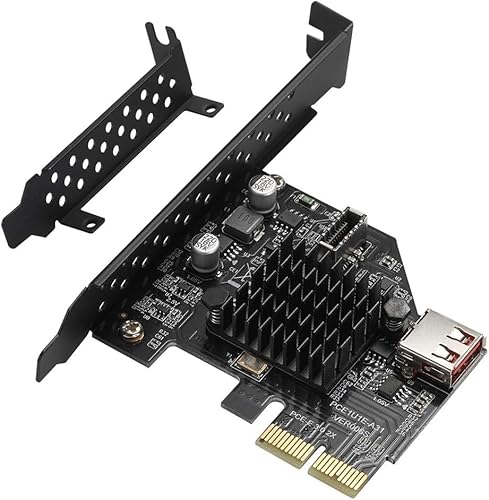
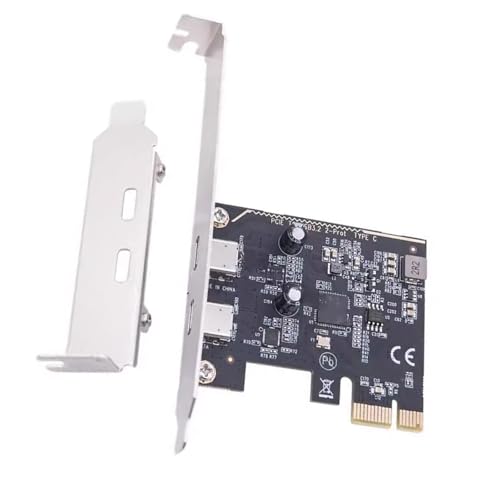
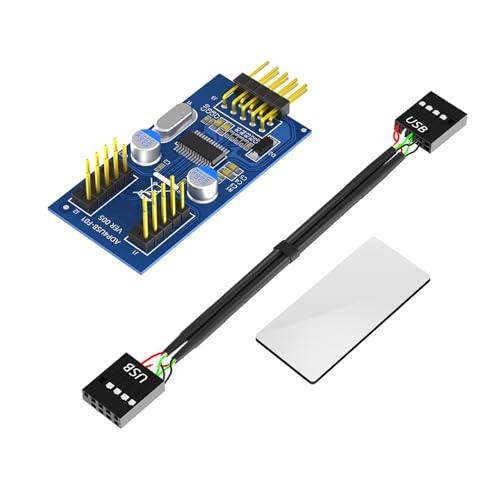
This category includes expansion cards for different computer builds, connection types and upgrade needs. Depending on the product, you may find PCIe cards, network cards, WiFi cards, Bluetooth cards, USB expansion cards, sound cards, capture cards, storage controller cards and other internal computer upgrade cards where listed.
- Expansion Cards
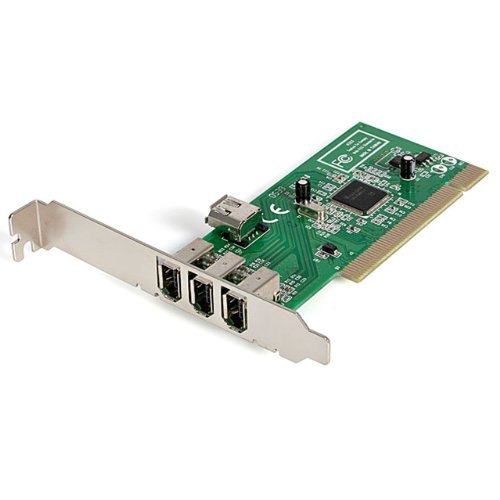
StarTech.com 4 port PCI 1394a FireWire Adapter Card – 3 External 1 Internal FireWire PCI Card (PCI1394MP)
Original price was: £31.18.£29.15Current price is: £29.15. *View On Amazon*










What Are Expansion Cards?
Expansion cards are internal computer components that fit into a motherboard slot to add or improve a specific function. In many desktop PCs, they connect through PCIe slots, although exact compatibility depends on the motherboard and the card.
An expansion card can add features that are missing from the computer, improve older connections or provide extra ports for devices. They are commonly used in custom PC builds, office upgrades, gaming setups, media systems and workstations where more connectivity or specialist functions are needed.
What Expansion Cards Are Used For
Expansion cards are used to extend what a computer can do. A USB expansion card may add more ports for peripherals. A network card may add wired or wireless connectivity where compatible. A sound card may improve or add audio connections. A capture card may support video input for recording or streaming where listed.
They can also be used for storage expansion, extra display support, specialist equipment connections or replacing built in features that no longer work as required.
For many users, expansion cards are a practical way to improve a desktop PC without buying a completely new system.
How To Choose The Right Expansion Card
Start with the function you need. Decide whether you want extra ports, better networking, audio support, storage connectivity, video capture or another specific upgrade.
Next, check your motherboard. The card needs a compatible slot, usually PCIe where listed, and enough physical space inside the computer case. Some cards may need a certain slot size, clearance, bracket type or extra power connection where listed.
Finally, check software and operating system compatibility. Some expansion cards may need drivers, updates or support for specific operating systems. Always read the product details carefully before choosing.
Key Features To Compare
Compatibility is the most important feature. Check the card interface, motherboard slot, case size, operating system support and any power requirements where listed.
Connection type also matters. USB cards, network cards, sound cards and storage cards all serve different purposes, so make sure the card solves the exact problem you have.
Port number and port type are worth comparing. Extra USB ports, Ethernet ports, audio connections or storage connectors can vary by product. Check whether the ports match the devices you plan to use.
Speed and performance features may be important where listed, especially for networking, storage, video capture or high data transfer use. Remember that performance depends on the card, motherboard, connected devices and software support.
Cooling, bracket size, chipset, driver support and included accessories can also affect how practical the card is to install and use.
Expansion Cards Compared With External Adapters
External adapters are usually easier to use because they plug into an existing USB, USB C or display port. They can be useful for laptops, temporary setups or simple upgrades.
Expansion cards are installed inside a desktop PC and can provide a cleaner, more permanent upgrade. They may offer more ports, better stability or stronger suitability for regular use depending on the card and system.
The trade off is installation. External adapters are simpler, while expansion cards require opening the computer and checking internal compatibility.
Expansion Cards Compared With Built In Motherboard Features
Many motherboards already include networking, audio, USB ports and storage connections. For basic use, built in features may be enough.
An expansion card can be useful when the motherboard does not include the connection you need, when you have run out of ports, or when a particular built in feature no longer meets your requirements.
The right choice depends on your current setup. If the motherboard already supports what you need, an expansion card may not be necessary. If you need extra or different functionality, a compatible card can be a practical upgrade.
PCIe Cards Compared With Older Expansion Card Types
Many modern desktop expansion cards use PCIe, but older computers may use different slot types. Physical slot shape, electrical compatibility and software support can vary, so older systems need careful checking.
PCIe cards are common in current desktop builds and can support many upgrade types, including networking, USB, sound, storage and graphics related uses where listed.
If you are upgrading an older PC, do not assume a modern card will fit. Check the motherboard manual, available slots, case clearance and operating system support before buying.
Beginner Regular User And Experienced Builder Guidance
Beginners should focus on the purpose of the upgrade and basic compatibility. Identify the port or feature you need, check the motherboard slot, and make sure the operating system is supported where listed.
Regular PC users may want to compare reliability, driver support, number of ports, connection speeds and how the card will fit inside the case.
Experienced builders often look more closely at PCIe lane use, chipset, cooling, bracket compatibility, power draw, driver behaviour, motherboard layout and how the card will affect airflow or future upgrades.
Use Cases By Upgrade Type
For extra USB ports, a USB expansion card can be useful if your PC has too few ports for keyboards, mice, external drives, cameras, printers or other peripherals.
For networking, Ethernet, WiFi or Bluetooth expansion cards may help add or improve connectivity where compatible. Check antenna, port and driver details where listed.
For audio, sound cards may add audio inputs, outputs or features where listed. They can be useful for speakers, headsets, recording setups or older systems depending on requirements.
For storage, controller cards may add connections for extra drives where compatible. Check connector type, drive support and motherboard compatibility carefully.
For video capture, capture cards may support recording or streaming from cameras, consoles or other video sources where listed. Check input type, software support and system requirements before buying.
For specialist equipment, expansion cards may add legacy ports or specific interfaces where listed, but compatibility should be checked especially carefully.
Fit Sizing And Case Compatibility
Expansion cards must physically fit inside the computer case. Check card length, height, bracket type and the space around nearby components.
Some smaller cases may need low profile brackets or shorter cards where listed. Larger cards may block adjacent slots or sit close to fans, cables or storage bays.
Also consider the rear of the case. The bracket and ports need to line up correctly with the case expansion slot openings.
If the card requires extra power, check that the power supply has the correct cable and enough capacity where listed. Do not assume every card can run from the motherboard slot alone.
Motherboard Slot And System Compatibility
Before buying an expansion card, check which slots are available on your motherboard. PCIe slots can vary in size and location, and not every open slot will be suitable for every card.
Some slots may already be blocked by a graphics card or other component. Others may share bandwidth with storage or other motherboard features depending on the system.
Operating system support is also important. Some cards may need drivers or may only support certain versions of Windows, Linux or other systems where listed.
If using a pre built PC, check whether the case, motherboard and power supply allow upgrades. Some compact systems have limited expansion options.
Installation And Practical Considerations
Installing an expansion card usually involves turning off the PC, unplugging it, opening the case and fitting the card into a suitable motherboard slot. Some cards may also need screws, brackets, cables or drivers where listed.
Take care during installation. Work on a stable surface, avoid forcing the card, and make sure it is seated properly before closing the case.
After installation, you may need to install drivers, update software or select the new device in system settings. This depends on the card and operating system.
If you are not comfortable opening a PC, it may be sensible to ask someone with suitable experience to help.
Safety And Handling
Always switch off and unplug the computer before installing or removing an expansion card. Internal computer parts can be sensitive, and working inside a powered system can be unsafe.
Handle cards by the edges where possible and avoid touching the contacts or delicate components. Static electricity can damage computer parts, so take sensible precautions before installation.
Do not force a card into a slot. If it does not fit, check the slot type, bracket, alignment and card orientation.
Keep small screws, brackets and packaging away from children and pets. After installation, make sure cables are clear of fans and moving parts.
Cooling Airflow And Cable Management
Expansion cards can affect airflow inside a PC case. Large cards, crowded slots or poorly routed cables may restrict cooling around other components.
Check whether the card needs airflow or has a heatsink, fan or cooling requirements where listed. Make sure nearby fans and vents are not blocked.
Cable management is especially important for cards that connect to internal headers, drives or power cables. Route cables neatly and keep them away from fan blades.
If adding several expansion cards, check spacing carefully. Too many cards close together can make cooling and access more difficult.
Care Maintenance And Storage
Expansion cards need little day to day maintenance once installed, but the computer should be kept clean and properly ventilated. Dust can build up around fans, vents and card components over time.
If cleaning inside a PC, switch off and unplug the system first. Use suitable methods and avoid excessive force or liquid near electronic components.
Store unused expansion cards in anti static packaging where possible, in a dry place away from heavy pressure, moisture and heat.
Keep driver discs, manuals, brackets, screws and accessories together so they are available if the card is moved, reinstalled or upgraded later.
Useful Accessories To Consider
Useful accessories for expansion cards may include screw kits, low profile brackets where compatible, driver storage, cable ties, internal cables, external cables, antennas, adapters, power supply cables and cable management accessories.
For a wider PC upgrade, you may also want to compare computer cases, power supplies, motherboards, storage drives, memory, cooling fans and monitor cables where suitable.
For office and workstation setups, docking stations, USB hubs, network cables and external drives may also be useful depending on the reason for the upgrade.
Why Buy From YPC?
At YPC, we understand active lifestyles and the need for practical products that work in real use. Expansion cards should be chosen for compatibility, function, installation requirements and the way your computer will actually be used.
YPC brings together a wide range of computer, electronics and lifestyle products so you can compare available expansion cards by connection type, purpose, compatibility and practical use. Browse the Expansion Cards category to compare the range and choose the right upgrade for your desktop PC, workstation or home setup.
FAQs
What is an expansion card used for?
An expansion card is used to add or improve a function inside a desktop computer. It can add ports, networking, audio, storage support, video capture or other features depending on the product.
How do I know if an expansion card will fit my PC?
Check your motherboard slots, case space, bracket size, power supply connections and operating system support. Compare these with the product details before buying.
What is a PCIe expansion card?
A PCIe expansion card is a card designed to fit into a PCIe slot on a motherboard. PCIe cards can support many upgrades, including USB ports, networking, sound, storage and other functions where listed.
Can I use an expansion card in a laptop?
Most internal expansion cards are designed for desktop PCs and will not fit standard laptops. Laptop users may need external adapters, docks or USB devices instead where compatible.
Do expansion cards need drivers?
Some expansion cards may work automatically, while others need drivers or software installation. Check the product details and operating system support before buying.
What types of expansion cards are available?
Common types include USB cards, network cards, WiFi cards, Bluetooth cards, sound cards, capture cards and storage controller cards where listed. Choose based on the function you need.
Can I install an expansion card myself?
Many desktop expansion cards can be installed by users who are comfortable opening a PC. Always switch off and unplug the computer first, check compatibility and follow the product instructions.
Why is my expansion card not working?
Common causes include using the wrong slot, poor seating, missing drivers, unsupported operating system, disabled settings, insufficient power, faulty cables or device incompatibility. Check the installation and product guidance carefully.
 Getting ready for Summer? View our Home and Garden Products

Heading outdoors this winter? Take a look at our Outdoor Clothing.