

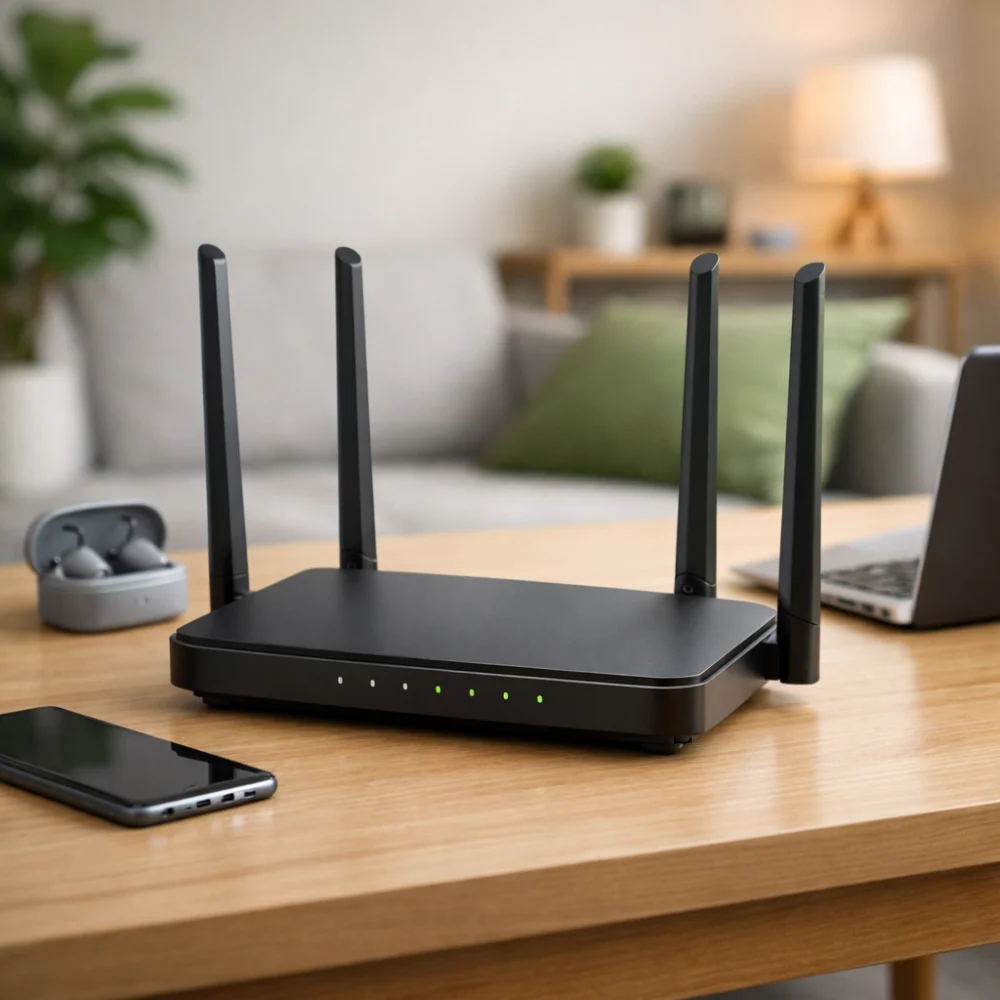
A Wi-Fi router connects wireless devices to a home or other local network, and usually shares an internet connection across those devices. Choosing one means looking beyond a headline speed: the right fit depends on how your internet connection is supplied, the space you need to cover and the devices you plan to connect.
This guide focuses on choosing a router, rather than on wireless networking equipment generally. Some products combine a router with a modem or mobile connection; check what your internet service requires before deciding between them.
What should you look for in a Wi-Fi router?
Start by confirming that the router can connect to your broadband service, either directly or through equipment you already have. Then consider the size and layout of the area to cover, the number and types of devices in use, and whether wired connections matter. A feature-rich router may be unnecessary for a simple setup, while a basic model may not meet specialist connection or coverage needs. Compare the product details against your actual requirements rather than relying on a speed label alone.
Key router features compared
| Feature | What it means | Why it matters | What to check |
|---|---|---|---|
| Connection type | How the router receives its internet connection, such as through a separate modem, an integrated modem or a mobile network. | A router that does not suit your service or existing equipment may not connect as intended. | Check your provider’s connection type and whether the product needs a separate modem, SIM or other equipment. |
| Wi-Fi generation and bands | The wireless standards and frequency bands supported by the router. | These affect the kinds of devices it can serve and the way wireless capacity is shared. | Compare supported standards and bands with the devices you use; check whether older devices need support. |
| Coverage suitability | How well the router may suit the size and layout of the intended space. | Walls, floors, distance and router placement can affect wireless reception. | Look for the manufacturer’s stated coverage guidance, if supplied, and consider the layout and obstacles in your home. |
| Ethernet ports | Connections for devices linked to the router by network cable. | Wired connections can be useful for equipment that stays in one place or where wireless is not preferred. | Check the number and stated capabilities of the ports against the devices you may connect. |
| Security and management | Available network security options and ways to manage settings. | These affect how you configure and maintain your network. | Check the listed security features, management method and any app or account requirements. |
Choosing the right features
Match the router to your internet service
First identify how your internet service reaches your home. A router may connect to a separate modem, include a modem for a particular type of broadband, or use a mobile network. These arrangements are not interchangeable. Check your provider’s requirements and the product information, including whether you will need to keep or add another device.
If you are replacing an existing router, note how it is connected and whether any provider-supplied equipment must remain in place. Do not assume that a router will replace a modem or gateway just because it provides Wi-Fi.
Consider wireless standards, bands and devices
Router listings may describe Wi-Fi generations and supported frequency bands. Newer standards can be relevant when you have devices that support them, but a router’s capabilities do not automatically make every connected device use those capabilities. Check both ends of the connection, especially if you rely on older equipment or have specific compatibility needs.
Frequency bands involve trade-offs in how signals travel and the conditions in which they work best. The building layout and distance between router and device can matter as much as the label. Specifications vary by model, so always check the individual product page before buying.
Think about coverage and layout
Consider the rooms where you need a reliable connection, how far they are from the router and what lies between them. A router placed in one part of a building may not suit every layout equally. Manufacturer coverage guidance can help with initial comparison, but it is not a guarantee for a particular home.
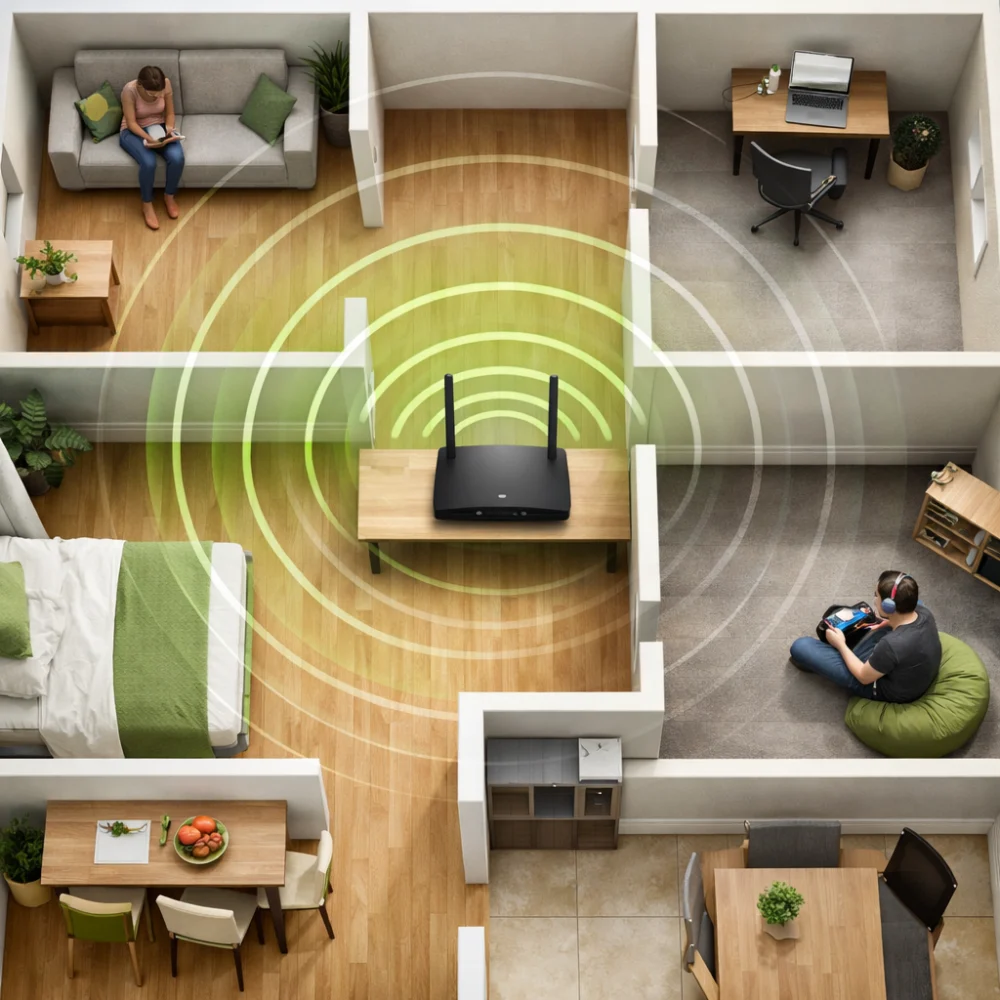
This illustration shows why coverage is a layout question as well as a product question: distance and obstacles can affect the signal reaching devices. If a single router does not suit the area, investigate whether your needs call for a different network arrangement rather than assuming a larger speed figure will solve the issue.
Check wired connections and management
Count the devices you expect to connect by Ethernet, such as a desktop computer or other fixed equipment. Compare that number with the router’s listed ports and check any stated port capabilities. If you prefer to manage settings from a phone or browser, check what management options the product supports and whether any stated setup requirements suit you.
Router types and variations
- Standalone Wi-Fi router: Often suited to a connection that already uses a separate modem or provider device. Check that the existing equipment can connect to it and whether you need to retain that equipment.
- Modem-router combination: May suit a setup where one device is intended to handle both functions. Its limitation is that it must match the broadband connection type; verify compatibility before choosing.
- Mobile or portable router: Uses a mobile network or is designed for travel-oriented use, depending on the product. Check the connection method, network requirements, power arrangements and intended use.
- Mesh-capable router: Some routers can form part of a mesh arrangement, but this does not mean every router includes a multi-unit system. Check what is included and what additional equipment, if any, is required.
A Wi-Fi router is not the same thing as a dedicated access point, modem or mesh system, even when product descriptions refer to related functions. Compare the role of the equipment you need with the product’s stated role.
Which router may suit your needs?
- Replacing a router in an existing setup: Focus on the connection to your current modem or provider equipment, device compatibility and the ports you use. Check whether the existing arrangement has any specific requirements.
- Setting up broadband for the first time: Confirm whether the service needs a separate modem, an integrated modem or provider-supplied equipment. Choosing a router before confirming this can lead to a mismatch.
- Connecting devices in several rooms: Give layout and coverage guidance careful attention. Consider the locations and obstacles involved, and avoid treating a headline speed as a coverage guarantee.
- Using a router away from a fixed broadband connection: Check whether the product uses a mobile connection, what service or equipment it requires, and how it is powered. Do not assume all portable routers work in the same way.
- Connecting stationary devices by cable: Compare the router’s listed Ethernet ports with the devices you expect to wire directly. If the number or capabilities are unclear, verify them on the product information.
Common router-buying mistakes
- Choosing by the largest speed number alone: A headline figure may not describe the performance you will experience across your devices and home. Compare the connection, supported standards, bands and layout together.
- Assuming every router includes a modem: Many setups use separate equipment. Check what your provider requires and what the product actually includes.
- Overlooking device compatibility: A router’s listed features do not mean every device supports them. Check the wireless standards and connection needs of the equipment you use.
- Assuming coverage claims guarantee whole-home reception: Building materials, floors and placement can affect results. Treat coverage information as guidance and compare it with the area and layout you need to serve.
- Confusing a router with a mesh system: Mesh capability or compatibility does not necessarily mean multiple units are included. Check the contents and whether extra equipment is needed for your plan.
- Forgetting wired devices or setup requirements: Count the Ethernet connections you need and check any stated app, account or provider requirements before buying.
Suitability and security considerations
Choose equipment for your connection and intended setting, and check the stated security and management options if these matter to you. Keep software and security support in mind when comparing product information, but do not assume a feature or support period that is not specified. For business, shared or otherwise specialised networks, confirm that the router’s stated functions meet the requirements of that environment.
Power, care and ongoing use
Routers generally need a suitable power source and a place where their connections and indicators can be accessed. For a portable or mobile model, check its stated power arrangements and any included accessories rather than assuming it works like a mains-powered home router. If you plan to keep the router in a particular location, consider whether that location is practical for its cables and the wireless coverage you need.
A practical buying process
- Identify how your internet service connects and what equipment your provider requires.
- Decide which rooms and devices need a connection, including any that should use Ethernet.
- Narrow the type of router to suit the connection, setting and equipment you already have.
- Compare wireless standards, bands, ports, coverage guidance and management features that matter to your use.
- Review the individual product information for compatibility, included equipment and any stated setup requirements.
Wi-Fi router buyer checklist
- Does the router suit the connection type and equipment required by your internet provider?
- Is a separate modem or other device needed, and do you already have it?
- Do the router’s supported standards and bands suit the devices you plan to connect?
- Have you considered the size and layout of the area to cover, including walls and floors?
- Are there enough suitable Ethernet ports for the devices you want to connect by cable?
- Do the stated security, management, power and setup arrangements fit your needs?
- Have you checked what is included and whether any extra equipment is needed?
Wi-Fi router FAQs
Do I need a modem as well as a Wi-Fi router?
That depends on how your broadband service is delivered and whether the router includes a compatible modem. Some setups use separate devices, while some products combine the functions. Check your provider’s requirements and the router’s product information.
Will a new router work with all my devices?
Compatibility depends on the router’s supported standards and bands and on what each device supports. Check the specifications for both, particularly if you rely on older or specialist equipment.
Does a higher Wi-Fi speed label mean better coverage?
Not necessarily. Speed labels and coverage describe different considerations, and actual reception depends on factors including distance and the building layout. Compare the product details with the area and devices you need to serve.
Should I choose a single router or a mesh arrangement?
It depends on the space you need to cover and how well a single router suits its layout. Check whether a router is designed to work with a mesh arrangement and what equipment is included; mesh-related wording alone does not confirm that multiple units come with it.
Can a Wi-Fi router connect devices by cable?
Many routers include Ethernet ports, but the number and stated capabilities vary. Check the product information against the devices you plan to connect by cable.
What should I check before choosing a mobile or portable router?
Confirm how it connects to the internet, what service or equipment it requires and how it is powered. Product descriptions can cover different types of portable use, so check the intended connection and use for the specific model.
Can I keep my provider’s existing equipment?
Possibly, depending on how your service is set up and how the existing equipment connects to the new router. Check your provider’s requirements and the connection details for both devices before replacing anything.
What information is most important on an individual product page?
Prioritise connection compatibility, supported Wi-Fi standards and bands, coverage guidance, Ethernet ports, included equipment and stated setup or management requirements. Focus on the details that match your own service, devices and space.