

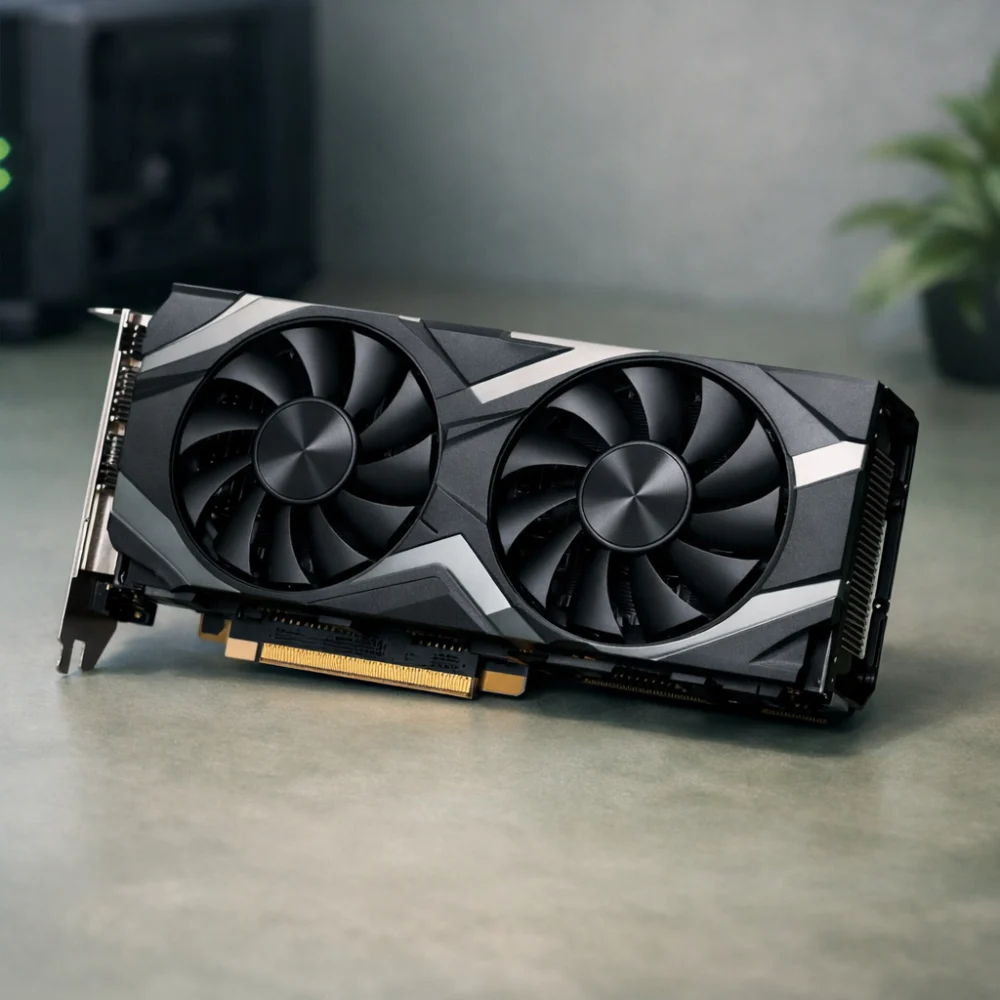
A graphics card, or GPU, processes graphics and sends a picture to a connected display. Choosing one involves more than comparing model names: the right fit depends on what you use your computer for and whether the card suits the rest of your system.
This guide is for anyone building or upgrading a desktop PC, replacing a card or checking options for a particular workload. Focus on the tasks you want to handle, then confirm the card’s physical and electrical requirements against your computer.
How do you choose a graphics card?
Start with the games, creative applications or display setup you actually use, and decide what level of performance and visual quality matters to you. Check that the card is compatible with your computer’s motherboard, case and power supply, rather than assuming a connector alone guarantees a suitable fit. Compare memory, cooling and display connections in the context of your use. The main trade-off is between the capabilities you need and the space, power and budget your system can support.
Graphics card comparison: what to check
| Feature | What it means | Why it matters | What to check |
|---|---|---|---|
| Intended workload | The games, applications and display tasks you expect the card to handle. | Different uses place different demands on graphics hardware. | Look for information relevant to your specific applications, games and display setup. |
| Graphics memory | Memory used by the card for graphics data. | Memory needs can vary with workloads, settings and the content being handled. | Check the listed capacity and type, and consider them alongside your intended use rather than in isolation. |
| Physical dimensions | The card’s length, height and thickness. | A card must fit the available space and leave room for neighbouring components. | Compare the product dimensions with your case’s available clearance and internal layout. |
| Power requirements | The card’s power needs and any required power connectors. | Your power supply must be suitable for the card and the rest of the system. | Check the card’s stated requirements and connector type against your power supply. |
| Display connections | The outputs used to connect screens. | The available connections affect how you can connect your displays. | Confirm that the outputs match your monitor connections and intended display arrangement. |
| Cooling and noise | The card’s cooling design and how it may affect airflow and sound. | Cooling needs and noise preferences can differ between users and systems. | Review the card’s design and consider the airflow and space in your case. |
| System and software compatibility | Whether the card can work with the computer’s platform and software. | A physically fitting card may still not suit the intended setup. | Check the product information for compatible system requirements, operating system and drivers. |
What matters most when comparing graphics cards?
Match the card to your workload
Think about the applications and games you use, the resolutions and visual settings you prefer, and whether you have other graphics-intensive tasks. A card chosen for one demanding workload may be unnecessary for a simpler setup, while a basic option may not meet expectations for more intensive use. Where possible, use relevant application or game requirements as a starting point, then compare them with the individual card’s details.
Consider graphics memory in context
Graphics memory stores data the GPU needs while rendering images and scenes. Capacity is one useful comparison point, but it does not by itself establish how fast or suitable a card will be. Consider the memory specification alongside the card’s overall capabilities and the requirements of your intended workload.
Confirm fit inside the computer
Graphics cards vary in length and thickness, and some designs occupy more than one expansion slot. Check the product dimensions against the space available in your case, including nearby components and any obstructions. Do not rely on a card’s general size category alone: use the exact dimensions and your case information.
Specifications vary by model, so always check the individual product page before buying.
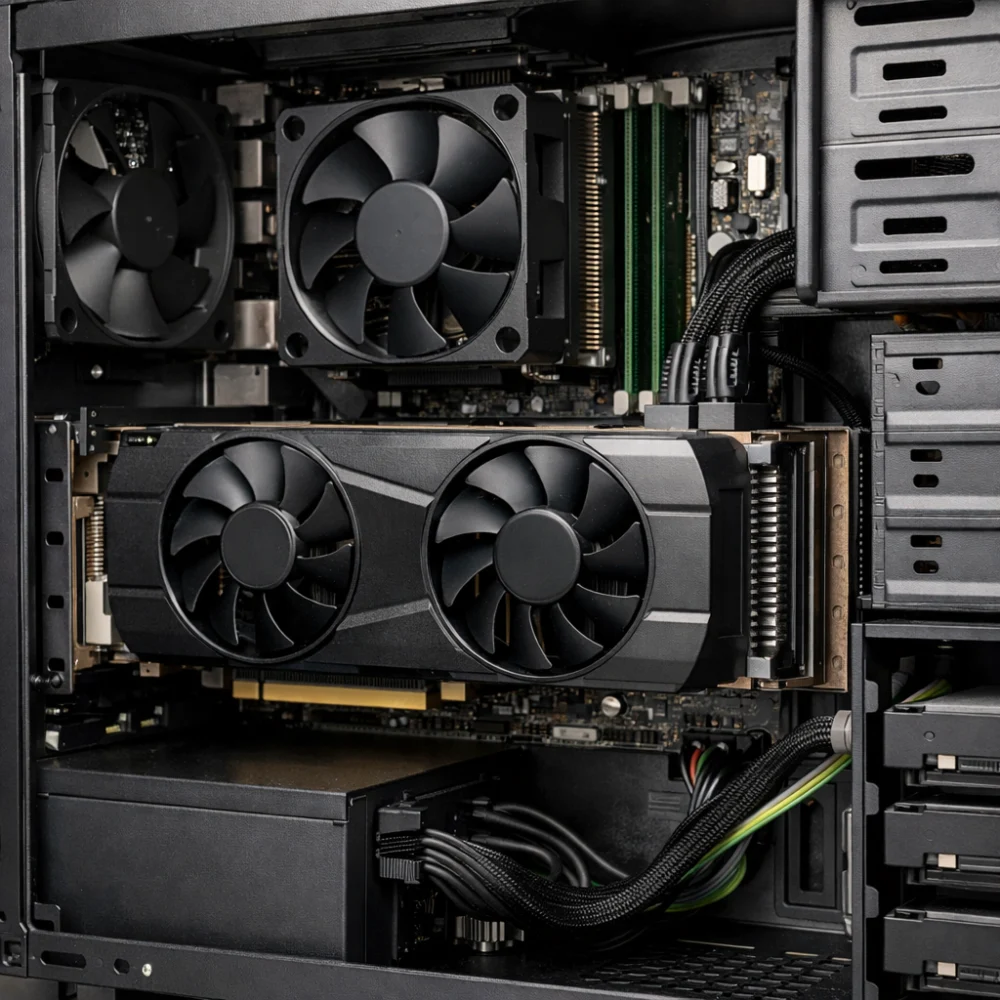
Check power and connections
Cards can have different power requirements and may use different power connectors. Confirm that your power supply can meet the card’s stated requirements and has the required connectors; also consider the demands of the whole PC rather than the graphics card in isolation. Check the outputs on the card against the inputs on your monitors, especially if you plan to connect more than one display.
Think about cooling and system balance
The card’s cooling design needs to work with the space and airflow available in the computer. Fan count alone is not a reliable measure of overall suitability, so consider the card’s dimensions, cooling design and information about noise. A graphics card is also one part of a wider system: check that the processor, memory and other components make sense for the tasks you want to perform, without assuming that upgrading one component will remove every performance limit.
Check software and platform requirements
Before choosing, check the product information for the required interface, supported operating systems and relevant driver information. Compatibility can depend on the particular card and the rest of the computer. If you are replacing a card, compare the new requirements with your existing system rather than assuming that a similar-looking model will work in the same way.
Graphics card types and form factors
Most internal graphics cards are discrete cards that fit into a compatible expansion slot. They are a common option for desktop upgrades, but their dimensions, power needs and capabilities vary. Low-profile cards are designed for more compact cases, though you still need to verify exact clearance, power requirements and suitability for your workload.
External graphics solutions may suit some computers that support the required connection, but they depend on host-device compatibility and may involve a separate enclosure or power arrangement. Check what is included and what the computer must support; do not assume an external option works with every laptop or desktop. Integrated graphics, built into some processors, are a different category of solution and are not an interchangeable discrete graphics card.
Choose for your computer and your needs
| Priority | What to prioritise | Trade-off or check |
|---|---|---|
| Gaming | Compare the card’s capabilities with the games, display resolution and settings you have in mind. | Do not judge suitability from a model name or memory capacity alone; check relevant requirements and the whole system. |
| Creative applications | Check the software’s graphics and memory requirements, including any recommended hardware. | Support and performance needs can differ by application, so confirm requirements for the tools you use. |
| Compact PC upgrade | Give close attention to dimensions, slot space, power and cooling. | A compact form factor does not automatically guarantee a fit or make a card suitable for every task. |
| Multiple monitors | Compare the card’s display outputs with the connections and display arrangement you plan to use. | Confirm the supported outputs and setup details for the specific card. |
| Replacing an existing card | Use the current system as a compatibility reference, including case space and power supply. | A replacement may have different dimensions, connectors or requirements even if it serves a similar purpose. |
Common graphics card buying mistakes
- Choosing by memory capacity alone. Capacity is only one part of a card’s specification. Compare it with the workload, overall card capabilities and software requirements.
- Assuming any card will fit the case. Check exact dimensions and the space around the expansion slot before choosing.
- Checking the slot but not the power supply. A compatible expansion slot does not confirm that the power supply meets the card’s requirements or has its connectors.
- Forgetting the monitor connections. Match the card’s outputs to the monitors you plan to connect, and check any relevant setup details.
- Comparing names without checking the full model information. Similar product names do not establish identical specifications. Review the specific product details before making a decision.
- Expecting one upgrade to improve every task. Performance depends on the wider computer and the software in use. Consider the system as a whole when assessing whether a card suits your needs.
Suitability and compatibility checks
Graphics cards are intended for compatible computer systems; suitability cannot be assumed from the category name or a connector description alone. Check the computer’s expansion slot, case clearance, power supply and operating-system requirements against the individual card information. If you are uncertain about compatibility, consult reliable documentation for the computer and the card before choosing.
Power, care and storage considerations
Power supply compatibility is an important part of choosing a card, as requirements differ between models. Consider whether the system’s power supply and connectors match the card’s stated needs, and keep the overall PC configuration in view. Once installed, care and storage depend on the card and the computer it is used in; follow the product’s supplied guidance rather than assuming all models need identical handling or maintenance.
A practical graphics card buying process
- Write down the games, applications, displays or other tasks the card needs to support.
- Check the relevant requirements for those tasks and identify the capabilities that matter most.
- Narrow the options by form factor and confirm that the card can fit your case.
- Compare power needs, connectors, display outputs and system requirements with your computer.
- Consider graphics memory, cooling and overall system balance, noting the trade-offs that matter to you.
- Review the individual product information and verify every important compatibility detail before choosing.
Graphics card buyer checklist
- Does the card suit the games or applications you intend to use?
- Have you considered graphics memory alongside the rest of the card’s capabilities?
- Do the card’s exact dimensions fit the case and leave suitable space around it?
- Can your power supply meet the stated requirements and provide the required connectors?
- Do the card’s display outputs match your monitors and planned setup?
- Have you checked operating-system, driver and system compatibility?
- Do the cooling design and overall system configuration suit your priorities?
Graphics card FAQs
What should I check before upgrading a graphics card?
Check the new card’s dimensions, expansion-slot requirements, power needs and connectors against your computer. Also confirm that its display outputs, operating-system support and capabilities suit your intended use. Use the specific card and computer information rather than relying only on the existing card as a comparison.
Does more graphics memory always mean a better card?
No. Memory capacity is one factor, but it does not describe the card’s overall capabilities or guarantee suitability for a particular workload. Compare the full specification with the requirements of the games or applications you use.
How can I tell whether a graphics card will fit in my case?
Compare the card’s listed dimensions with the case’s available clearance and internal layout. Check length, height and thickness, as well as space around neighbouring components. A broad form-factor description is not a substitute for the exact measurements.
Can I use any graphics card with my power supply?
No. Cards differ in power requirements and may need particular power connectors. Check the requirements stated for the card against the power supply and consider the needs of the complete computer.
What is the difference between a low-profile and a standard graphics card?
Low-profile cards are designed for more compact installations, while other cards may need more physical space. Neither label alone confirms that a card will fit or suit your workload. Check the exact dimensions and requirements for the specific model.
Is an external graphics card suitable for every computer?
No. An external graphics solution depends on the host computer supporting the required connection, and the product may have additional enclosure or power requirements. Check compatibility and what is included in the individual product information.
How do I choose a graphics card for multiple monitors?
Start by checking the card’s display outputs against the connections on the monitors you plan to use. Then review the card information for relevant supported display arrangements. Do not assume that a particular connector count alone confirms every setup will work as intended.
Should I upgrade my graphics card or another PC component?
That depends on the task that is limiting your computer and the requirements of the software you use. A graphics card is only one part of a system, so consider the processor, memory, power supply and other relevant components before deciding which upgrade best fits your needs.