

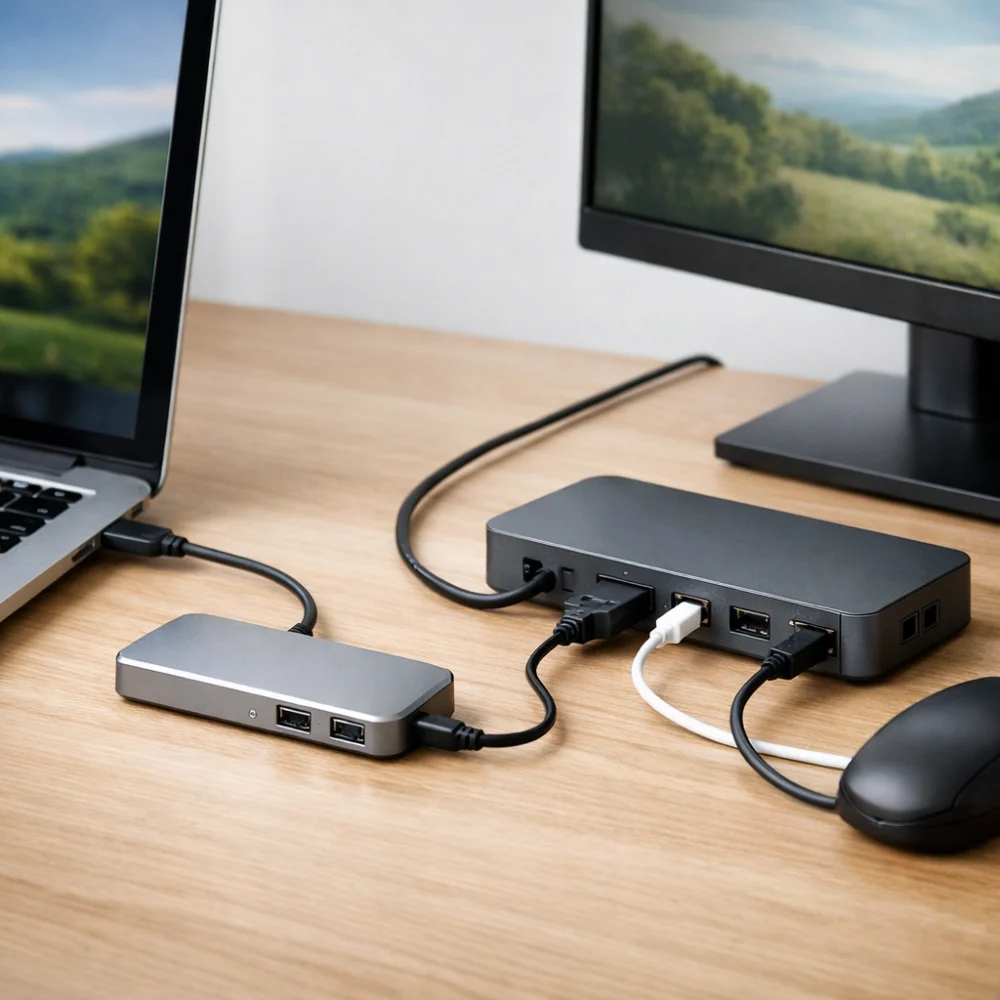
A USB hub or docking station can make it easier to connect several accessories to a computer, particularly when its built-in ports do not meet your needs. The right choice depends on what you want to connect and what your computer can support.
Products described as hubs and docks can overlap in their functions, so compare the connections and capabilities rather than relying on the name alone. This guide focuses on choosing a suitable connection setup, not on any particular model.
Which docking station or USB hub should you choose?
Start by listing the devices you need to connect, such as storage, a keyboard, a monitor or a wired network connection. Then check the computer’s ports and whether they support the data, display and power features you need. A simple hub may suit a small number of everyday connections, while a dock may be more appropriate when you need a broader range of connections or a desk-based setup. More ports do not automatically mean better compatibility.
Compare the important buying factors
| Feature | What it means | Why it matters | What to check |
|---|---|---|---|
| Host connection | The cable or connector linking the hub or dock to the computer. | It must connect physically and support the functions you expect. | Connector type and the computer’s supported data, display and power features. |
| Available ports | The connections for accessories, displays and other devices. | The right mix can reduce the need for extra adapters. | Port types, number of ports and whether they can be used together as needed. |
| Display support | The monitor connections and display capabilities supported by the setup. | Monitor count, resolution and refresh rate may depend on the computer and dock together. | Computer graphics and port support, operating system requirements, and the dock’s stated display limitations. |
| Power | Whether the unit needs its own power supply or can pass power to the computer. | Power arrangements can affect desk convenience and charging expectations. | Whether a charger is required, whether one is included, and the power limits stated for the computer and dock. |
| Data performance | How the connection handles data between the computer, hub and connected devices. | Several devices may share the host connection, and not every connector has the same capabilities. | Supported data standards and any stated limitations for ports used at the same time. |
| Operating system and drivers | Software or system support needed for the connections to work. | Display and other functions can depend on the computer’s operating system and configuration. | Explicit compatibility information for your computer and operating system. |
What to check before you buy
Start with the computer’s host port
Check the exact port you will use to connect the hub or dock. A USB-C-shaped connector does not, by itself, confirm support for video output, a particular data standard or charging. Consult the computer’s own specifications for the functions supported by that port, and compare them with the hub or dock’s requirements.
If your computer has a different connector, confirm that the selected product can connect to it without an unsuitable adapter. An adapter may change the physical connection without adding features the computer does not support.
Match the ports to your devices
Count the connections you need and note their types. For example, a monitor may need a suitable display output, while a wired network connection or memory card reader requires its own port type. Check the product information for the actual ports rather than assuming a particular mix from the word “dock” or a port count.
Also consider whether you need to use several ports at once. Shared bandwidth or product-specific limitations can affect simultaneous use, so look for stated restrictions that match your intended setup.
Check display requirements as a complete system
For one or more external monitors, check the computer, operating system, hub or dock, and displays together. The number of outputs on a dock does not necessarily tell you how many independent screens the computer can drive, or what resolution and refresh rate are supported in your configuration. Some products may rely on a particular display technology or software; check whether that is required and supported before choosing.
Understand power delivery
Some hubs or docks can pass power from a separate charger to a connected computer; others may need their own power supply or provide different charging arrangements. Check what is included and the stated power limits. If you plan to charge a laptop through the dock, confirm that the computer supports charging through its host port and that the proposed power arrangement suits it.
Consider size and where it will be used
A compact hub can be convenient to carry or keep with a laptop, while a larger dock may offer a more suitable mix of connections for a permanent desk setup. Consider cable reach and where the connected devices will sit. Do not assume a longer cable, a particular orientation or a portable design unless the individual product information confirms it.
Specifications vary by model, so always check the individual product page before buying.
Common types and how they differ
- USB hub: Often chosen to add a small group of ports for everyday accessories. It may suit a portable setup, but check whether it includes the display, network or power connections you need.
- Multi-port hub: Combines several kinds of connection in one unit. It can be a convenient middle ground, though the range of ports and supported functions varies.
- Docking station: Often intended to connect multiple devices at a desk through one host connection. It may suit a more involved setup, but confirm its power needs, system support and display limitations.
These labels are not strict technical guarantees. Compare the listed functions and requirements of each product rather than treating “hub” or “dock” as a promise of particular capabilities.
Choose for the setup you have
- For a few USB accessories: Focus on the necessary port types, the host connector and whether the connected devices can share the hub as intended. A feature-rich dock may add complexity you do not need.
- For a laptop used at a desk: Compare the connections for your monitor, network and other peripherals, alongside power arrangements and cable placement. Confirm that the laptop supports the dock’s required functions.
- For more than one external display: Check the computer’s display capabilities and the dock’s supported combinations, not just the number of video ports. Include the operating system and monitor requirements in that check.
- For travel or occasional use: Portability and a simple connection may matter more than a large selection of ports. Balance size against the connections you actually need away from your desk.
- For an older or mixed-device setup: Check each device’s connector and required function individually. A matching plug does not necessarily mean the device will work through every hub or dock.
Common buying mistakes
- Choosing by port count alone. A larger number of ports may not provide the types or simultaneous functions your setup needs. Match the listed connections to your device list.
- Assuming every USB-C port supports video or charging. Connector shape alone is not enough to establish support. Verify the capabilities of the computer’s specific port.
- Counting display sockets as guaranteed screens. The computer, dock and operating system all affect display support. Check the supported display arrangement for your intended setup.
- Overlooking power requirements. A dock may need a separate supply, or its power pass-through may have limits. Confirm the full power arrangement before relying on it to charge a computer.
- Assuming all ports work at full capability together. Ports can have shared limitations or specific restrictions. Read the product information for simultaneous-use details relevant to your devices.
- Buying an adapter to solve a feature mismatch. An adapter can change connector shape but cannot necessarily add missing video, data or charging support. Check the computer’s capabilities before relying on one.
Safety and suitability
Choose a hub or dock for the computer and devices you intend to connect, and follow the power and compatibility information provided for each. If a setup depends on a particular display, charging or operating-system feature, confirm that support before purchase. Avoid assuming that a product is suitable simply because its connectors appear to fit.
Care, power and storage
Consider whether a dock will stay on a desk or travel with a laptop, since this affects the importance of size, cable arrangement and carrying convenience. Check whether the product uses an external power supply and whether that suits the space where it will be used. Keep the product information for its connection and power requirements; care needs can vary by model.
A practical buying process
- List the computer, displays and accessories you want to connect.
- Check the computer’s host port and the functions it supports.
- Choose a hub or dock with the necessary port types and display capabilities.
- Compare power arrangements, operating-system requirements and any simultaneous-use limitations.
- Review the individual product information against your setup before deciding.
Buyer checklist
- Does the host connector suit my computer?
- Does the computer support the required data, display and charging functions?
- Are all the port types I need present?
- Will the intended monitor arrangement work with my computer and operating system?
- Do the power supply and any charging limits suit my setup?
- Are there restrictions on using my required connections at the same time?
- Is the size and cable arrangement appropriate for my desk or travel needs?
Frequently asked questions
Is a docking station the same as a USB hub?
The terms overlap, and product names are not a reliable measure of capability. A hub often adds a smaller group of connections, while a dock may be aimed at a broader desk setup. Compare the actual ports, power arrangements and compatibility requirements.
Will any USB-C hub work with my laptop?
Not necessarily. The laptop’s USB-C port and operating system need to support the functions you want to use, and the hub must be compatible with them. Check both sets of product information rather than relying on the connector shape.
Can a dock connect two external monitors?
That depends on the computer, dock, operating system and display arrangement. Check how many independent displays the complete setup supports and any limits on resolution or refresh rate. The number of display connectors alone does not settle this.
Does a USB hub charge a laptop?
Only if the hub supports an appropriate power arrangement and the laptop can accept power through the connected port. Check whether a charger is needed, what is included and the stated limits for both devices.
Do more ports mean faster connections?
No. Port count and data performance are different considerations, and connected devices may share the host connection. Check the supported data standards and any stated limitations for simultaneous use.
Should I choose a hub or a dock for travel?
Consider how many connections you need away from your desk and whether portability matters more than a wider selection of ports. A compact hub may be sufficient for a few accessories, while a larger unit can be less convenient to carry. Confirm that either option supports your computer’s required functions.