
PC Monitors
PC Monitors are display screens used with desktop computers, laptops, mini PCs, gaming systems and workstations. Whether you are building a home office, upgrading a gaming setup, adding a second screen to a laptop or replacing an older display, the right monitor can make everyday computing clearer, more comfortable and easier to manage.
This category includes PC monitors in different sizes, resolutions, panel types and connection options. Depending on the product, you may find office monitors, gaming monitors, curved monitors, ultrawide monitors, portable monitors, touchscreen monitors and displays with features such as HDMI, DisplayPort, USB C, speakers, height adjustment or high refresh rates where listed.


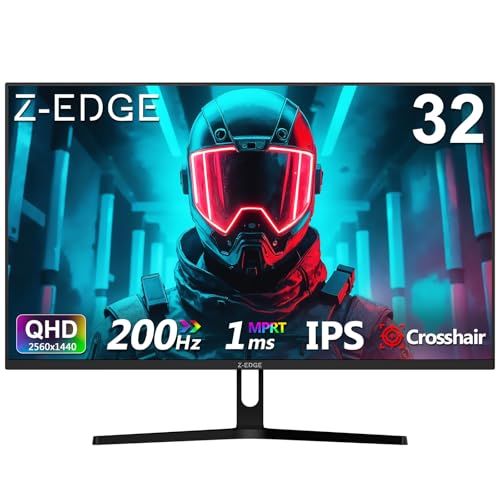


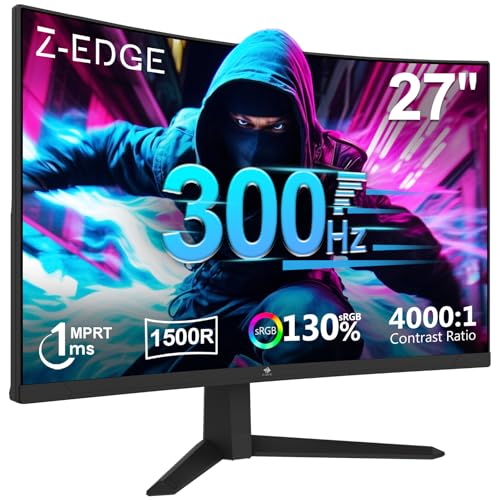


What Are PC Monitors?
PC monitors are screens designed to show the output from a computer or compatible device. They connect using video cables or supported display connections, allowing you to view software, documents, websites, games, videos and creative projects.
A monitor can be used as the main screen for a desktop PC or as an extra screen for a laptop. It can also form part of a multi monitor setup, gaming station, creative workstation or business desk.
The right monitor depends on screen size, resolution, connectivity, desk space and the tasks you use most often.
What PC Monitors Are Used For
PC monitors are used for work, study, gaming, browsing, video calls, streaming, photo editing, design work, coding, spreadsheets, presentations and everyday computer use. They provide a larger or more comfortable display than many laptop screens.
For office work, a monitor can make multitasking easier by giving more room for documents, browsers and email. For gaming, screen size, refresh rate, response time and connection support may matter more where listed. For creative work, colour, resolution and viewing comfort may be important depending on the task.
A good monitor can also help create a cleaner and more ergonomic desk setup when used with a keyboard, mouse and laptop stand.
How To Choose The Right PC Monitor
Start with what you use your computer for most. A simple office monitor may be enough for email, browsing and documents. A gaming monitor may need faster refresh rates or gaming focused features where listed. A creative monitor may need higher resolution or colour related features where stated.
Next, think about screen size and desk space. A larger monitor gives more viewing area, but it also needs enough room on the desk and a comfortable viewing distance. A smaller monitor may be easier to fit into bedrooms, home offices or compact workstations.
Finally, check compatibility. Make sure the monitor has the correct ports for your computer, laptop, docking station or graphics card. Common options include HDMI, DisplayPort, VGA, DVI and USB C where listed.
Key Features To Compare
Screen size is one of the first features to compare. Larger screens can feel better for multitasking, films, gaming and creative work, while smaller screens can be easier to fit into limited spaces.
Resolution affects image detail where listed. Higher resolution can make text, images and workspace areas appear sharper, but the computer and software also need to support the display settings you want to use.
Refresh rate may matter for gaming or smooth movement where listed. Higher refresh rates can feel more responsive in supported games and systems, but the graphics hardware, cable and monitor must all support the same settings.
Panel type, brightness, contrast, viewing angles, colour features, response time, speakers, adjustable stands, wall mount compatibility and port selection can all affect how suitable a monitor feels in real use.
PC Monitors Compared With Laptop Screens
Laptop screens are built into the device and are convenient for portable use. They are suitable for travel, lectures, meetings and working away from a fixed desk.
PC monitors are usually larger and more comfortable for longer desk sessions. They can provide more screen space, better positioning and a more practical view for multitasking.
The trade off is portability. A laptop screen travels with you, while a PC monitor is usually part of a fixed desk setup. Many users benefit from both, using the laptop screen on the move and a monitor at home or work.
Office Monitors Compared With Gaming Monitors
Office monitors are usually chosen for comfort, screen size, clarity, connectivity and everyday productivity. They may be used for documents, emails, spreadsheets, browsing and video calls.
Gaming monitors may focus more on refresh rate, response time, adaptive sync features, resolution and input support where listed. They are often chosen by players who want a more responsive display for supported games.
The right choice depends on your main use. If you mainly work with documents, an office monitor may be practical. If gaming is a priority, compare gaming focused specifications carefully.
Flat Monitors Compared With Curved Monitors
Flat monitors are common, versatile and easy to use across work, study, gaming and general computing. They can be simple to position and often suit multi screen setups.
Curved monitors are designed to wrap the screen slightly around the viewer where listed. Some users prefer them for larger screens, gaming or immersive desk setups.
The trade off is preference and space. A flat monitor is familiar and flexible, while a curved monitor may feel more engaging for some users but may not suit every desk or multi screen arrangement.
Standard Monitors Compared With Ultrawide Monitors
Standard monitors are practical for most users and fit easily into many desks, offices and bedrooms. They are often suitable for everyday work, browsing, video calls and gaming depending on specifications.
Ultrawide monitors provide a wider screen area where listed. They can be useful for multitasking, timelines, spreadsheets, design work and immersive gaming where supported.
The trade off is desk space and compatibility. Ultrawide monitors need more room and may require more graphics performance or software adjustment depending on the use.
Beginner Regular User And Experienced Buyer Guidance
Beginners should focus on screen size, resolution, easy connection and a monitor that suits the computer they already own. A simple monitor with the right ports can be a practical starting point.
Regular users may want to compare stand adjustment, eye comfort features where listed, port selection, speakers, screen quality and how well the monitor fits into their desk setup.
Experienced buyers often look more closely at panel type, colour coverage where listed, refresh rate, response time, adaptive sync, USB C power delivery where listed, mounting support and how the monitor works with multi screen setups.
Use Cases By Setup
For home offices, PC monitors can make documents, spreadsheets, browser tabs and video calls easier to manage. Adjustable stands and the right screen size may improve desk comfort where listed.
For gaming, compare refresh rate, response time, resolution, screen size and compatible inputs carefully. The computer, graphics card and cable all affect what the monitor can actually display.
For students, a monitor can make essays, research and online learning easier, especially when paired with a laptop, keyboard and mouse.
For creative work, resolution, screen size and colour related specifications where listed may matter more. Photo editing, design and video work can benefit from a suitable display setup.
For business and reception areas, monitor size, ports, mounting options and reliability for everyday use may be important.
For compact desks, smaller monitors or portable monitors may be worth comparing where suitable.
Fit Size And Desk Compatibility
Before buying a PC monitor, consider where it will sit. Measure the desk space and think about viewing distance, monitor width, stand depth and cable routing.
A large monitor can feel impressive, but it may be uncomfortable if it sits too close. A smaller monitor may be easier to position, especially in bedrooms, study spaces or shared work areas.
Stand design matters too. Some stands take up more desk space than others. Height adjustment, tilt, swivel and rotation may be useful where listed.
If you plan to use a monitor arm or wall mount, check VESA or mounting compatibility where listed before buying.
Ports Cables And Device Compatibility
PC monitor compatibility depends on the ports available on both the monitor and the device. Check whether your computer, laptop, dock or graphics card supports HDMI, DisplayPort, USB C, VGA, DVI or another connection where listed.
The cable also matters. A monitor may support certain settings, but the cable and device output must also support them. This is especially important for higher resolutions, higher refresh rates or USB C display setups where listed.
If you use a laptop, check whether it can output to an external screen and whether an adapter or docking station is needed. Not every USB C port supports video output.
For older computers, check whether legacy ports are needed before choosing a modern display.
Comfort Viewing Position And Eye Care
Comfort is important if you spend long periods at a computer. A monitor should sit at a comfortable height and distance, with the screen easy to view without leaning forward or straining your neck.
Adjustable stands can help where listed, but a monitor riser or arm may also be useful. Screen brightness should suit the room lighting, and glare from windows or lamps should be considered when positioning the display.
Some monitors may include eye comfort, blue light reduction or flicker reduction features where listed. These can be useful for long sessions, but good posture, regular breaks and sensible lighting still matter.
Safety And Practical Considerations
PC monitors should be placed on a stable surface where they are not likely to fall or be knocked. Make sure the stand is fitted correctly and the desk is strong enough for the monitor.
Cables should be routed safely to avoid trips, pulls and strain on ports. This is especially important with standing desks, monitor arms and shared spaces.
Avoid blocking ventilation areas where present, and keep the monitor away from liquids, excessive heat and heavy pressure.
If wall mounting or using a monitor arm, use suitable fixings and follow the product instructions carefully.
Care Cleaning And Maintenance
PC monitors should be cleaned carefully. Use a suitable soft cloth and follow the product guidance. Avoid spraying liquid directly onto the screen or using harsh cleaners unless the product instructions allow them.
Dust can build up around the screen, stand and ports, so light cleaning can help keep the setup tidy. Be careful around buttons, vents and connectors.
When moving a monitor, hold it securely and avoid pressing on the screen surface. Store packaging or protective material if you may need to move it again.
If the display flickers, loses signal or behaves oddly, check the cable, input selection, computer settings and power connection before assuming the monitor is faulty.
Useful Accessories To Consider
Useful accessories for PC monitors may include HDMI cables, DisplayPort cables, USB C cables where compatible, monitor arms, wall mounts, monitor stands, laptop stands, keyboards, mice, webcams, computer microphones, speakers and cable management clips.
For a home office, an external keyboard and mouse can make a monitor setup more comfortable. For gaming, suitable display cables and a comfortable desk layout may be useful.
For multi screen setups, monitor arms, matching cables and cable ties can help keep the desk organised and easier to use.
Why Buy From YPC?
At YPC, we understand active lifestyles and the need for practical products that work in real use. PC monitors should be chosen for screen size, compatibility, resolution, comfort, ports and the way the display will actually be used.
YPC brings together a wide range of computer, electronics and lifestyle products so you can compare available PC monitors by size, connection, use, features and practical suitability. Browse the PC Monitors category to compare the range and choose the right display for work, study, gaming, creative projects or everyday computing.
FAQs
What is a PC monitor used for?
A PC monitor is used to display the output from a computer, laptop, mini PC, games system or compatible device. It can be used for work, study, gaming, browsing, streaming and creative tasks.
How do I choose the right PC monitor?
Start with your main use, then compare screen size, resolution, ports, refresh rate where listed, stand adjustment, desk space and device compatibility.
Can I use a PC monitor with a laptop?
Yes, many laptops can connect to an external monitor where supported. Check the laptop ports, monitor inputs and whether you need an adapter or docking station.
What ports do PC monitors use?
Common monitor ports include HDMI, DisplayPort, USB C, VGA and DVI where listed. The right port depends on your computer, laptop, dock or graphics card.
Is a gaming monitor different from a normal monitor?
Gaming monitors may include features such as higher refresh rates, faster response times or adaptive sync support where listed. Standard monitors may be more focused on office work and everyday use.
What screen size is best for a PC monitor?
The best screen size depends on desk space, viewing distance and use. Smaller screens suit compact spaces, while larger screens can be useful for multitasking, gaming and creative work.
Do I need a 4K monitor?
A 4K monitor may be useful for sharper detail, creative work or larger screens where supported, but not everyone needs one. Check whether your computer, software and budget suit higher resolution use.
How should I clean a PC monitor?
Follow the product guidance. Use a suitable soft cloth, avoid spraying liquid directly onto the screen and avoid harsh cleaners unless the instructions clearly allow them.
Find out more with our PC Monitor Buyers Guide.
 Getting ready for Summer? View our Home and Garden Products

Heading outdoors this winter? Take a look at our Outdoor Clothing.