BUYERS GUIDE
PC Monitor Buyers Guide
A PC monitor is one of the most important parts of a computer setup because it is the component you look at throughout every task. Screen size, resolution, colour, brightness, motion handling and positioning can affect everything from reading emails and working on spreadsheets to editing photographs or playing games.
Choosing a monitor is not simply a matter of buying the largest screen available. Screen size must work with resolution, viewing distance and desk space. A high refresh rate may benefit gaming, while colour accuracy, USB C connectivity or stand adjustment may matter more for office and creative work.
This guide explains how to compare PC monitors in practical terms. It covers the main monitor types, the specifications that affect real use, common buying mistakes and the checks to make before ordering.
Quick Answer
Choose a PC monitor by starting with how it will be used, how far you sit from the screen and how much desk space is available. Match the screen size with a suitable resolution, then compare panel type, refresh rate, colour performance, brightness, ports and stand adjustment. Gamers may prioritise refresh rate, motion clarity and adaptive synchronisation, while office and creative users may care more about sharp text, colour accuracy, USB C connectivity and ergonomic positioning. Specifications vary by model, so always check the individual product page before buying.
Quick Product Comparison Framework
| Feature | What It Means | Why It Matters | What To Check |
|---|---|---|---|
| Screen size | Diagonal measurement of the visible display | Affects workspace, viewing comfort and desk fit | Stated size and full monitor dimensions |
| Resolution | Number of pixels displayed | Influences sharpness and available desktop space | Full HD, QHD, 4K or another listed resolution |
| Panel type | Display technology used by the monitor | Affects colour, contrast, viewing angles and motion | IPS, VA, TN, OLED or another listed panel |
| Refresh rate | Number of screen updates per second | Influences motion smoothness | Maximum refresh rate and connection requirements |
| Response behaviour | Speed at which pixels change | Affects visible blur and trailing | Response information and overdrive settings |
| Brightness | Amount of light produced by the screen | Influences visibility in bright rooms and HDR | Typical and peak brightness where listed |
| Colour performance | Range and accuracy of displayed colours | Matters for photography, design and video work | Colour gamut and calibration information |
| Contrast | Difference between dark and bright areas | Affects image depth and dark scene detail | Native contrast and local dimming where stated |
| Ports | Connections for computers and accessories | Determines compatibility | HDMI, DisplayPort, USB C, USB hub and audio |
| Stand adjustment | Ways the monitor can be positioned | Affects comfort during prolonged use | Height, tilt, swivel and pivot adjustment |
| VESA mounting | Compatibility with monitor arms and brackets | Allows alternative positioning | Mounting pattern and monitor weight |
| Built in features | Speakers, webcam, microphone or KVM | May reduce the need for extra accessories | Exact features and connection requirements |
Key Decision Criteria Explained
Intended Use
The most suitable monitor depends on what you do most often.
A monitor used for browsing and office documents does not need the same features as one used for competitive gaming, photography, video editing or computer aided design.
Before comparing products, decide whether the monitor will mainly be used for:
- General home computing
- Office work and spreadsheets
- Home working and video calls
- Gaming
- Photography or graphic design
- Video editing
- Coding and development
- Media viewing
- Multiple computer setups
- A laptop docking workspace
Your main workload should determine which specifications deserve the most attention.
Screen Size And Desk Space
Larger monitors provide more physical viewing space, but they also need more desk width and may require a greater viewing distance.
A compact screen can suit a small desk, a secondary display or simple home use. A larger monitor can make spreadsheets, documents, timelines and multitasking more comfortable.
Check the complete monitor dimensions rather than relying only on the diagonal screen measurement. The stand may be deeper or wider than expected and can reduce the remaining space for a keyboard, laptop or other equipment.
Viewing Distance
Viewing distance affects how comfortable a screen feels.
Sitting very close to a large monitor may require frequent eye or head movement. Sitting too far from a smaller high resolution display may make text difficult to read without increasing interface scaling.
Consider the depth of the desk, the monitor stand, keyboard placement and whether the screen will be mounted on an arm.
Resolution And Image Sharpness
Resolution describes the number of pixels displayed on the screen.
Common monitor resolutions include:
- Full HD
- QHD or 1440p
- 4K or Ultra HD
- Ultrawide resolutions
- Higher specialist resolutions
A higher resolution can provide sharper text and more detailed images. It may also create more usable workspace, although operating system scaling may be needed to keep text and controls comfortable to read.
Higher resolutions place greater demands on graphics hardware, particularly in games. Check whether the computer supports the monitor’s native resolution and intended refresh rate.
Pixel Density
Pixel density is affected by both screen size and resolution.
Two monitors with the same resolution may not appear equally sharp if one has a much larger screen. The larger monitor spreads the same number of pixels across a wider area.
For office, coding and creative work, compare screen size and resolution together rather than treating either specification in isolation.
Panel Type
The panel technology affects colour, contrast, viewing angles and motion performance.
IPS panels are commonly chosen for consistent colour and broad viewing angles. They can suit office work, general computing, design and gaming, depending on the model.
VA panels often provide stronger native contrast and deeper looking dark scenes. Motion behaviour can vary, particularly in darker transitions.
TN panels have traditionally been used for fast gaming displays. They may provide strong motion performance but can offer more limited viewing angles and colour than other panel types.
OLED monitors can provide deep blacks, high contrast and fast pixel response. They may require additional care where static content remains visible for long periods.
No panel type is automatically best for every buyer. Compare the trade offs against the intended workload.
Refresh Rate
Refresh rate indicates how often the monitor updates its image each second.
A higher refresh rate can make scrolling, cursor movement and games appear smoother. It is particularly useful for fast games and competitive play.
The computer must still produce enough frames to benefit, and the selected cable and port must support the intended combination of resolution and refresh rate.
Office users may enjoy smoother everyday movement, but they may gain more practical value from better resolution, stand adjustment or connectivity than from an extremely high refresh rate.
Response Time And Motion Clarity
Response time describes how quickly pixels change from one shade to another.
Quoted response times are not always directly comparable because manufacturers may use different testing methods and settings. The lowest advertised figure may also require an aggressive overdrive mode that creates visible artefacts.
Motion clarity depends on the panel, refresh rate, response behaviour, overdrive setting and the frame rate supplied by the computer.
Consider overall motion performance rather than relying on one response time number.
Adaptive Synchronisation
Adaptive synchronisation allows a compatible monitor to adjust its refresh behaviour to the frame rate produced by the graphics hardware.
This can help reduce screen tearing and uneven motion during games.
Support may depend on the graphics card, connection type, monitor range, driver settings and game. Check the compatibility of the complete setup rather than assuming every adaptive synchronisation label behaves identically.
Colour Coverage And Accuracy
Colour performance matters most for photography, design, illustration and video work.
Colour gamut describes the range of colours the monitor can reproduce. Colour accuracy describes how closely those colours match the intended values.
A wide colour gamut does not automatically guarantee accurate output. Creative users should check:
- Supported colour spaces
- Factory calibration information
- Colour accuracy details
- Calibration support
- Bit depth
- Screen uniformity
- Suitable viewing conditions
General office and home users may not need specialist colour features, but consistent colour and viewing angles can still improve everyday use.
Brightness, Contrast And HDR
Brightness affects visibility in well lit rooms. A monitor that is too dim may be difficult to use near windows, while an excessively bright display can feel uncomfortable in darker surroundings.
Contrast influences the separation between light and dark areas. Higher native contrast can add depth to images and improve dark scene detail.
Useful HDR performance usually depends on more than an HDR compatibility label. Peak brightness, black levels, colour range and local dimming can all matter.
An entry level monitor may accept an HDR signal without producing a dramatic HDR image. Check the full specification if HDR gaming or video is important.
Flat, Curved And Ultrawide Screens
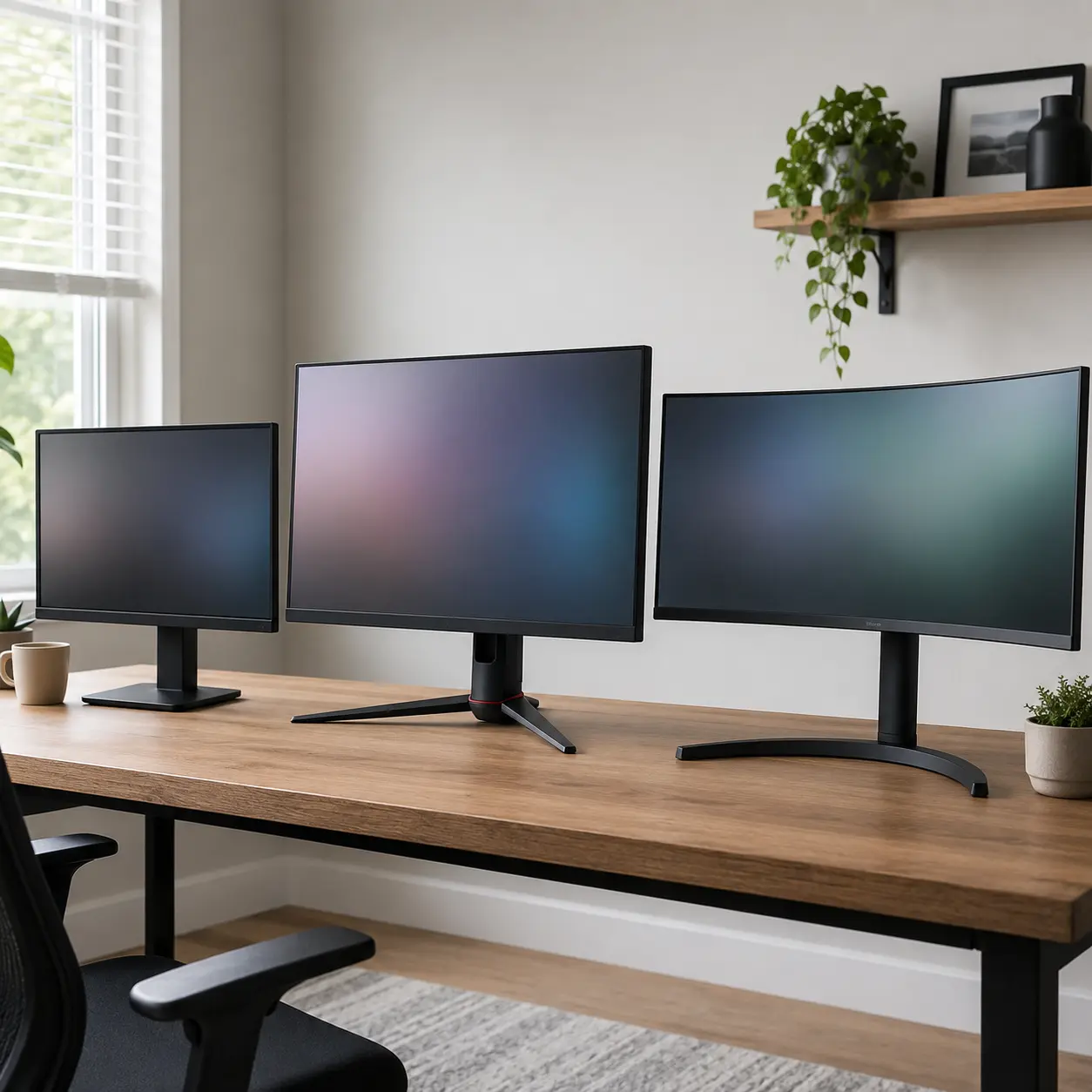
Flat monitors are familiar, easy to position and practical for most work. They can also be simpler to combine in multi monitor arrangements.
Curved monitors may make a large or wide display feel more immersive by keeping the edges at a more consistent distance from the viewer. They are generally intended for a person sitting near the centre.
Ultrawide monitors provide additional horizontal workspace. They can suit editing timelines, spreadsheets, coding, multiple documents, racing games and simulation games.
Check software compatibility and desk width before choosing an ultrawide monitor. Some games and videos may display black bars if they do not support the screen’s aspect ratio.
Ports And Device Compatibility
A PC monitor may need to connect to a desktop, laptop, mini PC, games console or several devices.
Common connections include HDMI, DisplayPort and USB C. Different versions may support different combinations of resolution, refresh rate and other features.
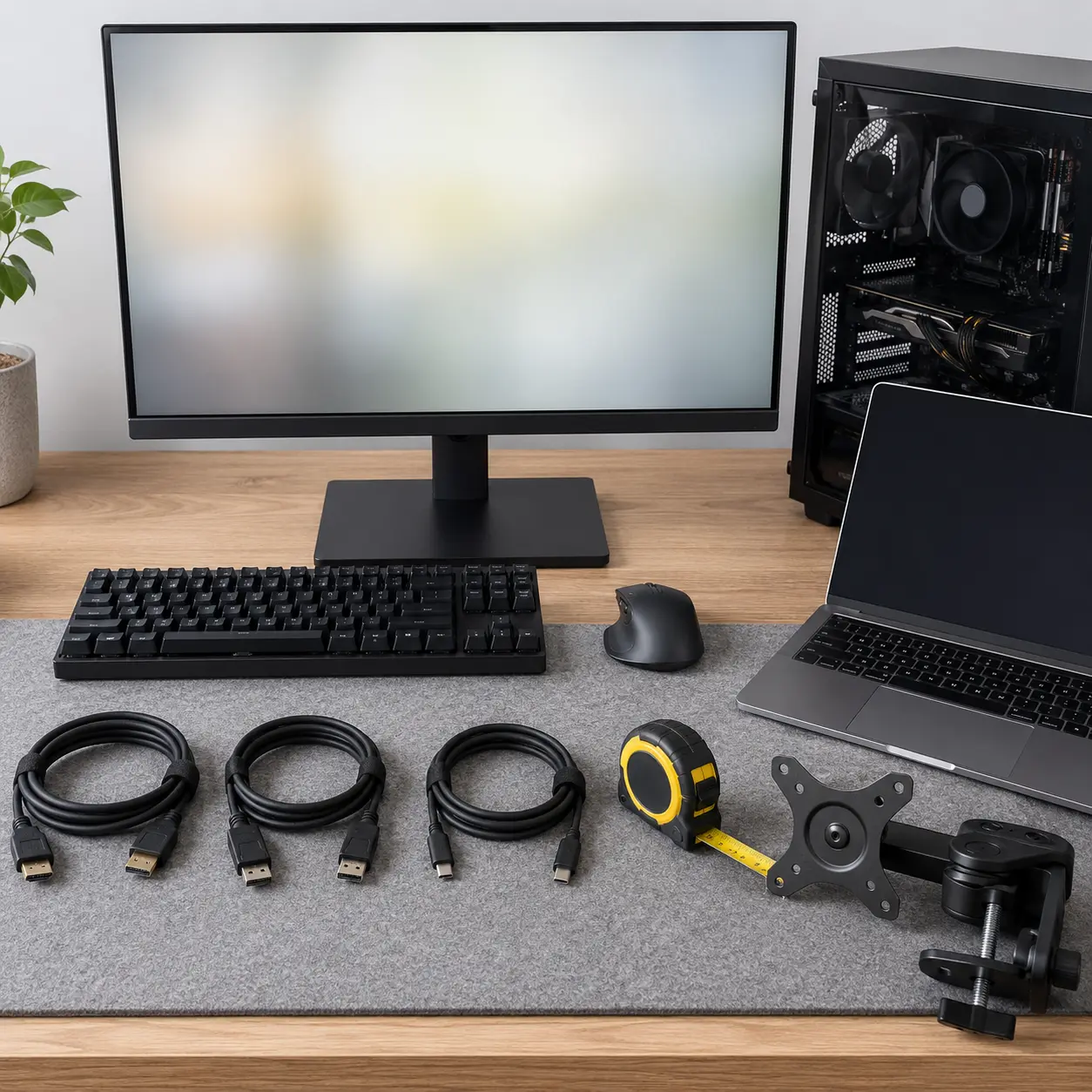
Count the available outputs on the computer before buying, particularly for a multiple monitor setup.
Do not assume that every supplied cable supports the highest listed display mode. The monitor, computer, port and cable must all support the required specification.
USB C Connectivity
USB C can simplify a laptop workspace by carrying video, data and power through one compatible cable.
Depending on the monitor, USB C may support:
- Video input
- Laptop charging
- USB hub access
- Ethernet through the monitor
- Data transfer
Not every USB C port supports all these functions. Check both the monitor and the computer before buying.
If the monitor is expected to charge a laptop, compare its power delivery output with the laptop’s power requirements.
USB Hubs And KVM Functions
A built in USB hub allows accessories to connect through the monitor. This can reduce desk clutter and make laptop docking more convenient.
A KVM function can allow one keyboard and mouse to control two connected computers. This can be useful when switching between a work laptop and a personal desktop.
Connection and switching arrangements vary, so check the individual model instructions.
Stand Adjustment And Ergonomics
A monitor stand affects comfort as much as many headline specifications.
Useful adjustments include:
- Height
- Tilt
- Swivel
- Rotation into portrait orientation
A fixed stand may require a separate riser or monitor arm to position the screen comfortably.
Check stand depth as well as adjustment. A deep stand can move the display too close on a shallow desk.
VESA Mounting
VESA mounting allows a compatible monitor to attach to a monitor arm or wall bracket.
Check the mounting pattern, monitor weight and arm capacity. Also consider desk thickness, clamp space and cable clearance.
A monitor arm can free desk space and make adjustment easier, but it must be installed securely and used within its rated limits.
Built In Speakers, Webcam And Microphone
Some monitors include speakers, a webcam or microphone.
These features can simplify a home working setup, but quality varies. Built in speakers may be suitable for calls and basic audio without replacing dedicated speakers or headphones.
Check webcam resolution, camera position, privacy shutter, microphone arrangement and any required USB connection.
Product Type Differentiation And Variants
Everyday Home Monitors
Everyday monitors suit browsing, email, streaming, documents and general computing.
Prioritise a comfortable screen size, clear native resolution and the ports needed for your computer. Specialist gaming or creative features may not be necessary.
Office Monitors
Office monitors often focus on text clarity, ergonomic stands and practical connectivity.
Useful features can include USB hubs, USB C docking, webcams, built in speakers, KVM switching and portrait rotation.
Gaming Monitors
Gaming monitors may prioritise refresh rate, motion clarity, adaptive synchronisation and low input delay.
Competitive players may favour speed, while story driven gamers may prefer higher resolution, stronger contrast and HDR performance.
The monitor should be matched to the graphics performance of the computer or console.
Creative Monitors
Creative monitors are intended for photography, video, illustration and design.
Priorities may include colour accuracy, wide colour coverage, high resolution, calibration support and consistent brightness.
Check which colour space is required by the intended work.
Curved Monitors
Curved monitors can suit gaming, media and wide desktop use.
They are normally designed for a central viewing position and may be less suitable where several people regularly view the screen from different angles.
Ultrawide Monitors
Ultrawide monitors offer additional horizontal workspace.
They can reduce the need for two separate screens, although they need more desk width and compatible software. Their native resolution may also place greater demands on graphics hardware.
Portable Monitors
Portable monitors are slim displays intended to travel with a laptop, mini PC or games console.
Check power requirements, weight, brightness, stand quality and whether the source device supports video through the intended connection.
Touchscreen Monitors
Touchscreen monitors can suit presentations, education, point of sale systems and specialist tasks.
Check operating system support and whether a separate USB connection is required for touch input.
OLED Monitors
OLED monitors provide strong contrast, deep blacks and fast motion.
They can suit gaming, media and creative work but may require sensible management of static content. Follow the manufacturer’s image care guidance.
Suitability By Buyer Type Or Need
| Buyer Type Or Need | What To Prioritise | What To Be Careful About |
|---|---|---|
| Everyday home use | Comfortable size, clear resolution and useful ports | Avoid paying for specialist features you will not use |
| Office work | Sharp text, ergonomic adjustment and connectivity | Fixed stands may reduce comfort |
| Home working | USB C, webcam, speakers and KVM where useful | Check laptop charging power |
| Competitive gaming | High refresh rate and strong motion clarity | The computer must produce enough frames |
| Story driven gaming | Resolution, contrast, HDR and adaptive synchronisation | High resolution increases graphics demands |
| Photography | Colour accuracy, resolution and calibration | Wide colour coverage alone does not guarantee accuracy |
| Video editing | Resolution, colour support and workspace width | Check HDR and timeline requirements |
| Coding | Sharp text, height adjustment and portrait support | High resolution may need scaling |
| Large spreadsheets | Screen size, resolution and ultrawide workspace | Measure desk width and viewing distance |
| Laptop docking | USB C video, power delivery and USB hub | Check compatibility on both devices |
| Multiple computers | Several inputs and KVM functionality | Switching setup varies by model |
| Console gaming | HDMI support, refresh rate and audio | Confirm console display compatibility |
| Travel | Portable size, low weight and simple power | Check whether the source device supports video output |
| Accessibility needs | Large display, adjustment, contrast and scaling | Confirm compatibility with required software |
Common Mistakes And Misunderstandings
Buying The Largest Screen Available
A large monitor may be uncomfortable on a shallow desk and may not look particularly sharp if paired with a low resolution.
Match screen size, resolution and viewing distance together.
Ignoring The Computer’s Graphics Capability
A computer may support a high resolution monitor for office work but struggle to run demanding games at the same resolution.
Check the graphics hardware, ports and intended workload.
Assuming A High Refresh Rate Guarantees Smooth Gaming
The computer must produce enough frames, and the selected port and cable must support the required mode.
Game settings and graphics performance still matter.
Relying On The Lowest Response Time Claim
Manufacturers may use different test methods and aggressive settings.
Consider complete motion performance rather than choosing by one quoted number.
Assuming Every HDR Monitor Provides Strong HDR
A monitor may accept HDR content without having the brightness, contrast or local dimming needed for an impressive result.
Check the wider display specification.
Ignoring Panel Type Trade Offs
Every panel type has advantages and limitations.
Choose according to colour, contrast, motion and viewing requirements rather than assuming one technology is always superior.
Buying USB C Without Checking Its Functions
A USB C port may support video, data, charging or only some of these functions.
Check both the monitor and connected computer.
Overlooking Power Delivery
A USB C monitor may not provide enough power to charge a larger laptop at full speed.
Compare the monitor output with the laptop’s charging requirements.
Forgetting Stand Adjustment
A fixed stand can make an otherwise suitable monitor uncomfortable during long working sessions.
Check adjustment or VESA compatibility before buying.
Ignoring Stand Depth
The stand may occupy more desk space than the screen itself suggests.
Check the complete dimensions and allow room for the keyboard and other equipment.
Choosing A Curved Monitor For Shared Viewing
Curved monitors are normally optimised for one central viewer.
They may be less suitable for meetings or rooms where people watch from several positions.
Assuming Built In Speakers Provide Strong Audio
Monitor speakers are often included for convenience.
Headphones, desktop speakers or a soundbar may still be preferable for games, films and music.
Using An Unsuitable Cable
An older cable may limit the available resolution, refresh rate or display features.
Use a cable that supports the intended specification.
Forgetting Multiple Monitor Output Limits
A computer may not support the number or combination of monitors you plan to connect.
Check the graphics outputs and maximum supported displays.
Safety And Suitability Caveats
Use the monitor according to the manufacturer instructions.
Place it on a stable desk or correctly installed compatible mount. Do not exceed the weight rating of a monitor arm, wall bracket or desk clamp.
Use the supplied or compatible power cable and adaptor. Stop using equipment with damaged cables, loose connectors or signs of overheating.
Keep ventilation openings clear and avoid placing liquids near the display.
Large monitors can be awkward to lift. Use suitable handling techniques and assistance where needed.
Take regular breaks and adjust brightness, text size and monitor position for comfortable use. Persistent discomfort may indicate that the workstation needs further adjustment.
Maintenance, Storage And Lifespan Considerations
Clean the panel with a suitable soft cloth according to the manufacturer guidance.
Do not spray liquid directly onto the screen or use harsh chemicals, abrasive materials or excessive pressure.
Keep ventilation openings free from dust and make sure cables are not pulled tightly by the stand or monitor arm.
Use screen sleep settings where appropriate. OLED users should follow the monitor’s image retention prevention guidance.
Monitor lifespan depends on panel technology, brightness, operating temperature, usage and handling. A well maintained monitor may remain useful across several computer upgrades.
How To Compare Models Efficiently
- Decide the main use for the monitor.
- Measure the desk width and depth.
- Choose a comfortable screen size and viewing distance.
- Match the screen size with a suitable resolution.
- Check that the computer supports the native resolution.
- Compare panel types and their trade offs.
- Choose a refresh rate suitable for the workload.
- Review motion performance if gaming matters.
- Check brightness, contrast and HDR capability.
- Review colour accuracy for creative work.
- Check HDMI, DisplayPort and USB C connections.
- Confirm USB C power delivery where required.
- Review stand adjustment and VESA support.
- Check built in speakers, webcam or KVM features.
- Confirm that suitable cables are included.
- Read the individual product page before buying.
Summary Buyer Decision Checklist
| Buying Check | Why It Matters |
|---|---|
| Intended use | Defines which specifications matter most |
| Screen size | Affects viewing comfort and desk fit |
| Resolution | Determines sharpness and workspace |
| Pixel density | Influences text and image clarity |
| Panel type | Affects colour, contrast and motion |
| Refresh rate | Influences visual smoothness |
| Response behaviour | Affects motion clarity |
| Adaptive synchronisation | Can reduce tearing and uneven motion |
| Colour coverage | Matters for creative applications |
| Colour accuracy | Supports consistent professional work |
| Brightness | Affects use in bright rooms and HDR |
| Contrast | Influences dark scene quality |
| HDR performance | Affects compatible high dynamic range content |
| Flat or curved design | Changes viewing experience and placement |
| Ports | Confirm computer and accessory compatibility |
| USB C power delivery | Determines whether a laptop can be charged |
| Stand adjustment | Supports comfortable positioning |
| VESA mounting | Allows use with arms and brackets |
| Built in features | May reduce the need for accessories |
| Included cables | Affect immediate compatibility |
| Product page details | Confirm the exact monitor specification |
Frequently Asked Questions
A PC monitor is a display used to show the visual output from a desktop computer, laptop, mini PC, games console or another compatible device.
Choose a size that suits your viewing distance, desk space and workload. Larger screens provide more physical workspace but need a suitable resolution and enough room.
Full HD can suit general computing, office work and gaming, particularly on smaller screens. Larger monitors may appear sharper with a higher resolution.
QHD provides more pixels and workspace than Full HD. It can offer a useful balance for office work and gaming, although it places more demand on graphics hardware.
A 4K monitor can provide sharp text and detailed images, making it useful for creative work, media and productivity. Gaming at 4K may require stronger graphics hardware.
There is no single best panel type. IPS can provide strong colour and viewing angles, VA often offers higher contrast, TN can prioritise speed and OLED provides deep blacks and fast motion. The right choice depends on the intended use.
A standard refresh rate may be sufficient for office and general use. Higher refresh rates can make gaming, scrolling and movement look smoother where the computer can produce enough frames.
It can make motion appear smoother and controls feel more immediate. The graphics card, game and display connection must also support the target frame rate and refresh rate.
Response time describes how quickly pixels change between shades. Advertised figures use different testing methods, so overall motion performance matters more than one quoted number.
Adaptive synchronisation allows the monitor to adjust its refresh behaviour to the graphics output within a supported range, helping reduce tearing and uneven motion.
Curved monitors can feel immersive at larger sizes, particularly with ultrawide screens. Flat monitors may be easier for shared viewing, multi monitor layouts and some design tasks.
They can be useful for multiple windows, editing timelines, spreadsheets and coding. Check software support, desk width and the computer’s graphics output.
HDR may improve compatible games and video, but useful performance depends on brightness, contrast, colour and local dimming. An HDR label alone does not guarantee a strong result.
Some USB C monitors can charge compatible laptops. Check the monitor’s power delivery output and the laptop’s charging requirements.
Check the available games, console type, disc support, storage, online subscription, controllers, display compatibility, backwards compatibility, parental controls, accessibility features and included accessories.
Yes, where the monitor has a compatible input and supports the console’s resolution and refresh rate. Audio arrangements should also be checked.
Some do, but speaker quality varies. Many users may still prefer external speakers or headphones.
Many monitors provide several inputs. Models with an integrated KVM switch may also allow one keyboard and mouse to control two connected computers.
A monitor can be mounted where it supports a compatible VESA pattern and the arm can safely hold its weight.
Check screen size, resolution, panel type, refresh rate, motion performance, colour, brightness, contrast, ports, USB C charging, stand adjustment, VESA mounting and included cables. Match the monitor to the computer, desk and intended workload.