

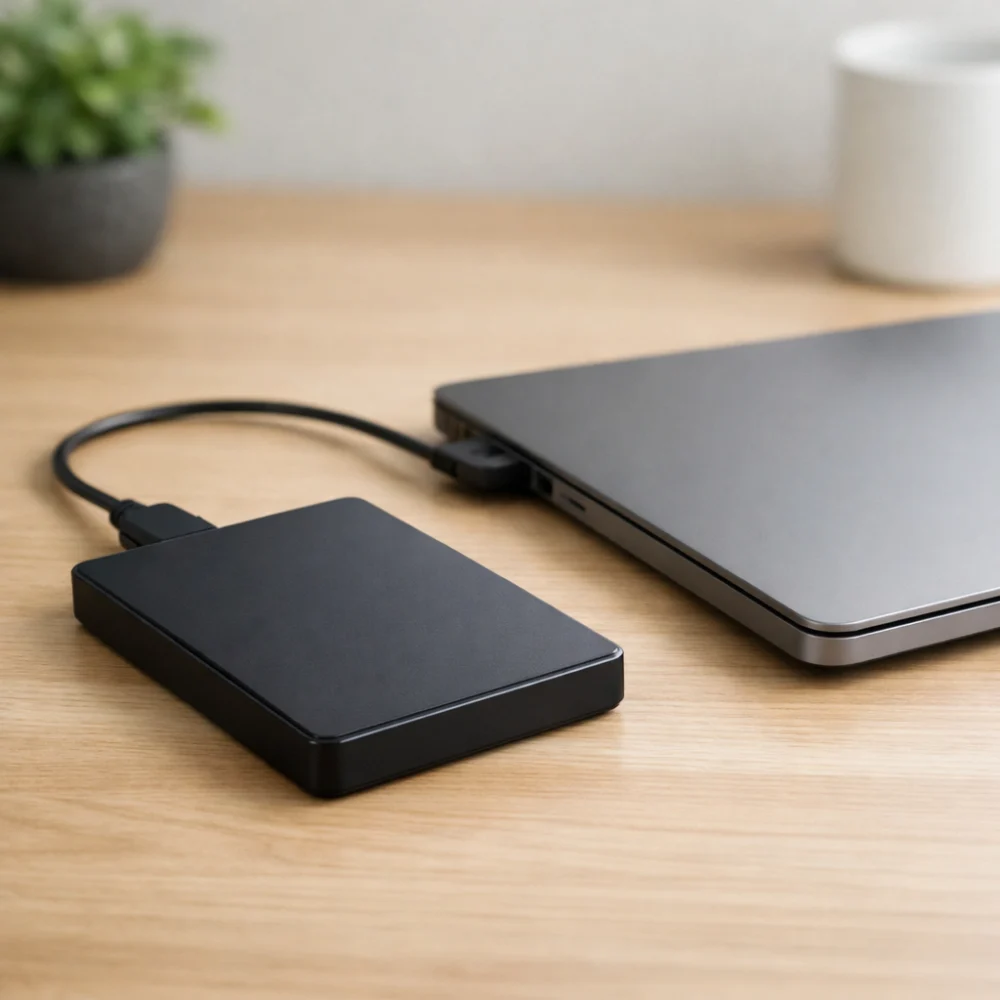
An external HDD is a hard disk drive in a separate enclosure that connects to a computer or another compatible device. Buyers often consider one for storing large files, keeping a separate copy of important data or adding storage without changing the device’s internal drive.
The right choice depends on where you will use it, how much data you expect to store and what your device can connect to. Portable and desktop models can suit different setups, so compare the individual drive’s power needs and compatibility rather than relying on its category label.
What should you look for in an external HDD?
Start with the device you plan to connect and the amount of storage you need. Then decide whether portability or a stay-in-one-place setup matters more. A useful balance is enough capacity for your files, a connection your device supports and a form factor that fits how you will use the drive.
There is a trade-off: a hard drive can be a practical choice for storing substantial amounts of data, but it contains moving parts and is generally less suited to knocks than solid-state storage. Check each product’s details for the specific connection, power requirements and compatibility information.
External HDD features compared
| Feature | What it means | Why it matters | What to check |
|---|---|---|---|
| Capacity | The amount of data the drive is designed to store. | It affects how many files, backups or projects you can keep together. | Estimate the space your current files use and allow for future growth. Check the stated capacity and remember that usable space can differ from the headline figure. |
| Form factor | A portable drive is designed to be easier to carry; a desktop drive is generally intended to stay set up in one place. | This helps determine whether the drive suits travel, a desk or a fixed storage setup. | Check the product’s dimensions and whether its power requirements suit your intended location. |
| Connection | The port and cable used to connect the drive to a host device. | A physical connection needs to match your device, or you may need an appropriate adapter. | Check the drive connector, included cable details and the ports supported by your computer or other device. |
| Power | How the drive receives power. | Power arrangements affect whether it is convenient for a mobile setup or better suited to a permanent one. | Check whether the individual drive relies on its connection for power or requires a separate power supply. |
| Device and file compatibility | Whether the drive can be used as intended with your computer, operating system or other device. | Compatibility may depend on the device’s requirements and how the drive is formatted. | Check the product information and the requirements of the device you plan to use, including any file-system or setup conditions. |
| Security and included software | Some drives may list additional software or security features. | These extras may matter for particular workflows, but should not be assumed across the category. | Confirm which features are explicitly described for that drive and whether they suit your needs. |
Choosing the right external HDD
Capacity and future growth
Make a rough inventory of what you want to store: for example, a photo archive, video files, work projects or a backup of a computer. Consider whether that collection is likely to grow, but avoid paying attention to a headline capacity without considering how much space you can use for your planned purpose. Specifications vary by model, so always check the individual product page before buying.
Portable or desktop use
A portable drive may suit someone who needs to carry files between locations or has limited desk space. A desktop drive may suit a more permanent setup where size and separate power are less of a concern. These are general distinctions, not guarantees about any particular model: confirm the drive’s dimensions and power arrangements before choosing.
Connection and real-world transfer needs
Check the connector on the drive and the ports available on the device you will use. An advertised interface alone does not establish that your setup will use it at its full potential; the drive, cable and host device all matter, and file transfers can also depend on what you are copying. If you move large files often, compare the supported connection details rather than assuming two drives will perform alike.
Compatibility and setup
Computers and other devices can have different requirements for external storage. Check that the product information covers your intended device and operating system, and look for any stated formatting or file-system requirements. If the drive will move between devices, consider whether those devices need to read and write the same files.
Backup plans
An external HDD can hold a backup, but a single drive should not be treated as the only copy of important information. Think about how often the data changes and whether you need another separate copy. Choose capacity with your backup plan in mind, not only the files you have today.
Types of external HDD
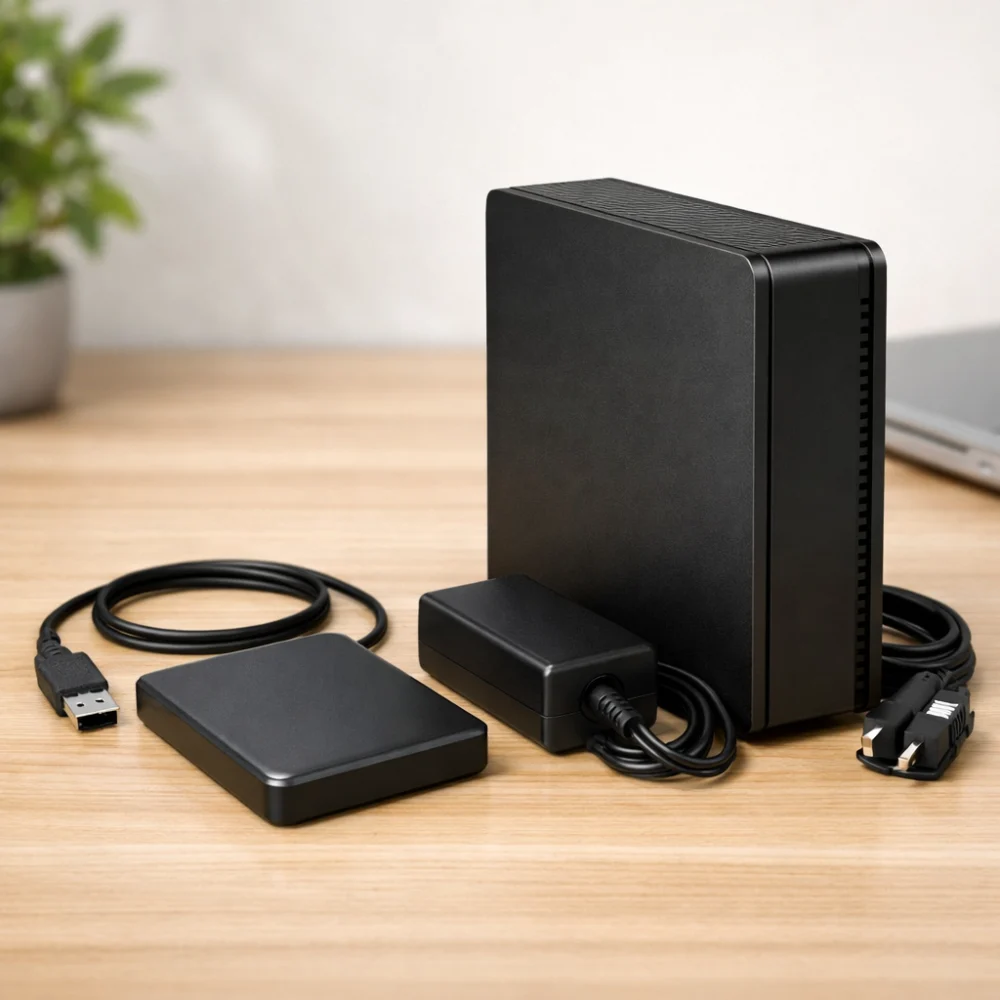
- Portable HDDs: Often suited to carrying files or using the drive in more than one place. Their size and power arrangement may be convenient for travel, but check the specific drive’s power needs and handle it with care.
- Desktop HDDs: Often suited to a stationary workspace or a larger storage setup. They can take up more room and may require separate power, so check the product details and available space near the device.
Form factor is a starting point, not a complete specification. Confirm the connection, power requirements and compatibility for the individual product.
Which type suits your needs?
| If you mainly need to… | What to prioritise | Trade-off or check |
|---|---|---|
| Carry files between locations | A portable form factor and a connection supported by the devices you use. | Check dimensions and power needs; plan to protect the drive while carrying it. |
| Keep extra storage at a desk | Capacity, compatibility and whether the drive can stay connected in your setup. | Check its footprint, cable arrangement and any separate power requirement. |
| Keep a backup of important files | Capacity for the data you plan to copy and a connection that works with the backup device. | Consider a separate additional copy; one drive alone is not a complete backup plan. |
| Move large files regularly | Supported connection details across the drive, cable and host device. | Transfer performance depends on the whole setup and the files involved, not just one interface label. |
| Share files across different devices | Compatibility with each device and any stated formatting requirements. | Check that the devices can use the drive and the file format you intend to store. |
Common buying mistakes
- Choosing capacity without estimating your needs. Check the size of the files you want to store and allow for likely growth, rather than selecting solely by the largest headline figure.
- Assuming every USB connection is interchangeable. Compare the drive connector, cable and host-device ports, and check whether an adapter would be needed.
- Overlooking power requirements. A drive that suits a fixed desk may be inconvenient for a mobile setup. Check how the individual model is powered before deciding.
- Assuming compatibility from the product name alone. Confirm the product’s stated support and your device’s requirements, including any formatting conditions.
- Keeping the only copy of important files on one drive. Decide whether you need an additional separate copy as part of your backup plan.
- Expecting a hard drive to be unaffected by knocks. HDDs contain moving parts, so consider where and how you will carry or place the drive.
Safety and suitability
Choose a drive intended for the device and use you have in mind, and follow the product information for its power and connection requirements. As HDDs contain moving parts, avoid treating a portable model as immune to impacts; consider whether its intended use fits your environment. If the data is important, plan for another copy rather than relying on one storage device.
Care, storage and ownership
Think about where the drive will sit and how it will be stored when not in use. A stationary model needs a suitable place for its enclosure and any required power connection; a portable one needs a way to be carried without unnecessary knocks. Keep the cable and any supplied power components together, and check the product information for care guidance specific to the model.
Also consider whether the drive will be used for long-term storage, regular file transfers or both. Your intended use affects how often you may need to connect it and whether one drive provides enough resilience for the data you care about. Back up important files separately rather than treating a drive’s storage capacity as a guarantee of data protection.
A practical buying process
- List the devices you will connect and the files or backups you want to store.
- Estimate the capacity needed, allowing for reasonable growth.
- Choose between a portable and desktop setup based on where the drive will be used.
- Compare connection, power and compatibility details for your devices.
- Weigh convenience against the space, cables and handling considerations of each option.
- Read the individual product information and decide how you will keep a separate copy of important data.
External HDD buyer checklist
- Have I estimated the capacity I need, including likely growth?
- Will a portable or desktop form factor fit where I plan to use the drive?
- Do the drive connector and cable suit my device’s ports?
- Have I checked how the specific drive is powered?
- Does the product information cover my intended device and any formatting requirements?
- Do I have a separate backup plan for important files?
Frequently asked questions
What is the difference between a portable and desktop external HDD?
Portable drives are generally designed to be easier to carry, while desktop drives are generally intended to remain in one place. Their size and power arrangements can vary, so check the details of the individual drive rather than relying only on its type label.
How much capacity should I choose?
Estimate the space used by the files you intend to store, then consider how much that collection may grow. The right amount depends on your own files and backup plans; check the stated capacity and remember that usable space may differ from the headline figure.
Will an external HDD work with my computer or other device?
That depends on the drive’s connection and compatibility, as well as the device’s ports, operating system and storage requirements. Check both sets of product information, including any stated formatting conditions.
Is an external HDD a complete backup on its own?
It can hold a copy of files, but keeping important data on only one drive leaves you dependent on that single copy. Consider whether your needs call for another separate copy as well.
Are HDDs suitable for carrying around?
Some are designed in portable form factors, but HDDs contain moving parts and should not be assumed to withstand knocks without consequence. Check the product’s intended use and consider how it will be handled and stored.
Does a faster connection guarantee faster file transfers?
No. The drive, cable and connected device all affect the connection in use, and transfer times can also depend on the files and task. Compare supported connection details across your setup rather than relying on one interface description.