

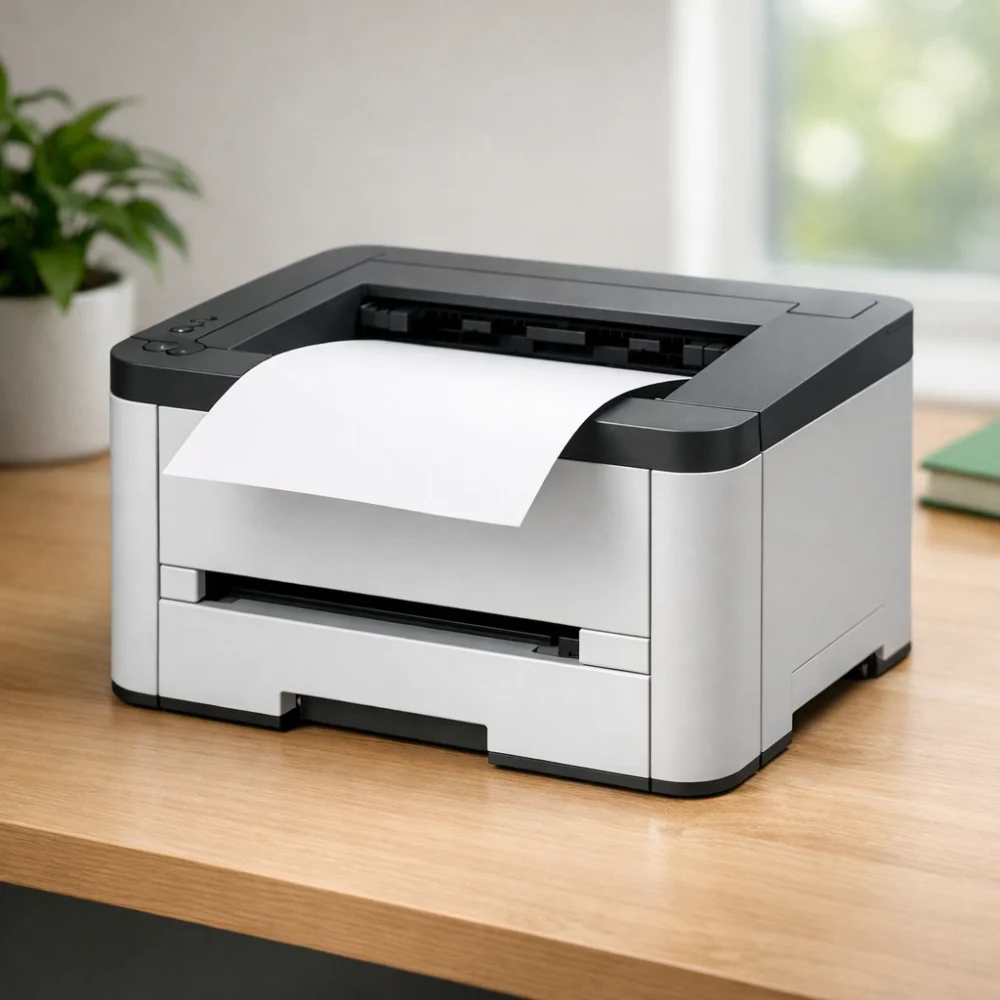
Laser printers use toner to produce printed pages, making them a common choice for documents at home or in a workplace. The right option depends less on the category name than on what you print, how often you print and which features you will actually use.
This guide focuses on choosing between laser printer types and checking the details that affect compatibility and ownership. Individual models can differ in their functions, connections and consumables, so compare the product information rather than assuming every laser printer works the same way.
Which laser printer is right for your needs?
Start by deciding whether you need black-and-white printing or colour, and whether printing alone is enough or you also need scanning and copying. Then check that the printer supports your devices, paper sizes and preferred way of connecting. Consider toner and any other replaceable consumables as part of the ongoing cost, not just the initial purchase. The main trade-off is between a simpler setup for a focused printing need and a more capable device with functions you may not use.
Compare the key buying factors
| Feature | What it means | Why it matters | What to check |
|---|---|---|---|
| Monochrome or colour | Whether the printer produces black-and-white pages only or can print in colour. | Match the output to the documents you regularly need; colour capability may be unnecessary for text-only work. | Confirm the print type and how colour printing is described for that model. |
| Print-only or multifunction | A print-only device focuses on printing; a multifunction model may also scan or copy. | Additional functions can be useful when you need them, but may add complexity or take up more space. | Check exactly which functions are included rather than relying on the term “multifunction”. |
| Connection options | The ways a printer can connect to a computer or other device. | A suitable connection can make printing easier from the devices you use. | Check supported connections and any stated operating-system, network or app requirements. |
| Paper handling | Supported paper sizes, input capacity and features such as automatic two-sided printing. | Paper support affects whether the printer suits your usual documents and how you manage multi-page jobs. | Verify the supported sizes and whether duplex printing is automatic or manual. |
| Print speed | A stated rate for producing pages, usually shown in the product information. | May matter more when you print frequently or in larger batches than for occasional pages. | Compare the stated rate on a like-for-like basis; real results can depend on the document and settings. |
| Toner and other consumables | The replaceable supplies required by the printer; their arrangement varies by model. | Consumables contribute to ongoing ownership costs and affect how you plan replacements. | Check compatible consumable details, stated page yields and whether components such as the drum are separate. |
What to consider before choosing
Choose monochrome or colour
A monochrome laser printer is designed for black-and-white output, which can suit letters, forms and other text-led documents. If you need coloured charts, diagrams or presentations, look for a colour model and check the way it handles colour printing. Colour capability alone does not establish that a printer is intended for photo-quality output, so consider the kind of material you plan to print.
Decide whether you need scanning and copying
If you only need printed pages, a print-only model may be a more straightforward fit. A multifunction printer can combine printing with functions such as scanning or copying, which may be useful when those tasks are part of your routine. Check the listed functions individually: the word “multifunction” does not tell you exactly what a model can do.
Check connections and device compatibility
Connection options can include a direct computer connection or wireless networking, depending on the model. Think about where you will place the printer and which computers or mobile devices need to send jobs to it. Check the product information for supported connection methods and any stated software or operating-system requirements; do not assume a connection method guarantees compatibility with every device.
Match paper handling to your work
Check that the printer supports the paper sizes and types you expect to use. If you often print on both sides, distinguish automatic duplex printing from a feature that requires you to handle the pages yourself. Input capacity and paper handling can also affect convenience when printing batches, so compare the details with your typical workload.
Consider speed in context
A stated page rate can help when comparing models, especially if you regularly print several pages at a time. It is only one part of the experience: document content, print settings and the time before printing starts can also matter. Specifications vary by model, so always check the individual product page before buying.
Look beyond the printer’s purchase cost
Toner is an important part of ongoing ownership. Check the consumables listed for the model, their stated page yields and whether a drum or another component is separate from the toner cartridge. Yield figures are useful for comparison, but your actual use may differ depending on what you print and how often.
Laser printer types and variants
- Monochrome laser printers: May suit buyers whose regular work is black-and-white text or documents. They are not the choice if colour output is essential.
- Colour laser printers: May suit documents that need colour as well as text. Check the consumables and capabilities for the particular model rather than assuming all colour devices handle every kind of output equally.
- Multifunction laser printers: May suit a workspace that also needs scanning or copying. Their included functions and connection options vary, so confirm the details before choosing.
- Print-only laser printers: May suit a focused printing requirement. They do not replace a separate scanner or copier if you need those functions.
Choose for the way you will use it
| If you mainly need… | Prioritise… | Trade-off to consider |
|---|---|---|
| Black-and-white documents | Monochrome printing, suitable paper handling and a connection that works with your devices. | A monochrome model will not provide colour output. |
| Colour documents | A colour model and clear information about its consumables and supported media. | Colour printing may involve different consumable requirements from monochrome printing; check the specific model. |
| Printing plus document capture | A multifunction model with the scanning or copying functions you need. | Additional functions may not be worthwhile if you will not use them. |
| Frequent or larger print jobs | Stated print rate, paper capacity, duplex options and consumable information. | A headline speed does not describe every job or the full time involved in printing. |
| Printing from several devices | Connection methods and stated compatibility with your computers or mobile devices. | Wireless or app-based features still depend on the relevant device and setup being supported. |
Common buying mistakes to avoid
- Choosing colour by default: If your documents are almost always black and white, colour capability may not add useful value. Base the choice on the pages you expect to print.
- Assuming every laser printer scans: Some are print-only. Confirm scanning and copying are explicitly listed if you need them.
- Checking only the connection label: A wireless feature does not guarantee that every device or operating system is supported. Verify the stated requirements for your setup.
- Overlooking paper requirements: Do not assume a printer handles a particular size or automatic two-sided printing. Check both in the product details.
- Comparing only the purchase cost: Toner and other replaceable components affect ongoing costs. Check consumable types and stated yields as well.
- Treating a speed figure as a guarantee: Stated rates help with comparison, but a specific job may take longer depending on its content and settings.
Suitability and setup checks
Before buying, make sure the printer’s stated paper support, connections and functions suit the intended setting and devices. A model suitable for one computer or network arrangement may not suit another, so check compatibility rather than assuming it. Consider the available space and where paper and replacement supplies will be kept. For any particular setup requirement, rely on the product information and relevant device documentation.
Consumables, care and storage
Laser printers use toner, and some models may use a separate drum or other replaceable components. The design and replacement requirements vary, so check the consumables specified for the individual printer and whether they are supplied or need to be obtained separately. Keep those details in mind when comparing ownership costs.
Allow for a practical place to keep the printer, paper and compatible supplies. Follow the care and storage guidance provided for the model, since handling and maintenance requirements are not identical across printers. Avoid assuming that a consumable or accessory listed for one model is suitable for another without checking compatibility.
A practical buying process
- Write down what you print most often, whether you need colour and whether scanning or copying is required.
- Choose between a monochrome or colour printer, then between print-only and multifunction designs.
- Check paper support, duplex printing and the connections needed for your devices.
- Compare stated speed and consumable information in light of how often and how much you expect to print.
- Review the individual product information for compatibility, included functions and any requirements that matter to your setup.
Laser printer buyer checklist
- Do I need monochrome or colour printing?
- Do I need scanning, copying or printing only?
- Does the printer support the paper sizes and two-sided printing I want?
- Are its connection options and stated requirements suitable for my devices?
- Have I checked toner, other consumables and their stated yields?
- Does the product information confirm the functions and compatibility I need?
Frequently asked questions
What is the difference between a monochrome and colour laser printer?
A monochrome model prints in black and white, while a colour model can produce colour output. Choose based on the documents you expect to print, and check the particular model’s capabilities and consumables.
Do all laser printers scan and copy?
No. Some models are designed for printing only, while multifunction models may include scanning and copying. Confirm the functions listed for the specific printer.
Can I print from a phone or tablet?
That depends on the printer’s connection options and its stated compatibility with your device. Check the product information for supported methods, software or app requirements before choosing.
What should I check about toner?
Check which toner is specified for the printer, its stated page yield and whether the model uses a separate drum or other replaceable components. These details help you understand ongoing supply requirements.
Is automatic two-sided printing the same as duplex printing?
Product descriptions may use duplex terminology for two-sided printing, but the handling can differ. Check whether the individual model specifies automatic two-sided printing or requires manual handling of pages.
Are laser printers suitable for printing photos?
Some laser printers can print colour, but colour capability does not by itself establish suitability for photo printing. Check the intended output, supported media and product information against what you want to print.