

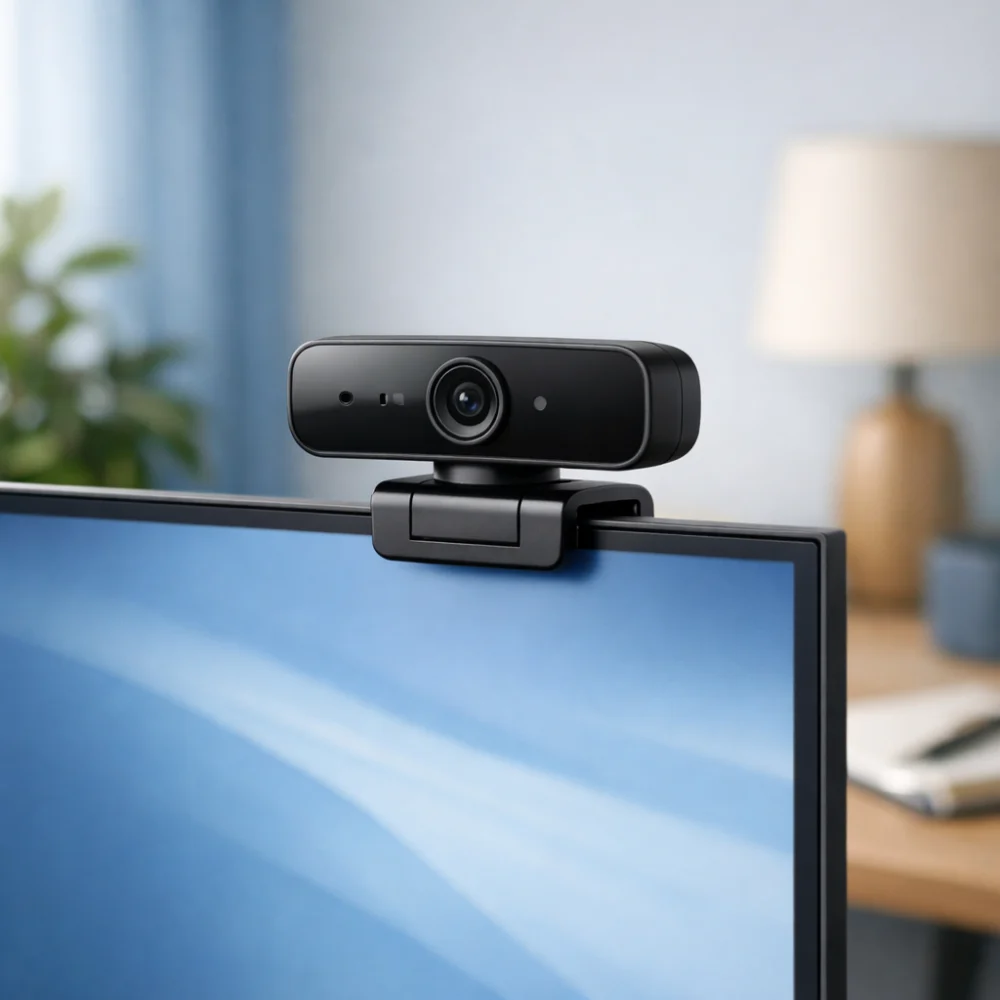
A webcam can be useful for video calls, remote meetings, streaming and other situations where you want to share a live image. The right choice depends less on a single headline specification than on how you will use it and the setup it needs to work with.
Consider the image you need, how much of the room should appear in frame, whether you need a built-in microphone and how the camera will attach to your screen or stand. Then check the individual product information for compatibility and any features that matter to your setup.
What should you look for in a webcam?
Start with your main use: a straightforward camera for occasional calls may need different features from one used for regular streaming or meetings with several people in frame. Check resolution alongside frame rate and any stated image adjustments rather than treating one number as a complete measure of picture quality. Make sure the connection, mounting method and software compatibility suit your device, and weigh built-in audio and privacy features against your preferences.
Webcam buying factors compared
| Feature | What it means | Why it matters | What to check |
|---|---|---|---|
| Resolution | The image detail the camera is designed to capture. | Higher stated resolution can provide more detail, but does not by itself guarantee a better-looking image in your room or app. | Look for the stated resolution and whether it matches your intended use and display or streaming setup. |
| Frame rate | How frequently the camera can capture successive frames at a given setting. | It affects how motion is represented and may be relevant for presentation or streaming. | Check the frame rate alongside the resolution; a product may not offer every frame rate at every resolution. |
| Field of view | How much of the scene fits within the camera’s frame. | A wider view can include more people or surroundings, but may show more of the room than you want. | Check the stated field of view and whether it is fixed or adjustable, if this information is provided. |
| Microphone | Some webcams include one or more microphones. | An integrated microphone can simplify a basic setup, while a separate audio device may better suit a particular workspace or preference. | Check whether a microphone is included and how the product describes its audio features; do not assume it replaces your preferred audio setup. |
| Connection and compatibility | The way the camera connects and the devices or software it is intended to work with. | A suitable connection is essential, and compatibility can vary between computers, operating systems and applications. | Check the connector, system requirements and any stated app or operating-system compatibility for your own setup. |
| Mounting and privacy | How the camera attaches to a screen or stand, and whether it includes a privacy feature such as a lens cover. | A suitable mount helps position the camera; a cover can provide a simple way to block the lens when it is not in use. | Check the mounting options and how any privacy feature works with the camera’s design. |
Features that can make the biggest difference
Resolution and frame rate
Resolution describes image detail, but it is only one part of the result. Room lighting, camera placement, the video application and the settings you use can all affect how the image appears. Frame rate is a separate consideration: it relates to how smoothly movement is represented. Compare the stated resolution and frame rate together, and avoid assuming that a higher resolution alone will suit every use or setup.
Specifications vary by model, so always check the individual product page before buying.
Field of view and framing
Field of view determines how much of the scene the camera captures. A narrower view may suit a single person who wants the background kept limited, while a wider view may help when more than one person needs to fit in the shot. The trade-off is that a wider frame can include more of the surrounding space. Check whether the view is adjustable and think about where the camera will sit relative to the people or area you want in frame.
Illustration: how a narrower or wider camera view changes the amount of a desk-side scene in frame.

Microphone and other audio
An integrated microphone may be convenient if you want fewer separate devices, but its presence does not establish that it will suit every room or speaking distance. If you already use a headset or a separate microphone, check whether you need webcam audio at all. Look for clear information about included audio features rather than inferring performance from a microphone count or description alone.
Connection, software and setup
Check the connector against the ports available on your computer and confirm that the webcam is listed as compatible with your operating system and intended video software. A description such as “plug and play” should not be treated as proof of compatibility with every device or application. Also consider how the camera will be positioned: screen clips, mounting arrangements and any included stand can differ, so check the product details against your screen and desk setup.
Privacy features
A physical lens cover can be useful if you prefer to block the camera when it is not in use. Check what the feature actually covers and whether it is built in or supplied separately. A lens cover is not the same as muting a microphone, so consider audio privacy separately if the webcam includes one.
Common webcam types and variants
- Basic fixed-view webcams: These may suit routine one-person calls where a simple, consistent frame is enough. Their limited adjustment may be less convenient if your seating position or scene changes.
- Webcams with adjustable framing: An adjustable field of view can help accommodate different room layouts or more than one person. Check how adjustment works and whether the available framing suits your space.
- Higher-resolution webcams: These may appeal when image detail is a priority, but the benefit depends on your software, setup and intended use. Check supported settings rather than relying on the resolution headline alone.
- Webcams with integrated audio or privacy features: These can reduce the need for separate accessories or offer a physical lens cover. Confirm which features are included and whether they match your preferences.
Choosing for your intended use
- Occasional video calls: Prioritise compatibility, straightforward positioning and a frame that suits one person. Built-in audio may be convenient if you do not already use another microphone or headset.
- Regular meetings: Consider whether you need to include more than one person, and check the field of view and mounting options for your meeting space. If audio matters, decide whether integrated sound or your existing equipment is the better fit.
- Streaming or presenting: Compare resolution and frame-rate information, camera placement and any adjustment options. Check that the product’s stated compatibility fits your computer and chosen software.
- Shared or privacy-conscious spaces: Look for a clearly described lens cover if physical blocking matters to you. Consider microphone privacy as a separate need rather than assuming a camera cover handles both.
Webcam buying mistakes to avoid
- Choosing by resolution alone: Resolution does not describe framing, motion, lighting or compatibility. Compare it with frame rate and the other features relevant to your use.
- Assuming a wider view is always better: A wider frame can include more people, but also more of the surrounding room. Match the view to your space and the number of people you want to show.
- Overlooking device compatibility: A connector that looks suitable does not confirm that the camera works with your computer or software. Check the stated requirements before choosing.
- Assuming a built-in microphone is all you need: It may be convenient, but your existing audio setup or room may make a separate device preferable. Check what is included and choose according to your needs.
- Treating a privacy cover as complete privacy: A cover blocks the lens, not necessarily the microphone. Check the specific privacy features and consider camera and audio privacy separately.
Safety and suitability
Webcams are generally straightforward computer peripherals, but they still need to suit your device, intended software and placement. Check compatibility and mounting details before buying, especially if you plan to use the camera with a particular screen or setup. If privacy is important, make sure the product’s described features address both video and audio as needed.
Care, storage and ongoing setup
Think about where the webcam will stay between uses. A fixed position can keep your framing consistent, while a camera that is moved or stored may need a convenient way to detach and put away; check the mounting design and what is included. Follow the product’s care information, and avoid assuming that every model has the same cleaning, storage or cable requirements.
A practical webcam buying process
- Decide whether the webcam is mainly for calls, meetings, streaming or another use.
- Work out who or what needs to appear in frame and whether the view should be adjustable.
- Choose the image and audio features that matter, comparing resolution with frame rate and considering any existing microphone or headset.
- Check the connector, stated system and software compatibility, and mounting options against your setup.
- Review privacy features and the individual product information before making a decision.
Webcam buyer checklist
- Does the webcam’s stated compatibility match your computer and intended software?
- Are the resolution and frame-rate details suitable for your use?
- Will the field of view fit the people and space you want to show?
- Do you need an integrated microphone, or will you use separate audio equipment?
- Will the mounting method work with your screen or planned position?
- Are any privacy features clearly described and appropriate for your needs?
Webcam FAQs
Is a higher-resolution webcam always better?
Not necessarily. Resolution describes image detail, but the result also depends on lighting, framing, software and the other settings available. Compare the full set of relevant details with how you plan to use the camera.
What field of view should I choose?
Choose a view that fits the number of people and the amount of background you want in frame. A wider view can include more of a room, while a narrower view keeps the scene more limited. Check whether the field of view is adjustable if your needs may change.
Do I need a webcam with a microphone?
It depends on your audio setup. An integrated microphone can be convenient for a simple arrangement, while you may prefer a headset or separate microphone for other uses. Check what the webcam includes and whether its audio features suit your needs.
Will a USB webcam work with any computer?
No single connection or product description guarantees compatibility with every computer. Check the connector, operating-system requirements and any stated software compatibility against your device and intended use.
Does a privacy cover mute the microphone?
A lens cover is intended to block the camera’s view; it should not be assumed to mute a microphone. If audio privacy matters, check whether the webcam has a separate microphone control or plan to manage audio through your computer or other equipment.
Where should I position a webcam?
Choose a position that gives the framing you want and works with the webcam’s mounting design. Before buying, consider whether the supplied mount suits your screen or whether the product information describes another positioning option that fits your setup.