
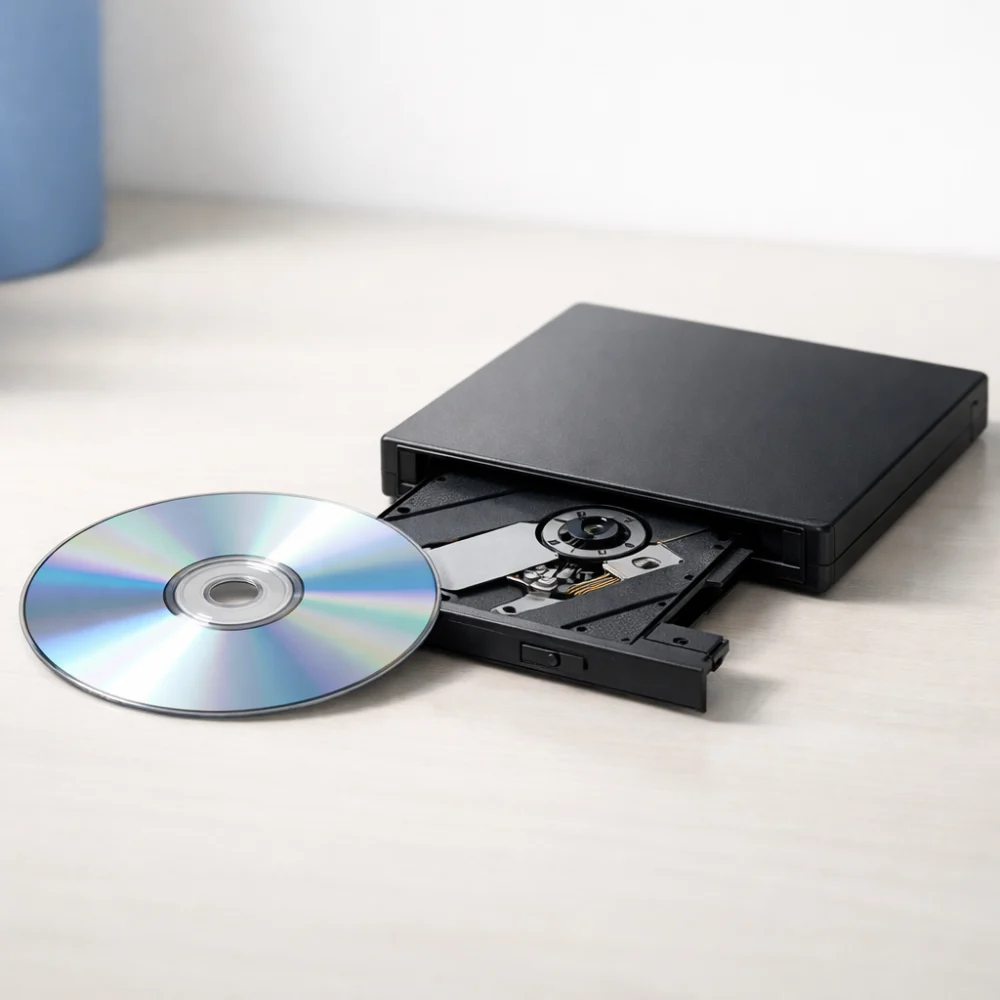
An optical drive lets a computer read information from discs and, if the drive supports writing, record information onto compatible discs. It can be useful for accessing an existing disc collection, installing or storing material on disc, or using a computer that does not have a built-in drive.
The right choice depends on the discs you use and the computer you want to connect it to. Check the supported disc formats and connection details rather than assuming that every drive handles every kind of disc.
Which optical drive should you choose?
Start with the exact disc formats you need to read or write, such as CD, DVD or Blu-ray. Then decide whether an internal drive suits your computer or an external one is more practical. Check that the drive’s connection and physical fit are compatible with your computer, and confirm any software or operating-system requirements. A more capable format or a different connection may add flexibility, but is only useful if it matches your intended use.
Compare the key buying factors
| Feature | What it means | Why it matters | What to check |
|---|---|---|---|
| Disc formats | The types of discs the drive can read or write. | A drive that supports one format may not support another. | Check the listed formats against the discs you already use or plan to use. |
| Read or write capability | Whether the drive reads discs, writes to them, or does both. | Reading a disc and creating one are different needs. | Confirm the capability for each format you intend to use. |
| Internal or external design | An internal drive fits inside a compatible computer; an external drive connects outside it. | The choice affects fit, portability and how the drive connects. | For an internal drive, check the computer’s bay and connection. For an external drive, check its connection and host-device requirements. |
| Connection and interface | The way the drive connects to the computer, or to an enclosure in some setups. | A physical connector alone does not establish full compatibility. | Check the specified interface, connectors, and any operating-system or software requirements. |
| Software support | Software needed for tasks such as writing or playing certain disc content. | The drive may not provide every software function a buyer expects. | Check what software is included or required and whether it supports your computer. |
What to check before choosing
Disc formats and intended tasks
Make a short list of the discs you need to use, including whether you need to read them, write to them, or both. CD, DVD and Blu-ray are distinct formats; support for one does not establish support for the others. Also check the particular disc types listed for the drive, rather than relying on a broad description such as “DVD drive”.
Internal fit or external connection
An internal drive can suit a desktop computer with a compatible drive bay and connection. Confirm the available space, mounting arrangement and interface for the computer before choosing one; a drive that cannot be fitted is not a useful upgrade.
An external drive avoids fitting a component inside the computer and may suit occasional use or more than one compatible device. Check the exact cable or connector requirements and whether the host computer supports the drive. Do not assume that a USB-C or USB-A connector alone guarantees compatibility or that every external drive is powered in the same way.
Reading, writing and software
Some drives are intended for reading, while others can also write to compatible discs. If you plan to create discs, check that the drive supports writing to the format you intend to use and that suitable software is available for your computer. For playback or other specialist tasks, check the software requirements separately from the drive’s hardware capabilities.
Specifications vary by model, so always check the individual product page before buying.
Types and variants
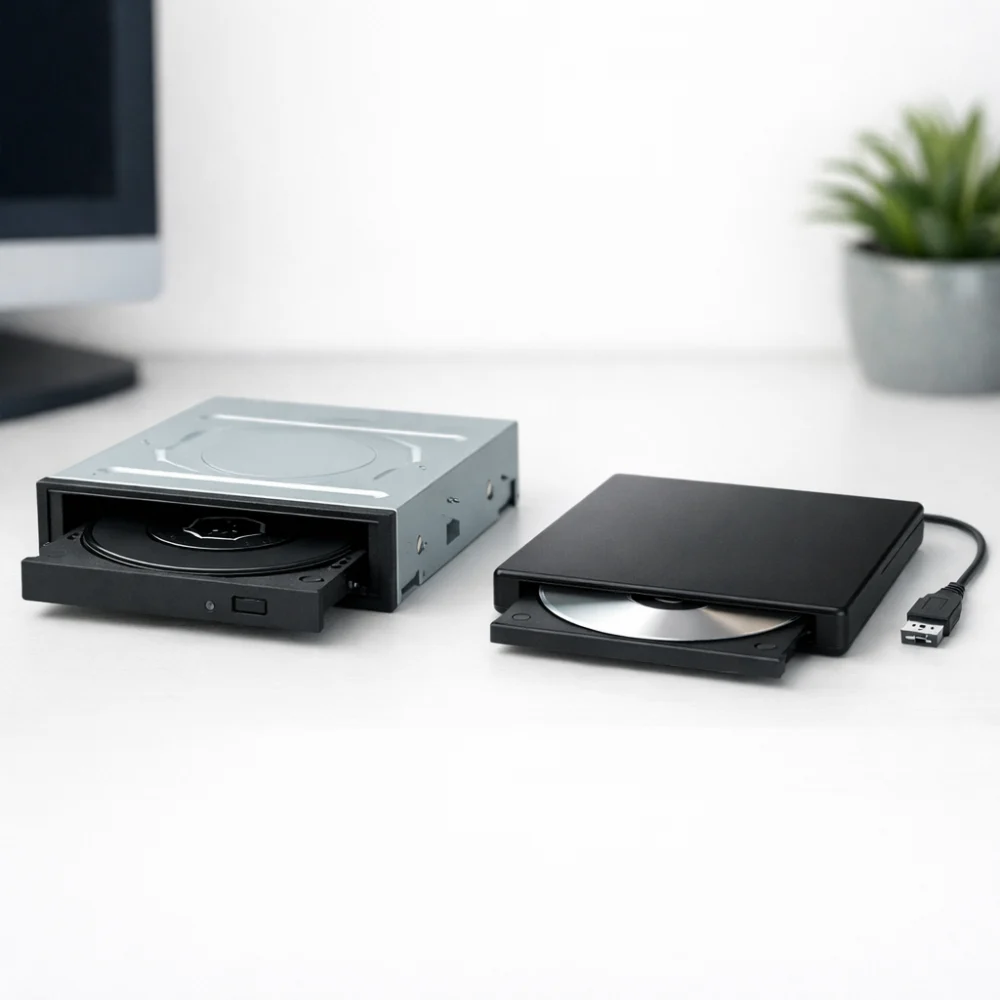
Internal drives are fitted inside a compatible computer. They can suit a desktop setup where the correct bay and connection are available, but they require a physical fit and compatible interface.
External drives connect outside the computer and can be easier to move or store when not in use. Their suitability depends on the host device, connection and any power or software requirements.
Format-specific drives vary in which discs they can read or write. A CD/DVD drive and a Blu-ray-capable drive are not interchangeable assumptions: verify the listed formats and writing capabilities for the particular drive.
Drive enclosures are another option where a compatible optical drive is housed in an external enclosure. This approach involves checking that the drive and enclosure match in size and interface, as well as confirming how the assembled unit connects to the computer.
Match the drive to your needs
- For occasional disc access: An external drive may be convenient if its connection and software support suit your computer. Focus on the formats you actually need rather than choosing on portability alone.
- For a desktop computer with a suitable bay: An internal drive may fit a permanent setup. Check the case space and connection before comparing disc-format capabilities.
- For creating discs: Look for explicit write support for the formats you plan to use, and check the software requirements as well as the drive.
- For Blu-ray discs: Confirm Blu-ray support specifically, along with any playback or writing capability you need. A drive described for CDs or DVDs may not meet this requirement.
- For a replacement or enclosure build: Identify the existing drive or enclosure dimensions and interface first. Similar-looking components are not necessarily compatible.
Mistakes and misunderstandings to avoid
- Assuming “optical drive” means every disc format: Check the supported formats individually; the category name does not specify them.
- Confusing reading with writing: A drive that reads a format may not write to it. Verify both functions if you need to create discs.
- Choosing by connector shape alone: A matching-looking port does not confirm interface, power or operating-system compatibility. Check the drive’s requirements against your device.
- Overlooking physical fit: Internal drives and enclosures must match the computer or component they are intended to fit. Confirm dimensions and interface before buying.
- Expecting the drive to provide all playback or recording software: Hardware and software are separate considerations. Check what is supplied or required for your intended task.
Suitability and compatibility checks
Optical drives are generally straightforward computer components, but compatibility depends on the specific drive and host device. Confirm the physical fit for an internal installation, or the supported connection and operating-system requirements for an external setup. For specialist disc formats or playback, check the drive and software requirements together rather than assuming the drive alone is sufficient.
Care, storage and ongoing use
Consider where an external drive will be stored and whether you need to carry its cable or other included accessories with it. Keep the drive and discs protected from dust, impact and conditions that could damage them, following any care guidance provided with the product. If the drive is part of an enclosure setup, retain the enclosure’s compatibility information for future reference.
A practical buying process
- List the disc formats you need and whether you need reading, writing or both.
- Choose between an internal drive, an external drive or a compatible enclosure setup.
- Check the physical fit or connection and host-device requirements.
- Compare the supported formats, software needs and any relevant power or cable requirements.
- Review the individual product information to confirm that it meets your specific use before buying.
Buyer checklist
- Have I identified the disc formats I need?
- Do I need to read discs, write to them, or both?
- Is the drive internal or external, and does that suit my setup?
- Have I checked physical fit, interface and connection compatibility?
- Do I understand any software, operating-system or power requirements?
- Have I checked the individual product information for the capabilities I need?
Frequently asked questions
Will an optical drive read both CDs and DVDs?
That depends on the drive. Check its stated supported formats rather than assuming that support for one type includes another.
Does a DVD drive play Blu-ray discs?
Not necessarily. Blu-ray support needs to be specified for the drive, and playback may also depend on suitable software and computer compatibility.
Can every optical drive write discs?
No. Some drives are read-only, while others can write to particular supported formats. Check the write capability for the specific disc type you intend to use.
Is an external optical drive compatible with any computer?
No single connection or connector guarantees compatibility with every computer. Check the drive’s interface, host-device and operating-system requirements before choosing it.
What should I check when replacing an internal drive?
Confirm the available space, mounting arrangement and connection in the computer, then compare these with the drive’s specifications. Also check that it supports the disc formats and tasks you need.
Do I need software as well as the drive?
It depends on what you want to do. Reading or writing discs may involve software requirements, and particular playback tasks can have separate compatibility needs, so check these against your computer.