

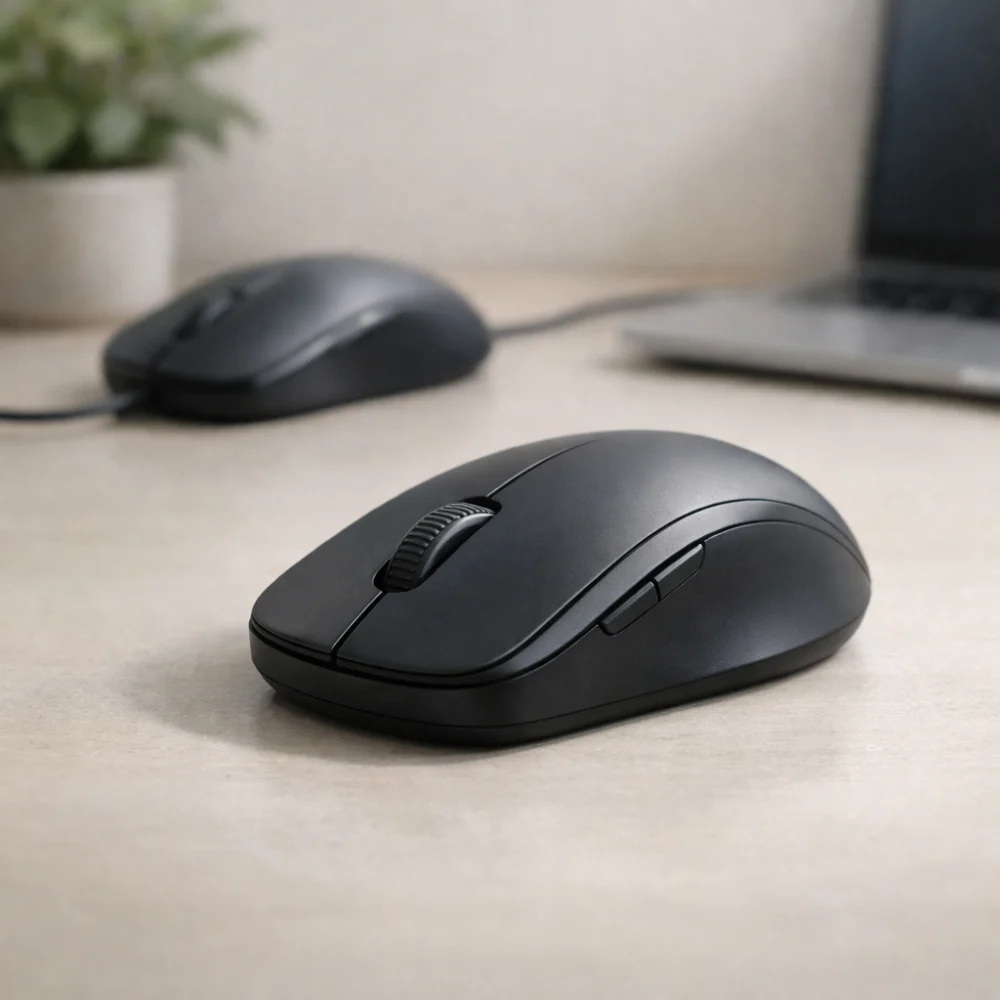
A computer mouse can make everyday navigation, detailed work or gaming more comfortable and convenient. The right choice depends on how you use your computer, how much desk or travel space you have, and which shape and controls feel suitable.
This guide focuses on choosing between mouse types and checking practical details such as connection, compatibility, power and button layout. It does not assume that any particular feature is available on every model.
Which computer mouse should you choose?
Start with how and where you will use the mouse, then decide whether a cable or wireless connection suits your setup. Check that the connection will work with your computer and that the mouse’s shape and size seem appropriate for your hand and use. For specialist tasks, compare the controls and sensitivity options you will actually use rather than relying on a high specification alone. Specifications vary by model, so always check the individual product page before buying.
Compare the key buying factors
| Feature | What it means | Why it matters | What to check |
|---|---|---|---|
| Connection | A mouse may connect by cable or wirelessly; wireless models can use different connection methods. | A cable avoids separate wireless power needs, while wireless use can reduce cable clutter. | Connection type, any receiver requirement and whether your computer has a compatible port or wireless capability. |
| Shape and size | The mouse’s overall form, dimensions and button arrangement. | These affect how it fits your hand and how easy it is to use at a desk or on the move. | Dimensions, shape, handedness and any stated grip or use guidance. |
| Sensitivity | How mouse movement translates to pointer movement; some mice offer adjustable sensitivity. | A suitable setting can make pointer movement easier to control for your screen and tasks. | Whether sensitivity is adjustable and how adjustment is made, if that matters to you. |
| Buttons and scroll control | The main buttons, scroll wheel and any additional controls. | Extra controls may be useful for frequent shortcuts or particular applications, but can add complexity. | Button layout, any stated customisation options and whether the controls suit your intended use. |
| Power | Wireless mice require a power source, which varies by model. | Power arrangements affect ongoing convenience and whether you need to plan for charging or replacement batteries. | Power type and any charging or battery details stated on the product page. |
What to consider before you buy
Connection and compatibility
A wired mouse is a straightforward option if you do not mind a cable and want to avoid managing wireless power. A wireless mouse may suit a tidier desk or a laptop used in different places, but check how it connects. Some models use a small receiver that occupies a compatible port; others rely on a wireless capability built into the computer. Do not assume that all wireless mice connect in the same way.
Check the product information against your computer’s available ports, wireless capabilities and operating system support. If you use a docking setup or have few free ports, account for any receiver before choosing. For travel, consider whether a receiver can be stored with the mouse and whether the connection method will be convenient wherever you work.
Shape, size and handedness
Mouse shape affects how your hand rests and reaches the buttons. A compact design can be easier to carry, but may feel less comfortable for extended use if it does not suit your hand. A larger or more contoured shape may offer a different feel, but can take up more room in a bag or on a desk.
Check the listed dimensions and whether the design is described as suitable for a particular hand or grip. If possible, compare the proportions with a mouse you already find comfortable. Ambidextrous designs can be useful when handedness flexibility matters, though button placement and shape still affect fit.
Sensitivity and control
Sensitivity affects how far the pointer moves in response to mouse movement. Adjustable sensitivity can be useful if you switch between precise cursor work and broader movement, but more adjustment options are not automatically better. Look for clear product information about the available controls and how they are changed, rather than treating a single sensitivity figure as a measure of overall quality.
For gaming or detailed creative work, consider whether sensitivity adjustment and button layout suit the way you use your applications. For general browsing and office tasks, comfortable movement and reliable compatibility may matter more than specialist controls.
Buttons, scrolling and click feel
Most buyers need the main buttons and a scroll control; additional buttons may help with shortcuts or repeated actions. They are useful only if their placement is comfortable and the functions can be used with your software. Check which controls are present and whether any customisation is specifically described.
If quiet clicks matter in a shared workspace, look for an explicit description of click noise. Do not assume that every mouse labelled wireless or portable is quiet.
Types of computer mice
- Basic wired mice: A practical fit for a fixed computer setup where a cable is acceptable. The cable limits freedom of movement and can add desk clutter.
- Wireless mice: Useful where fewer cables or easier portability are priorities. Connection method and power requirements vary, so check both before choosing.
- Compact travel mice: Smaller designs can be easier to carry with a laptop. Their reduced size may not suit every hand or long working sessions.
- Ergonomic or vertical mice: Their shapes differ from conventional designs and may suit someone seeking a particular hand position. Comfort is personal; a new shape can feel unfamiliar, so check the form carefully rather than assuming it will suit you.
- Gaming or feature-rich mice: These may provide additional controls or adjustment options for particular play styles. Extra features can add complexity and may not benefit everyday use.
Choose for the way you will use it
| Your priority | Features to consider | Trade-off to keep in mind |
|---|---|---|
| Everyday home or office use | A familiar shape, comfortable button layout and a connection that suits your computer. | Specialist controls may add cost or complexity without helping routine tasks. |
| Using a laptop in different places | Compact size, suitable wireless connection and a practical way to manage any receiver and power. | A smaller mouse can be less comfortable for some users; wireless models require attention to power. |
| Gaming | Controls, shape and sensitivity options suited to the games and settings you use. | More buttons or adjustments are useful only if they fit your preferences and applications. |
| Detailed pointer work | Comfortable control, suitable sensitivity and a shape that supports steady use. | A specification alone cannot establish whether the mouse’s feel or controls suit you. |
Common buying mistakes
- Choosing by sensitivity figures alone. A larger number does not tell you whether the mouse’s shape, control or adjustment method will suit your work. Compare the whole feature set.
- Assuming all wireless connections are alike. Check whether the mouse needs a receiver or uses a compatible wireless connection on your computer.
- Overlooking size. A small mouse may travel well but not feel right for extended use. Compare dimensions and shape with your intended use.
- Paying for controls you will not use. Extra buttons or adjustments can be valuable for some tasks, but add little if your usual work does not need them.
- Forgetting power requirements. Check whether a wireless model uses batteries or charging and what details are provided about that arrangement.
Safety and suitability
Choose a mouse intended for use with your computer and check the stated compatibility before buying. Comfort varies from person to person, so no particular shape can be assumed to suit everyone. If a mouse feels unsuitable for your intended use, consider a different size or form rather than relying on a general label.
Care, power and storage
Follow the care guidance supplied with the individual mouse. Keep wireless power needs in mind when deciding whether a battery-powered or rechargeable arrangement suits your routine, and check what is included rather than assuming accessories are supplied. If you carry a mouse with a laptop, consider whether its shape and any separate receiver can be stored conveniently.
A practical buying process
- Decide where you will use the mouse and whether a cable is acceptable.
- Check your computer’s ports, wireless capability and operating system requirements.
- Narrow the choice by shape, size and handedness to suit your likely use.
- Compare sensitivity, buttons and scrolling only where those controls matter to your tasks.
- Review power details, dimensions and any stated compatibility on the individual product page.
Computer mouse buyer checklist
- Does the connection suit your computer and available ports?
- Are the mouse’s size, shape and button layout appropriate for your use?
- Do you need adjustable sensitivity or additional controls?
- Have you checked the wireless model’s connection and power requirements?
- Are the product’s compatibility and included items clearly stated?
Frequently asked questions
Is a wired or wireless mouse better?
Neither is best for everyone. A wired mouse avoids separate wireless power needs, while a wireless one can reduce cable clutter and be convenient to carry. Choose based on your setup and check the connection requirements.
Will any wireless mouse work with my laptop?
Not necessarily. Wireless models may use different connection methods, and a receiver may need a compatible port. Check the product’s stated requirements against your laptop’s ports and wireless capabilities.
Does a higher sensitivity figure mean a better mouse?
Not by itself. Sensitivity describes pointer movement, but comfort, shape, button layout and the ability to adjust settings may matter more for your use. Compare the features you will actually use.
Are compact mice suitable for everyday work?
They can be convenient if you travel or have limited desk space. The smaller size may not feel comfortable for every hand, particularly during extended use, so consider the dimensions and shape before choosing.
What should I check when buying a gaming mouse?
Consider whether its shape, buttons and sensitivity controls suit the games and settings you use. Extra controls are not automatically an advantage if they do not fit your preferences, and compatibility should still be checked.
Do wireless mice need batteries?
Power arrangements differ by model: some use batteries and others may be rechargeable. Check the individual product details for the power type and any information about charging or batteries.