

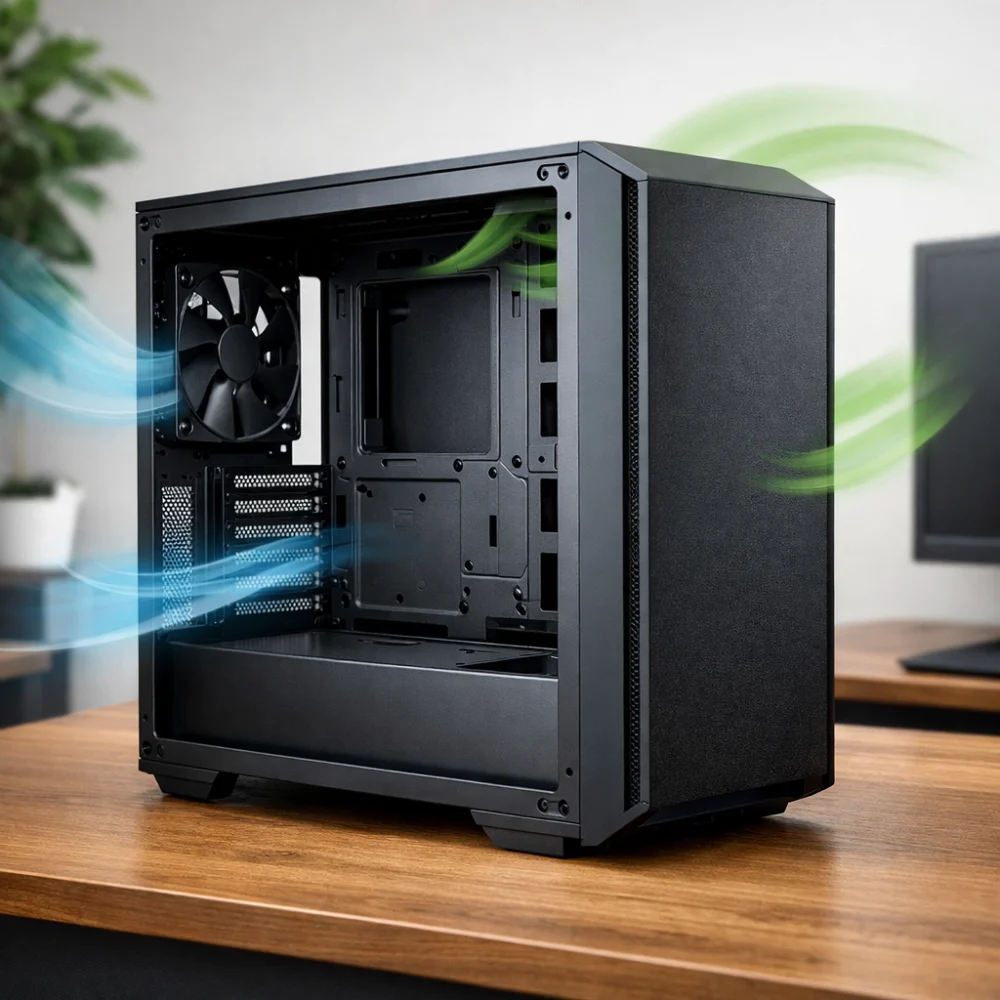

A computer case houses and supports a desktop PC’s components, but it also determines how much room you have to build, connect and expand the system. The right choice depends on the components you plan to use and the space available where the computer will sit.
Start with compatibility, not appearance alone. Form factor, component clearances and cooling support can limit your choices, while details such as front-panel connections, included fans and cable space affect day-to-day use.
Compare Computer Cases


As an Amazon Associate we earn from qualifying purchases.
Which computer case should you choose?
Choose a case that supports your motherboard size and leaves enough room for your other planned components. Then compare airflow, fan or radiator support, physical dimensions and the connections you want easy to reach. A larger case can make space and installation easier, but takes up more room; a compact case saves space but usually calls for closer compatibility checks. Treat appearance and lighting as secondary to fit and practical needs.
Compare the features that affect your build
| Feature | What it means | Why it matters | What to check |
|---|---|---|---|
| Motherboard support | The motherboard sizes the case is designed to accommodate. | It determines whether your board can be installed and how much room remains around it. | Check the supported motherboard form factors against your board. |
| Component clearance | The space available for items such as a graphics card, CPU cooler and power supply. | A case can support a motherboard yet still be unsuitable for one of the other components. | Compare the case’s stated clearances with the dimensions of your chosen parts. |
| Cooling support | Space and mounting positions for fans or radiators, where supported. | Cooling options and airflow paths can affect how you plan the build. | Check supported sizes and locations, and whether fans are included. |
| Case dimensions | The outside size and the space available inside. | The case needs to fit its intended location as well as its components. | Check height, width and depth against your desk or other placement space. |
| Front-panel connections | Ports and controls positioned on the case exterior. | Their location and type affect convenient access to connected devices. | Compare the listed connections with your everyday needs and motherboard support. |
| Storage and cable space | Mounting options for drives and room to route internal cables. | These details matter for the planned build and can influence how straightforward it is to keep the interior organised. | Check drive mounting options and any stated cable-management features. |
How to assess case compatibility and design
Match the case to the motherboard
Cases are commonly described by size classes such as full tower, mid tower and compact or mini tower, but the label alone does not confirm what will fit. Check the specific motherboard form factors listed for the case, then consider whether its internal layout leaves room for your other parts. Do not assume that a case described as mid tower or gaming will suit every build.
Check clearances for every major component
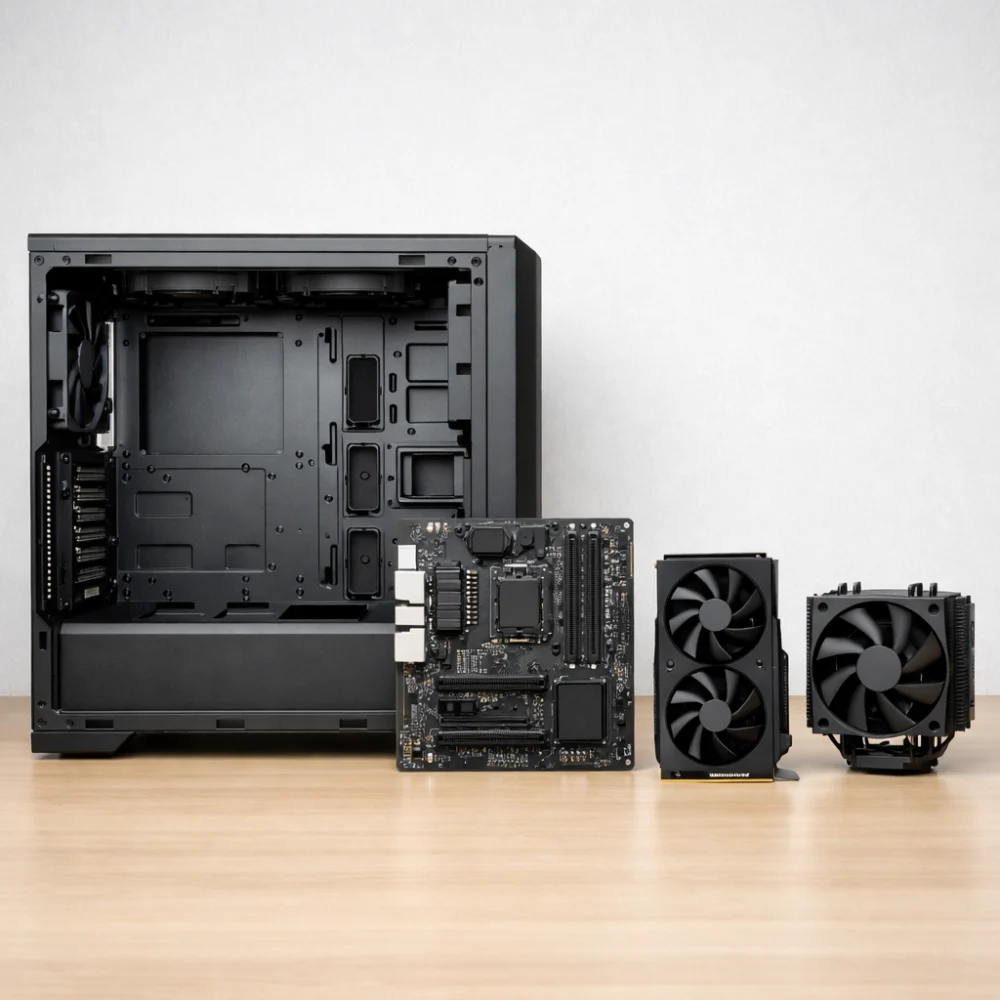
Graphics cards, CPU coolers and power supplies can differ in size. Compare the dimensions of the parts you intend to install with the case’s stated limits, including any relevant restrictions caused by a fan or radiator position. If you are considering future upgrades, use the dimensions of the possible replacement parts as well; a case’s general size description is not a substitute for clearance figures.
Specifications vary by model, so always check the individual product page before buying.
Pay attention to how cooling hardware affects usable space. A case may offer a mounting position, but that does not by itself confirm that a particular radiator, fan arrangement and other components can all fit together. Verify the specific supported sizes and positions for the configuration you have in mind.
Balance airflow, noise and appearance
Front and side panel designs can influence how air enters the case. Open or mesh-style panels may be worth considering when airflow is a priority; more enclosed designs may appeal when appearance or a less open exterior matters more. Neither panel style alone guarantees a particular temperature or noise level. Look at the overall layout and stated cooling support, and consider whether the case includes fans rather than assuming that it does.
Tempered-glass panels can make the interior visible, which may suit a build where appearance is important. They also make the inside of the case part of the display, so consider whether you want to maintain a tidy-looking layout. Check the panel material and opening or access details on the product page rather than inferring them from photographs alone.
Consider access, connections and cable routing
Front-panel ports are useful only if they are the right type and easy to reach where the case will sit. Compare the listed ports with the devices you regularly connect, and check any motherboard connection requirements. Cable-routing space and access to the interior can also affect how convenient a build or later component change may be.
Common computer case types
- Full tower: A larger format may suit builds that need more internal room or expansion flexibility. Its main trade-off is the greater space it can occupy, so check the external dimensions and the specific supported components.
- Mid tower: A common general-purpose size class that may offer a balance between component room and overall footprint. The name does not guarantee compatibility; confirm motherboard support and clearances.
- Compact or mini tower: A smaller case can suit a space-conscious build. It usually makes careful checks of board support, component dimensions and cooling layout especially important.
- Mesh-front or more enclosed designs: These describe different panel approaches rather than a guarantee of cooling or noise performance. Consider the whole airflow layout, included fans and the appearance you prefer.
Choose a case for your needs
- For a first build: Prioritise clearly stated compatibility, room for planned parts and accessible cable-routing space. A little extra room may make planning easier, but only if the case fits its intended location.
- For a compact desk setup: Begin with the available footprint and compare it with the case’s external dimensions. Then verify that the smaller format still supports your motherboard and other components.
- For a build with a large graphics card or cooler: Make component clearance the deciding check. Compare the exact dimensions and consider whether the chosen cooling layout changes the available space.
- For a display-focused build: Look for the panel style and interior visibility you prefer, alongside practical access and cable space. Do not let appearance replace compatibility checks.
- For a planned upgrade: Check the dimensions and mounting options your intended future components may need. Extra room can preserve flexibility, but it is not useful if it makes the case impractical for your space.
Computer case buying mistakes to avoid
- Choosing by size label alone: Tower categories are broad. Confirm the supported motherboard and the clearances for the actual components.
- Assuming a case includes fans: Bundled contents can differ. Check the product details for included fans and any other components rather than relying on images or the case style.
- Checking only the graphics card: The cooler, power supply, drive arrangement and cooling hardware also affect fit. Review the whole planned build.
- Treating a mesh panel as a cooling guarantee: Panel design is only one part of airflow. Check the overall layout and cooling support without assuming a particular result.
- Forgetting the space outside the case: A case must fit its location and allow practical access. Compare its external dimensions with the available space.
- Assuming a port will work with every build: Check the case’s listed connections and the relevant motherboard support before relying on a particular front-panel connection.
Safety and suitability
A case must be suitable for the components and intended build, not just the available desk space. Check the product information and component manufacturers’ guidance for compatibility and installation requirements. If you are unsure about a combination, confirm the details before buying rather than assuming that parts will fit because they belong to the same general PC category.
Care, maintenance and storage
Consider how accessible the panels and interior will be when comparing designs, particularly if you expect to clean or change components over time. Follow the care guidance supplied for the individual case and its panels; materials and access arrangements can differ. Keep the product information available for any case-specific instructions, and allow for the case’s dimensions if you may need to store or move it.
A practical buying process
- List the motherboard and other components you plan to install, including any likely near-term upgrades.
- Decide how much physical space you can give the case and measure its intended location.
- Narrow the choices by motherboard support and the required clearances for each component.
- Compare cooling support, panel design, included fans, front-panel connections and cable space against your priorities.
- Review the individual product information for dimensions, compatibility and included items before making a decision.
Computer case buyer checklist
- Does the case support your motherboard form factor?
- Do the graphics card, CPU cooler and power supply fit within its stated clearances?
- Will the case fit the intended location?
- Does its cooling support suit your planned configuration, and are any expected fans included?
- Are the front-panel connections and drive mounting options suitable for your needs?
- Have you checked the product details for all relevant dimensions and included items?
Frequently asked questions
Does a larger computer case always fit more components?
Not necessarily. Overall size is a useful starting point, but internal layout and stated support determine what a case can accommodate. Check the relevant clearances and mounting options for your planned parts.
Can I use any motherboard in a computer case?
No. A case lists the motherboard form factors it supports, and those details need to match your board. Confirm support on the individual product information before buying.
Do computer cases come with fans?
Included items vary by case. Check the product details to see whether fans are included and what the case supports; do not assume that a pictured fan is part of the package.
Is a mesh-front case always the best choice for airflow?
Mesh is one design consideration, not a guarantee of a particular cooling result. The overall layout, fan support and planned build also matter, so compare those details rather than choosing by panel material alone.
How do I know whether my graphics card will fit?
Compare the card’s dimensions with the case’s stated graphics-card clearance. Also check whether the planned fan or radiator arrangement affects available space.
What should I check if I want to upgrade later?
Consider the likely size of future components and check the case’s clearances, motherboard support and mounting options against them. A larger case may offer more room, but the specific product details still determine what fits.
More Computer Cases
See all 164 Computer Cases →



As an Amazon Associate we earn from qualifying purchases.