
PC Monitors
PC Monitors are the window to everything you do, from work and study to gaming, creative projects, and streaming. Since 1988, our UK online shop has helped customers choose the right screen with clear specs, practical comparisons, fast UK delivery, and easy returns.
- PC Monitors
Gawfolk 2K 27 Inch Gaming Monitor, 165Hz QHD 2560x1440p 144Hz with AMD FreeSync, Flicker-Free, 2X HDMI 2.0, DP 1.4, Ultra-Thin Frameless Curved Screen PC Monitor
Original price was: £169.99.£149.99Current price is: £149.99. *View On Amazon* - PC Monitors
KOORUI 27 Inch Gaming Monitor, FHD 1080P Curved Monitor 180Hz VA 1ms 1500R PC Monitors with Adaptive Sync, HDMI X2-DP, VESA Compatible, Tilt Adjustable, Eye Care
Original price was: £145.99.£119.99Current price is: £119.99. *View On Amazon* - PC Monitors
ASUS VY27UQ Eye Care Monitor – 27 inch 4K (3840 x 2160), IPS, HDR-10
£178.99 *View On Amazon* - PC Monitors
UPERFECT 144 Hz Portable Monitor 16.1 Inch Gaming Monitor 1920×1080 FHD IPS Display USB Type C HDMI Port, Matte Screen with Smart Cover, Extend Display for Laptop/PC/Phone
Original price was: £139.99.£99.99Current price is: £99.99. *View On Amazon* - PC Monitors
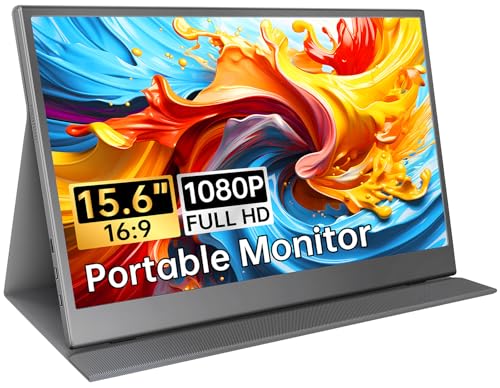
HONGO Portable Monitor 15.6" 1080P FHD Laptop Monitor Screen IPS, Plug&Play Extender Monitor Built-in Dual Speakers, Second Screen for Laptop/PC/Mac/PS345/X-bo with USB C Port & Smart Cover
Original price was: £58.99.£53.99Current price is: £53.99. *View On Amazon* - PC Monitors
UFYQL Portable Monitor 15.6"| 1080P FHD IPS HDR Eye-Care | Ultra-Slim Travel Screen with Case, USB-C HDMI | External Second Screen for Laptop, PC,Mac book,Xbox, PS5 | Gaming & Office Use
Original price was: £72.99.£49.97Current price is: £49.97. *View On Amazon* - PC Monitors
KYY Portable Monitor 15.6'' FHD 1080P USB C HDMI Gaming Monitor Ultra-Slim IPS Display w/Smart Cover & Speakers, Plug&Play, External Monitor for Laptop PC Phone Mac Xbox PS4
Original price was: £81.95.£76.00Current price is: £76.00. *View On Amazon* - PC Monitors
FeuVision 24inch Gaming Monitor 180Hz, FHD 1080p, IPS Panel, 0.5ms Response Time, Adaptive sync, PC Computer Monitor, 3-Sided Frameless, Ultra Slim, 100% sRGB, Bluelight Filter, DP*1, HDMI*1
Original price was: £74.98.£69.98Current price is: £69.98. *View On Amazon* - PC Monitors
PHILIPS 34E1C5600HE 34 inch QHD Monitor, 100Hz, VA, USB-C, WebCam, Height adjust, Speakers, FreeSync (2560 x 1440 @ 100Hz HDMI 1.4/ DP 1.2 USB-C USB 3.2)
Original price was: £359.99.£339.12Current price is: £339.12. *View On Amazon*




Pick size first, then resolution and refresh. For work, choose a 24 to 27-inch, 1080p or 1440p IPS at 75 Hz with a height-adjustable stand. For gaming, choose 1080p or 1440p at 144 to 240 Hz with FreeSync or G Sync compatible. For creators, choose 27-inch 4K with wide colour and hardware calibration. Check HDMI 2.1 or DisplayPort 1.4 or 2.1, USB-C with power delivery if you use a laptop, and VESA mount support.
Why buy PC monitors from us
UK online retailer since 1988 with friendly, expert guidance
Curated range for office, gaming, creators, students, and home setups
Clear, honest specs and real-world advice you can compare at a glance
Fast UK delivery, simple returns, and UK-based aftercare
Accessories in one place, including arms, cables, colour calibrators, and privacy filters
Monitor types and what they suit
IPS: great colour and viewing angles for office and creative work
VA: high contrast for films and general use, good value gaming at 144 Hz
OLED: best blacks and fast response for premium gaming and colour work
TN: very fast response for competitive esports on a budget
Ultrawide 34 to 49 inch: more space for timelines, spreadsheets, and immersive games
Portable USB-C monitors: travel-friendly second screens for laptops
PC monitor buying guide
1) Pick size and resolution together
| Size | Best distance | Common resolutions | Good for |
|---|---|---|---|
| 23.8 to 24 inch | 50 to 70 cm | 1080p | Desks with limited space, office work |
| 27 inch | 60 to 80 cm | 1440p or 4K | Work, gaming, photo editing |
| 32 inch | 70 to 90 cm | 1440p or 4K | Bigger desks, media, creators |
| 34 to 38 inch ultrawide | 70 to 90 cm | 3440×1440 or 3840×1600 | Multitasking, immersive gaming |
| 42 to 48 inch OLED | 90 cm plus | 4K | Sofa desk hybrids, creative review, gaming |
2) Refresh rate and response
60 to 75 Hz is fine for office and general use
120 to 144 Hz suits most gaming and smooth scrolling
165 to 240 Hz for esports and fast action titles
Look for VRR such as AMD FreeSync or G Sync compatible, plus low input lag and fast grey to grey response
3) Colour and panel quality
sRGB 99 percent for office and web content
DCI P3 90 to 98 percent or Adobe RGB for creators
10-bit or 8-bit plus FRC helps gradients in photo and video work
Factory calibration and Delta E under 2 improves accuracy
4) HDR and brightness
DisplayHDR 400 entry-level highlight pop
HDR 600 or HDR 1000 with local dimming for real impact
OLED gives superb contrast in dark rooms
5) Ports and laptop features
HDMI 2.1 for 4K at 120 Hz on PS5 and Xbox Series X S, and for some GPUs
DisplayPort 1.4 for 1440p at high refresh, DP 2.1 for very high bandwidth on new GPUs
USB-C with DisplayPort Alt Mode and power delivery 65 to 100 W to run and charge laptops with one cable
USB hub and KVM switch to share keyboard and mouse between two PCs
6) Ergonomics and mounting
Height, tilt, swivel, pivot for comfortable posture
VESA 75 or 100 mm for monitor arms and wall mounts
Thin bezels for dual screens; choose matching sizes for neat alignment
7) Console and PC compatibility checks
PC 1440p at 144 to 240 Hz often needs DisplayPort
4K at 120 Hz on consoles needs HDMI 2.1 with VRR support
Match GPU outputs to monitor inputs and keep quality cables handy
Quick picks by scenario
| Need | Recommended spec | Why it helps |
|---|---|---|
| Best value office screen | 24 or 27 inch 1080p or 1440p IPS, 75 Hz, height adjust | Sharp text, comfy ergonomics |
| Smooth 1440p gaming | 27-inch 1440p, 144 to 240 Hz, IPS or fast VA, FreeSync | Fast, crisp, great all round |
| 4K creator work | 27 or 32 inch 4K IPS or OLED, 10 bit, 95 per cent DCI P3, USB C 90 W | Detail and colour accuracy |
| Console plus PC | 27 to 32 inch 4K 120 Hz with HDMI 2.1 and DP | One screen for both systems |
| Ultra tidy laptop desk | 27-inch 4K with USB-C power and KVM | One cable setup, shared peripherals |
| Esports focused | 24.5-inch 1080p, 240 Hz, fast response | High frame rate precision |
| Space-saving dual setup | Two 27-inch 1440p on a dual arm | Efficient multitasking |
Common mistakes to avoid
Buying 4K on a tiny desk, then struggling with small UI scaling
Choosing 240 Hz but leaving VRR off in settings
Forgetting that some HDMI ports are not HDMI 2.1 and will cap refresh rates
Ignoring the stand height adjustment and getting neck strain
Expecting HDR to look cinematic on a non-dimming, low-brightness panel
Using poor-quality DisplayPort or HDMI cables and seeing flicker at high refresh rates
Placing OLED in direct sunlight for hours can affect uniformity over time
Setup, care, and calibration tips
Use the correct cable for your target resolution and refresh, then enable it in Windows and the monitor OSD
Turn on Adaptive Sync VRR on the monitor and in the GPU drivers
Start with sRGB or a calibrated mode for office work; creators can use a hardware calibrator for colour-critical projects
Set the brightness to match your room to reduce eye strain
Keep a screen saver and varied content on OLED to reduce risk of image retention
Clean with a soft microfibre cloth. Avoid harsh cleaners and pressure on the panel
Popular sub categories
Office and home PC monitors
Gaming monitors 144 to 240 Hz
4K and creator colour monitors
Ultrawide and super ultrawide
USB-C and docking monitors
Portable laptop screens
Monitor arms and wall mounts
Cables, colour calibrators, and privacy filters
FAQs. PC Monitors
1) What size PC monitor should I get
Most desks suit 27 27-inch at 1440p. Choose 24-inch 1080p for small spaces, 32-inch 4K for big desks, and 34-inch ultrawide if you multitask.
2) Is 1440p better than 1080p for gaming
Yes. You get clearer detail without the heavy GPU demand of 4K. Pair it with 144 to 240 Hz for smooth play.
3) Do I need HDMI 2.1
Only if you want 4K at 120 Hz on a console or PC. For high refresh PC gaming at 1440p, DisplayPort 1.4 is usually the best option.
4) IPS or VA, or OLED, which is best
IPS for colour accuracy and angles. VA for high contrast films and good value gaming. OLED for the best blacks and response if the budget allows.
5) Will a 4K monitor make text too small
Not with proper scaling. Windows and macOS scale well. On 27 27-inch 4K, use 150 per cent scaling for crisp text.
6) What refresh rate do I need
75 Hz feels smoother than 60 for everyday use. 120 to 144 Hz suits most games. 240 Hz is for fast-paced esports.
7) Do I need a colour calibrator
Creators benefit from a hardware calibrator to ensure accurate colour. Office users can use factory sRGB modes.
8) Can I charge my laptop through the monitor
Yes, if the monitor has USB-C with power delivery. Check the wattage meets your laptop’s needs, for example, 65 to 100 W.
9) Is G-Sync required for Nvidia GPUs
You can use G-Sync compatible FreeSync monitors with Nvidia GPUs. Enable VRR in the driver and monitor settings.
10) What cable should I use for 1440p at 144 Hz
DisplayPort 1.4 is the safest bet. A certified high-speed cable reduces flicker and black screens.
11) Are curved screens good for work
A gentle 1500R to 1800R curve on ultrawide helps keep edges in view. Flat panels are still preferred for pixel-precise design.
12) Will a gaming monitor be OK for office use
Yes. Set a comfortable brightness and use an sRGB mode. High refresh helps scrolling and eye comfort.
13) What is HDR 400 versus HDR 600 or 1000
HDR 400 adds basic highlights. HDR 600 and 1000 add higher brightness and often local dimming for a bigger effect.
14) Can I run two monitors from a laptop
Usually, yes via USB-C with DisplayPort Alt Mode or a docking monitor with a hub and daisy chain support. Check your laptop’s GPU.
15) How far should I sit from a 27-inch monitor
About 60 to 80 cm is comfortable for most users.
16) Do monitors come with display cables
Many include at least one cable. Check the product page for HDMI, DisplayPort, or USB-C in the box contents.
17) Will a monitor improve frame rates
No. The GPU and CPU set frame rates. A high refresh monitor shows more frames if your PC can produce them.
18) How do I mount a monitor on an arm
Check it has VESA 75 or 100 mm holes, then choose an arm rated for the weight. Follow the arm setup to set tension correctly.
19) Is OLED risky for burn-in in
Modern OLEDs include protections, and mixed use is fine. Keep varied content, avoid static images for very long periods, and use a screen saver.
20) What warranty do monitors come with
All monitors include a manufacturer’s warranty and our easy UK returns. Pixel policies vary, so check the product page for details.
Ready to upgrade your screen
Explore PC Monitors for office, gaming, creators, and ultrawide setups. With clear comparisons, expert guidance, and trusted UK service since 1988, you can pick a screen that fits your desk, your devices, and the way you work and play.
 Getting ready for Christmas? View our Christmas Products

Heading outdoors this winter? Take a look at our Outdoor Clothing.
Amazon Associate Disclosure
As an Amazon Associate I earn from qualifying purchases.