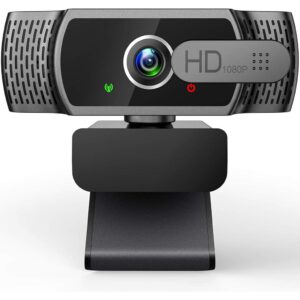
Computer Peripherals

Computer peripherals are the extra devices and accessories that connect to a computer, laptop, tablet or workstation to make it easier to use. They can improve control, comfort, communication, display, sound, storage, printing, charging and desk organisation depending on the product.

At YPC, you can browse computer peripherals for home offices, gaming setups, study spaces, business use, creative work, travel and everyday computing. This category helps you compare compatibility, connection type, size, comfort, features, power needs, desk space and practical use before choosing.

What Are Computer Peripherals?

Computer peripherals are external devices that work with a computer but are not usually part of the main computer unit. They can include keyboards, mice, webcams, speakers, headsets, monitors, printers, scanners, docking stations, USB hubs, card readers, external drives, cables, adapters and other computer accessories depending on the products listed.

Some peripherals are input devices, such as keyboards, mice and drawing tablets. Others are output devices, such as monitors, speakers and printers. Some are used for storage, connectivity, charging or expanding the number of devices you can connect.

Because computer peripherals cover many different product types, it is important to check each product listing for compatibility, connection type, features and intended use before buying.

What Are Computer Peripherals Used For?

Computer peripherals are used to make computers more practical, comfortable and capable. They can help with typing, pointing, video calls, gaming, editing, printing, file transfer, charging, sound, display output and workstation organisation.

For home working, peripherals can make a laptop feel more like a full desk setup. A keyboard, mouse, monitor and webcam can make long sessions more comfortable where compatible.

For gaming, peripherals can affect control, comfort and communication. For creative work, the right monitor, drawing device, external drive or card reader may support a smoother workflow where suitable.

How To Choose The Right Computer Peripherals

Start by identifying what problem you want to solve. If typing is uncomfortable, a better keyboard may help. If video calls look poor, a webcam or headset may be useful. If your laptop has too few ports, a hub or docking station may be the right place to start.

Next, check compatibility. A peripheral should work with your computer, operating system, ports and software. A device may connect physically but still need drivers, settings or specific support to work fully.

Also consider desk space and daily use. A large monitor or full size keyboard may be comfortable at a desk, while compact accessories may be better for travel, small desks or flexible working.

Key Features To Compare

When comparing computer peripherals, look at connection type, compatibility, size, power source, build quality, comfort, controls, software support, cable length, wireless range where listed and included accessories.

Connection type is especially important. Common options may include USB A, USB C, HDMI, DisplayPort, Bluetooth, wireless receivers, audio jacks and mains power depending on the product.

Comfort also matters. A peripheral used every day should feel easy to use, sit well in your workspace and suit the way you work, study, play or create.

Input Peripherals Compared With Output Peripherals

Input peripherals are devices that let you control or send information to a computer. Examples include keyboards, mice, trackpads, game controllers, microphones, webcams, scanners and drawing tablets depending on the product range.

Output peripherals are devices that show, print or play information from the computer. Examples include monitors, printers, speakers, headphones and projectors where listed.

Many setups need both. A home office may need a keyboard and mouse for input, plus a monitor and speakers for output. The right combination depends on how you use your computer.

Wired Peripherals Compared With Wireless Peripherals

Wired peripherals connect with a cable. They can be simple, reliable and useful for fixed desk setups. They do not usually need separate battery charging, although this depends on the product.

Wireless peripherals can reduce cable clutter and make a workspace feel cleaner. They may use Bluetooth or a wireless receiver where listed. However, they may need batteries, charging or pairing.

The better choice depends on your routine. Wired devices can suit permanent desks and gaming setups, while wireless devices may suit tidy workspaces, travel and flexible use.

USB Peripherals Compared With Bluetooth Peripherals

USB peripherals usually connect through a physical port or wireless USB receiver. They can be straightforward to set up, but you need the correct port or adapter.

Bluetooth peripherals connect wirelessly to compatible devices. They can be useful for laptops, tablets and compact desks, but compatibility and pairing should be checked.

If you regularly move between devices, Bluetooth may be convenient where supported. If you want a simple connection for one desk setup, USB may be easier.

Computer Peripherals Compared With Internal Components

Internal components sit inside the computer. Examples include RAM, graphics cards, processors, motherboards and storage drives. They affect the computer’s core performance and usually require installation inside the system.

Computer peripherals sit outside the computer and are usually easier to connect, replace or upgrade. They can change how you interact with the computer without changing the main system hardware.

If the computer feels slow, internal upgrades may be relevant. If the computer is difficult or uncomfortable to use, peripherals may make the biggest practical difference.

Home Office Peripherals Compared With Gaming Peripherals

Home office peripherals usually focus on comfort, reliability, clear communication and productivity. Keyboards, mice, webcams, monitors, headsets and docking stations are common choices.

Gaming peripherals may focus on response, controls, lighting, audio, comfort and software settings where listed. Gaming keyboards, mice, headsets and controllers can be useful for players who want a more dedicated setup.

Some products can work well for both work and gaming, but the right choice depends on your priorities. A quiet keyboard may suit office use, while a more responsive or customisable option may suit gaming where listed.

Creative Work Peripherals Compared With Everyday Peripherals

Creative work peripherals may include colour focused monitors, drawing tablets, external storage, card readers, audio interfaces, microphones and specialist control devices where listed.

Everyday peripherals are usually simpler and designed for general use, such as typing, browsing, calls, printing and basic media playback.

If you edit photos, videos, music or design work, check software compatibility and performance requirements carefully. If you mainly browse, write documents and use email, simpler peripherals may be enough.

Beginner, Regular User And Advanced User Guidance

If you are buying computer peripherals for a basic setup, start with the essentials. A comfortable keyboard, mouse, monitor and headset can make everyday computing easier.

Regular users may want to compare build quality, comfort, wireless features, cable management, compatibility and how well each device fits into a desk setup.

Advanced users may look more closely at display resolution, refresh rate where listed, input response, driver support, custom controls, storage speed, audio quality and multi device compatibility.

Use Cases By Setup And Routine

For home working, peripherals can help turn a laptop into a more comfortable workstation. A monitor, keyboard, mouse, webcam and headset can support longer sessions where compatible.

For study, compact and affordable peripherals may be useful for typing, research, online lessons, printing and video calls.

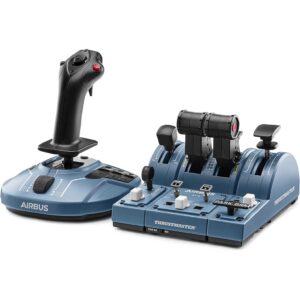
For gaming, keyboards, mice, headsets, controllers, speakers and monitors can help shape the experience depending on the system and games used.

For travel, smaller peripherals such as compact mice, portable hubs, card readers, adapters and slim keyboards may be easier to pack.

Compatibility With Computers, Laptops And Tablets

Compatibility is one of the most important things to check. A peripheral should work with your computer type, operating system, ports and software.

Laptops may have fewer ports than desktops, so adapters, hubs or docking stations may be needed where suitable. Tablets may require Bluetooth, USB C or specific accessory support depending on the device.

Do not assume a peripheral is compatible just because the connector looks right. Check the product listing and your device requirements carefully.

Ports, Cables And Connection Types

Computer peripherals can use many connection types. USB A, USB C, HDMI, DisplayPort, audio jacks, Ethernet, memory card slots and power adapters may all appear depending on the product.

Before buying, check what ports your computer has and what connection the peripheral needs. If an adapter is required, make sure it supports the feature you need, not just the connector shape.

Cable length can also matter. A short cable may suit a tidy desk, while a longer cable may be needed for larger workspaces, printers or monitors.

Keyboards And Mice

Keyboards and mice are among the most common computer peripherals. They affect comfort, speed and ease of control during everyday use.

When choosing a keyboard, consider size, key feel, layout, noise, connection type and whether you need a number pad. For a mouse, consider shape, grip style, sensitivity, buttons and whether it suits right handed, left handed or ambidextrous use where listed.

For long sessions, comfort should be a priority. A device that feels slightly awkward at first may become frustrating after repeated use.

Monitors And Display Accessories

Monitors can improve productivity, gaming, creative work and general comfort by giving you more screen space. They can be useful for laptops, desktops and multi screen setups where compatible.

When choosing a monitor, compare size, resolution, panel type, refresh rate where listed, connection type, stand adjustment and desk space. The computer and cable should also support the display settings you want to use.

Display accessories such as monitor arms, stands, cables and adapters may help organise a workspace where suitable.

Headsets, Speakers And Audio Devices

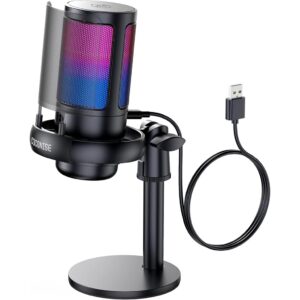
Audio peripherals help with calls, meetings, gaming, music, video editing and everyday media. Options may include wired headsets, wireless headsets, speakers, microphones and sound accessories depending on the products listed.

For calls and meetings, microphone clarity and comfort may matter most. For gaming, positional sound, microphone quality and long wear comfort may be useful where listed.

For speakers, consider desk space, power source, connection type and whether the sound level suits your room.

Webcams And Video Call Accessories

Webcams are useful for video calls, online lessons, remote work, streaming and staying in touch with others. They may offer different resolution, focus, microphone and mounting features where listed.

Before buying, check operating system compatibility, connection type and how the webcam will attach to your monitor or laptop.

Lighting and background can affect video quality too. A webcam is only one part of a clear video call setup.

Printers, Scanners And Office Peripherals

Printers and scanners can be useful for home offices, schoolwork, paperwork, shipping labels, forms, photos and document storage where suitable.

When comparing printers, check print type, ink or toner requirements, connectivity, paper handling, size and running costs where listed. For scanners, check document size, resolution and software compatibility where relevant.

Office peripherals should fit your actual use. A simple printer may suit occasional paperwork, while heavier document use may require a more capable option.

Hubs, Docking Stations And Adapters

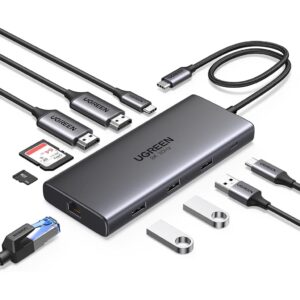
USB hubs, docking stations and adapters help expand a computer’s connections. They can be useful when a laptop has limited ports or when you want one desk setup for monitors, keyboard, mouse, storage and network accessories.

Check port types, power delivery where listed, display support, data support and device compatibility before buying. A hub that looks similar to another may support different features.

Docking stations are especially useful for hybrid work where you connect and disconnect a laptop regularly.

External Storage And Card Readers

External storage peripherals can help with backups, file transfers, media libraries, work projects and travel. Options may include external hard drives, SSDs, USB drives and memory card readers depending on the products listed.

For storage, compare capacity, connection type, speed where listed, portability, durability and compatibility. For card readers, check which memory card formats are supported.

Backups are important. External storage can be useful, but it should be part of a sensible file protection routine.

Power, Charging And Cable Management

Some computer peripherals need power from a USB port, mains adapter or battery. Wireless devices may need charging or replacement batteries depending on the product.

If you use several peripherals, cable management becomes important. Cable ties, clips, hubs, docking stations and desk organisers can help keep a workspace neater.

Avoid overloading unsuitable adapters or using damaged cables. Check power requirements and use products only as intended.

Desk Space, Ergonomics And Comfort

Peripherals can improve comfort, but only when they fit the user and workspace properly. A monitor should be positioned comfortably, a keyboard should allow relaxed typing and a mouse should suit your hand.

Desk size matters. Large monitors, speakers and full size keyboards may not suit small desks. Compact peripherals may be better for limited space or shared work areas.

Comfort is personal, so consider how long you use the device each day and whether it helps reduce awkward posture or repeated strain.

Software, Drivers And Setup

Some peripherals work as soon as they are connected. Others may need software, drivers or settings to unlock features where listed.

Before buying, check whether the product supports your operating system. This is especially important for specialist gaming controls, printers, scanners, drawing tablets, webcams and advanced keyboards or mice.

Keep software and drivers from appropriate sources and follow product guidance during setup.

Travel And Portable Computer Peripherals

Portable peripherals are useful for people who work or study in different places. Compact mice, foldable stands, travel keyboards, USB C hubs, card readers, portable monitors and slim chargers may help create a flexible setup where compatible.

Travel peripherals should be small, durable and easy to pack. However, very compact devices may not be as comfortable as full size desk accessories for long sessions.

Choose based on how often you travel and how much you need to carry.

Safety And Practical Use Considerations

Use computer peripherals only with compatible devices and suitable power sources. Check product information before connecting anything to valuable computers, laptops or tablets.

Avoid using damaged cables, cracked adapters, loose plugs or peripherals that overheat, spark or smell unusual. Replace damaged items rather than continuing to use them.

Keep liquids away from keyboards, hubs, adapters and powered devices. For shared or busy desks, cable routing can help reduce trips, pulls and accidental damage.

Care, Cleaning And Maintenance

Computer peripherals can collect dust, crumbs, fingerprints and general wear. Cleaning them regularly can help keep a workspace more pleasant and practical.

Follow the care instructions shown on the product listing or supplied information. Use suitable cleaning methods for screens, keyboards, mice, headsets and other devices.

Unplug devices before cleaning where appropriate. Avoid harsh liquids, excess moisture and rough materials that may damage surfaces or electronics.

Storage And Organisation

Store spare peripherals clean and dry. Keep cables, adapters and small accessories in labelled pouches, drawers or organisers so they are easier to find.

If you use multiple similar cables, labelling them can help avoid confusion between charging cables, display cables and data cables.

For travel, use a cable organiser or small tech pouch to protect connectors and keep accessories together.

Useful Accessories To Consider

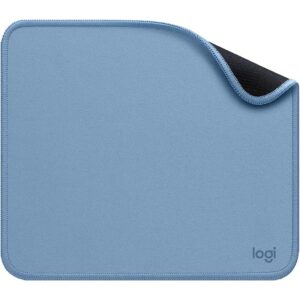
Computer peripherals often work best as part of a complete setup. Useful accessories may include cables, adapters, USB hubs, docking stations, monitor stands, laptop stands, desk mats, cable clips, external storage, cleaning cloths and power extensions where suitable.

For home offices, consider a keyboard, mouse, webcam, headset and monitor. For gaming, a headset, mouse, keyboard, controller and suitable display may be useful. For travel, compact hubs, chargers and storage devices may be more practical.

Choose accessories based on your actual setup rather than buying items that may not be compatible.

Why Buy From YPC?

At YPC, we understand active lifestyles and the need for practical products that work in real use. Computer peripherals should be compatible, comfortable and suitable for the way you work, study, play, create or manage everyday tasks.

This category helps you compare connection type, compatibility, comfort, power needs, desk space, device support, practical features and care requirements without overcomplicating the choice. Browse the computer peripherals at YPC, compare the available options and choose the accessories that suit your computer, laptop, desk setup or travel kit.

FAQs

What are computer peripherals?

Computer peripherals are external devices that connect to a computer, laptop or tablet. They can include keyboards, mice, monitors, webcams, printers, speakers, headsets, hubs, adapters and storage devices depending on the products listed.

What are computer peripherals used for?

They are used to improve control, comfort, display, sound, printing, video calls, file transfer, charging, connectivity and general computer use.

Are computer peripherals compatible with all computers?

No. Compatibility depends on the computer, operating system, port type, drivers and product requirements. Always check the listing and your device specification before buying.

What is the difference between wired and wireless peripherals?

Wired peripherals connect with a cable, while wireless peripherals connect through Bluetooth or a wireless receiver where listed. Wired options can be simple for desks, while wireless options can reduce cable clutter.

Do I need a USB hub or docking station?

A USB hub or docking station can be useful if your computer or laptop has limited ports or you want to connect several devices through one setup. Check compatibility and supported features before buying.

What peripherals are useful for working from home?

Common home office peripherals include a keyboard, mouse, monitor, webcam, headset, printer, scanner, docking station and USB hub depending on your work needs.

What peripherals are useful for gaming?

Gaming setups may use keyboards, mice, headsets, controllers, monitors, speakers and streaming accessories depending on the system, games and preferences.

How do I look after computer peripherals?

Keep peripherals clean, dry and protected from damage. Follow product care instructions, avoid damaged cables, store accessories neatly and unplug devices before cleaning where appropriate.

Home and Garden ProductsGetting ready for Summer? View our Home and Garden Products

Outdoor Clothing

Heading outdoors this winter? Take a look at our Outdoor Clothing.

Scroll to Top