
Tablet Computers
Tablet computers are portable touchscreen devices designed for browsing, watching videos, reading, studying, gaming, note taking, video calls and light work. Whether you need a simple tablet for home use, a device for travel, a study tool or a more capable tablet for creative tasks, the right option can make everyday digital life easier and more flexible.
This category can include tablet computers, Android tablets, Windows tablets, iPad style tablets, kids tablets, large screen tablets, compact tablets and tablet bundles, depending on the products listed. Features vary widely, so always check screen size, storage, operating system, battery guidance, processor, memory, connectivity, accessory compatibility and intended use before buying.
- Tablet Computers
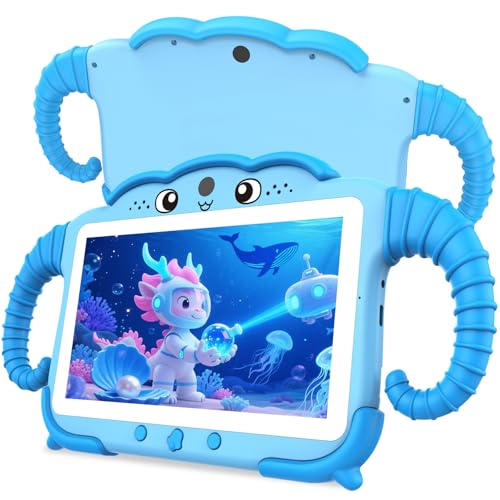
TUNUYEXST 7 Inch Kids Tablet for Toddlers, Blue Silicone Case
£49.99 *View On Amazon* - Tablet Computers
Samsung Galaxy Tab Active5 Enterprise Edition 8.0″ Black/Green 128GB 5G Tablet
£385.25 *View On Amazon* - Tablet Computers
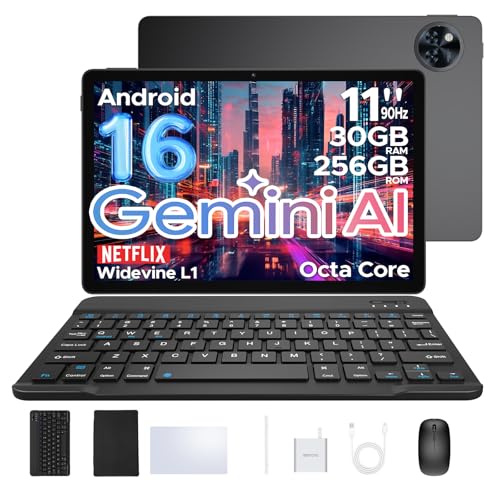
UMIDIGI G7 Tab Pro Tablet 11 Inch 2K, 16GB RAM + 256GB ROM, Helio G99, 1TB TF, 4G LTE
Original price was: £199.99.£159.99Current price is: £159.99. *View On Amazon* - Tablet Computers
Wainyok 10.1 Inch Android Kids Tablet 6GB 64GB 1TB Expandable
£65.99 *View On Amazon*










What Are Tablet Computers?
Tablet computers are portable devices with a touchscreen display, built in battery and operating system. They sit between smartphones and laptops, offering a larger screen than a phone while usually being lighter and simpler to carry than a laptop.
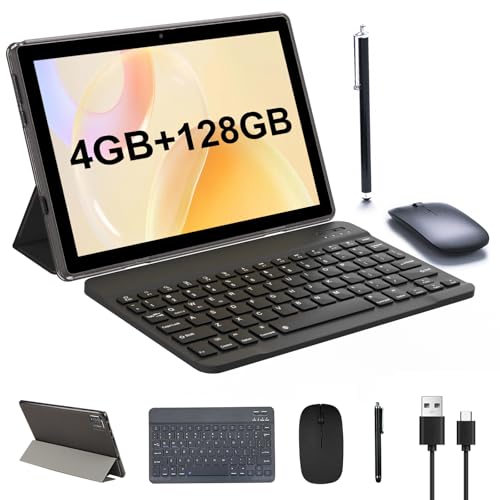
Most tablets are designed for touch control, but some may also work with keyboards, stylus pens, cases, docks or stands where compatible. The exact experience depends on the tablet, operating system, apps and accessories supported.
What Are Tablet Computers Used For?
Tablet computers are used for web browsing, emails, video streaming, reading, online shopping, social media, schoolwork, video calls, note taking, drawing, gaming, music, recipes, home admin and travel entertainment.
For families, a tablet can be useful for shared browsing, children’s learning apps and streaming. For students, it may support notes, reading, research and online lessons. For work, a tablet may be useful for emails, presentations, document review and calls where the apps and accessories are suitable. For creative users, stylus support and screen quality may be especially important where listed.
How To Choose The Right Tablet Computer
Start by thinking about the main user. A child, student, casual home user, traveller, business user and digital artist may all need different features from a tablet.
Next, consider the operating system. Different tablets may run different app stores, software and ecosystems, so choose one that works with the apps, accounts and accessories you already use where compatible.
Screen size is also important. Smaller tablets can be easier to hold and travel with, while larger tablets can feel better for films, drawing, reading documents and multitasking. Storage matters too, especially if you download apps, films, games, photos or offline content.
Key Features To Compare
Screen size and display quality are key comparison points. A larger screen may be better for streaming, drawing and document work, while a compact tablet may suit travel, children and casual browsing.
Storage capacity should be checked carefully. Some tablets may allow storage expansion with memory cards where listed, while others may rely on built in storage and cloud services. If you store lots of videos, games or photos, a larger capacity may be useful.
Connectivity can also vary. Some tablets use Wi Fi only, while others may support mobile data where listed and where a suitable plan or SIM is used. Bluetooth, USB C, headphone connections and keyboard support may also matter depending on the setup.
Other useful features to compare include processor, memory, cameras, speakers, battery guidance, charging type, stylus compatibility, keyboard compatibility, parental control options, case availability, weight and software update guidance where listed.
Tablet Computers Compared With Laptops
Tablet computers are usually lighter, simpler and easier to use for touch based tasks. They can be ideal for browsing, streaming, reading, video calls, note taking and travel.
Laptops are usually better for heavier typing, desktop software, spreadsheets, multitasking, file management and work that needs a full keyboard and larger screen. Some tablets can work with keyboards where compatible, but they may still not replace a laptop for every task.
The main trade off is portability and simplicity versus productivity and software flexibility. A tablet is useful for easy everyday use, while a laptop may be better for more demanding work.
Tablet Computers Compared With Smartphones
Smartphones are pocket sized and always easy to carry, but their smaller screens can feel limiting for reading, video calls, streaming and longer browsing sessions.
Tablet computers offer a larger screen, which can make apps, documents, games, videos and websites easier to see. They can also be more comfortable for children, older users or anyone who prefers a bigger display.
The main choice is convenience versus screen space. A phone is best when you need something with you all the time, while a tablet is better when a larger screen makes the task easier.
Tablet Computers Compared With E Readers
E readers are mainly designed for reading books and may use screen technology focused on comfortable reading where listed. They can be a good choice for people who mainly want digital books.
Tablet computers are more versatile. They can be used for reading, but also for browsing, videos, apps, games, video calls, music, documents and creative work.
The main trade off is focused reading versus all round use. An e reader may suit dedicated book reading, while a tablet is better if you want one device for many tasks.
Guidance For Beginners, Regular Users And Experienced Users
Beginners should focus on simple setup, comfortable screen size, clear controls and enough storage for everyday apps. A tablet that is easy to hold and understand is often more useful than one with complicated features.
Regular users may want to compare speed, storage, screen quality, battery guidance and accessory support more carefully. If the tablet will be used every day, comfort and performance become more noticeable.
Experienced users may look more closely at processor capability, memory, display resolution, refresh rate where listed, stylus response, keyboard support, multitasking features, file handling and compatibility with specific apps.
Use Cases By User Type
For home users, tablet computers can be useful for browsing, recipes, shopping, streaming, emails, video calls and casual games.
For students, tablets may support note taking, reading, research, online lessons, revision apps and document review where suitable. Keyboard and stylus compatibility may be useful where listed.
For work users, tablets can help with email, presentations, meetings, note taking and travel use. Check whether the tablet supports the apps and file formats needed for your work.
For children, parental controls, durable cases, age suitable apps and screen time settings may be important where listed. Always choose a device suitable for the child’s age and use.
For creatives, a larger screen, stylus compatibility, good display quality and suitable app support may matter most. Not every tablet is suitable for drawing or design, so check compatibility carefully.
For travel, weight, battery guidance, storage, offline content options and charging type can all affect how practical the tablet feels.
Fit, Compatibility And Accessory Support
Compatibility is one of the most important parts of choosing a tablet computer. Not every tablet works with every keyboard, stylus, case, charger or app.
If you want to use a stylus pen, check the exact tablet model and pen compatibility where listed. A stylus that works on one device may not work properly on another.
If you want to type regularly, check whether a keyboard case or Bluetooth keyboard is supported. For desk use, a stand, mouse, keyboard and charger may create a more practical setup where compatible.
Case size also matters. Tablet cases are usually made for specific screen sizes and model shapes, so check camera cut outs, button access, charging port position and listed model support before buying.
Screen Size, Storage And Performance Considerations
Screen size affects how the tablet feels in the hand and how comfortable it is for different tasks. Compact tablets can be easier to carry, while larger tablets are often better for films, drawing, split screen use and reading documents.
Storage should match real use. Apps, games, photos, downloaded films and offline files can quickly use space. If the tablet does not support expandable storage where listed, built in capacity becomes even more important.
Performance depends on the processor, memory, operating system and app demands. A basic tablet may be fine for browsing and streaming, while gaming, creative apps or multitasking may need stronger specifications where suitable.
Connectivity, Charging And Battery Considerations
Most tablet computers use Wi Fi for internet access. Some may also support mobile data where listed, which can be useful for travel or use away from home Wi Fi. Mobile data usually requires a compatible SIM, plan or service.
Charging type should be checked carefully. Some tablets may use USB C, Lightning style connectors or other charging methods depending on the product. Use suitable chargers and cables that match the device guidance.
Battery life guidance can vary by brightness, app use, video playback, gaming, age of the battery and connection type. Treat listed battery information as guidance, not a guarantee for every situation.
Safety And Practical Use
Tablet computers should be used according to the product instructions. Keep liquids away from the device, charger and cables. Do not use damaged charging leads, cracked plugs or accessories that become unusually hot.
For children, set up suitable parental controls, app restrictions and screen time rules where available. A protective case may help reduce damage from everyday knocks where compatible, but it does not make a tablet unbreakable.
Take care when using tablets in cars, beds, kitchens or outdoors. Avoid blocking heat vents where present, and do not leave tablets in very hot places, direct sunlight or damp conditions for long periods.
Care, Cleaning And Maintenance
Keep the screen clean using suitable cloths and cleaning methods. Avoid harsh chemicals unless the product guidance says they are safe. Do not spray liquid directly onto the tablet.
Update software where appropriate and supported, as updates can help with features, security and app compatibility. Back up important photos, notes and files using suitable cloud or external backup options where available.
Check charging ports, buttons, speakers, camera lenses and case fit from time to time. If the tablet becomes slow, full storage, too many apps or outdated software may be contributing factors.
Storage And Travel Tips
Store tablet computers in a case or sleeve where compatible. This helps protect the screen and body from scratches and knocks during travel or everyday use.
When travelling, keep the charger, cable, headphones, stylus and keyboard accessories together. A small organiser can help prevent lost cables and damaged connectors.
Do not pack a tablet loose in a bag with keys, tools or heavy items. If storing the tablet for a long period, follow the manufacturer’s battery and storage guidance where available.
Useful Accessories To Consider
Useful accessories may include tablet cases, screen protectors, stylus pens, keyboards, stands, chargers, USB cables, headphones, Bluetooth speakers, memory cards where compatible, cleaning cloths and travel sleeves.
For work or study, a keyboard and stand may make typing easier. For drawing or notes, a compatible stylus may be useful. For children, a protective case and suitable screen protection may be worth considering where compatible.
Why Buy From YPC?
At YPC, we understand active lifestyles and the need for practical products that work in real use. Tablet computers can vary by screen size, storage, operating system, performance, connectivity, accessory support, battery guidance and intended use, so it helps to compare the details carefully before choosing.
YPC makes it easier to browse tablet computers in a practical way, with options that can be compared by listed features, user needs and everyday tasks. Whether you are buying for home, study, work, travel, entertainment, children or creative use, you can browse and compare tablet computers at YPC to find suitable options for your digital setup.
FAQs
What is a tablet computer?
A tablet computer is a portable touchscreen device used for browsing, apps, streaming, reading, games, video calls, notes and other digital tasks. It usually sits between a smartphone and a laptop in size and use.
What should I look for when buying a tablet?
Look at screen size, storage, operating system, performance, battery guidance, connectivity, accessory compatibility and the apps you want to use. Choose based on the main user and purpose.
Is a tablet better than a laptop?
A tablet is usually better for portability, touch use, streaming and casual browsing. A laptop is usually better for heavy typing, desktop software, multitasking and more demanding work.
Can tablet computers be used for school or study?
Yes, tablets can be useful for study where suitable. They may support reading, notes, online lessons, research and revision apps. Keyboard or stylus support may be useful where listed.
Do tablets need Wi Fi?
Most tablets use Wi Fi for internet access. Some may also support mobile data where listed, but this usually needs a compatible SIM, plan or service.
Can I use a keyboard with a tablet?
Some tablets can work with Bluetooth keyboards, keyboard cases or docking accessories where compatible. Check the tablet and keyboard details carefully before buying.
Do stylus pens work with all tablets?
No, stylus pens are not always universal. Some tablets need a specific active stylus, while others only support basic touch input. Always check compatibility before buying.
How much storage do I need on a tablet?
This depends on how you use it. Basic browsing and streaming may need less storage, while games, photos, videos, downloaded films and creative apps may need more.
Are tablet computers suitable for children?
Some tablets may be suitable for children where listed, especially with parental controls and protective cases. Always check age suitability, app controls and supervision needs.
How do I care for a tablet computer?
Keep it clean, dry and protected in a suitable case where possible. Use compatible chargers, avoid damaged cables, back up important files and follow the product care guidance.
Find out more with our Tablet Computer Buyers Guide.
 Getting ready for Summer? View our Home and Garden Products

Heading outdoors this winter? Take a look at our Outdoor Clothing.