
NVMe SSD Drives
NVMe SSD drives are solid state storage drives designed to help computers load files, software, games and operating systems more quickly than older style storage options. Whether you are building a new PC, upgrading a laptop, improving a gaming setup or adding extra storage to a workstation, the right NVMe SSD can make everyday computing feel much more responsive.
This category can include M.2 NVMe SSDs, internal solid state drives, PCIe storage drives, high capacity SSDs, gaming focused drives and upgrade storage options, depending on the products listed. Features vary by item, so always check compatibility, capacity, connection type, physical size, speed guidance, heatsink requirements and intended use before buying.
- NVMe SSD Drives
Patriot P320 256GB Internal SSD – NVMe PCIe Gen 3×4 – M.2 2280 – Solid State Drive – P320P256GM28
Original price was: £55.99.£51.99Current price is: £51.99. *View On Amazon* - NVMe SSD Drives
ORICO 2TB NVMe SSD PCIe 4.0- Up to 7000MB/s, M.2 2280 PCIe 4.0X4 Internal Solid State Drive SSD, Fast Heat Dissipation, Compatible with macOS Windows for Gamers and Creators-O7000 (2TB)
Original price was: £205.99.£199.99Current price is: £199.99. *View On Amazon* - NVMe SSD Drives
Silicon Power PCIe M.2 NVMe SSD 512GB Gen3x4 R/W up to 2, 200/1, 600MB/s Internal SSD
Original price was: £69.99.£65.99Current price is: £65.99. *View On Amazon* - NVMe SSD Drives
Lexar NM620 256GB SSD, M.2 2280 PCIe Gen3x4 NVMe 1.4 Internal SSD, Up to 3500MB/s Read, 1300MB/s Write, 3D NAND Flash Internal Solid State Drive for PC Enthusiasts and Gamers (LNM620X256G-RNNNG)
Original price was: £81.99.£63.24Current price is: £63.24. *View On Amazon* - NVMe SSD Drives
KingSpec SSD 256GB, M.2 NVMe Gen3x4 SSD 2280 – Up to 2400MB/s, Internal Solid State Drive with 3D NAND Flash, Compatible with Desktop and Laptop
Original price was: £46.99.£39.99Current price is: £39.99. *View On Amazon* - NVMe SSD Drives
WD_BLACK SN7100 2TB NVMe SSD, M.2 2280, Read speeds up to 7250 MB/s, Write Speed up to 6,900 MB/s, Next Gen TLC 3D NAND, WD_BLACK DASHBOARD, Up to 1,200TBW, For Laptops, handheld gaming devices
Original price was: £239.99.£224.98Current price is: £224.98. *View On Amazon* - NVMe SSD Drives
Samsung 990 EVO Plus, 2TB, PCIe 4.0 x4 / 5.0 x2, NVMe2.0 (up to 7250 MB/s), NVMe M.2 (2280), Internal Solid State Drive (SSD), MZ-V9S2T0BW
Original price was: £450.89.£249.20Current price is: £249.20. *View On Amazon* - NVMe SSD Drives
Kingston NV3 NVMe PCIe 4.0 Internal SSD 1TB M.2 2280-SNV3S/1000G
£131.49 *View On Amazon* - NVMe SSD Drives
Samsung 990 PRO NVMe M.2 SSD, 2 TB, PCIe 4.0, 7,450 MB/s read, 6,900 MB/s write, Internal SSD, For gaming and video editing, MZ-V9P2T0BW
Original price was: £502.79.£288.49Current price is: £288.49. *View On Amazon* - NVMe SSD Drives
RONGSHU 512GB NVMe SSD M.2 PCIe Gen 3×4, Read Speeds Up to 3,100 MB/s, M.2 2280 Internal Soild State Drive, SLC Cache 3D NAND TLC Compatible with Laptop and PC Desktops (RP3500)
Original price was: £74.99.£68.99Current price is: £68.99. *View On Amazon*

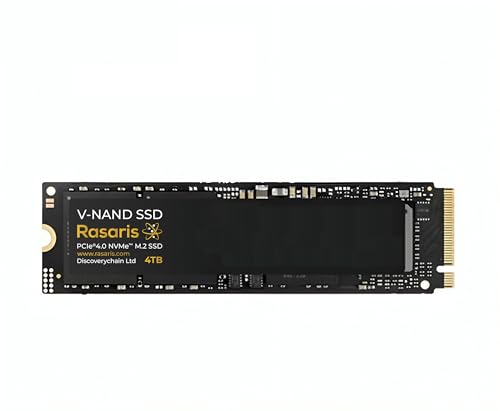


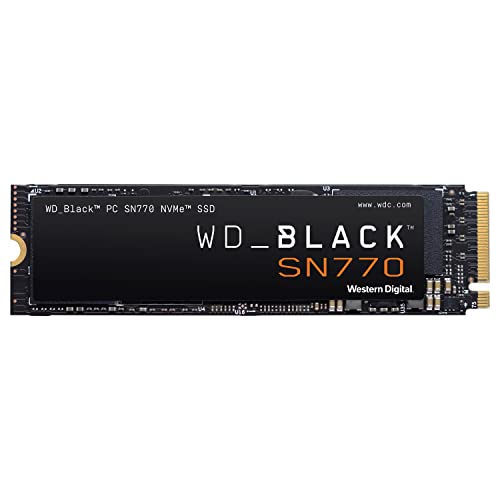


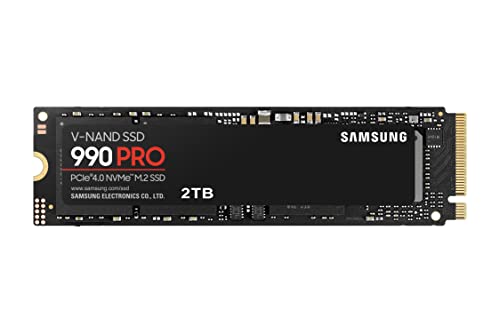


What Are NVMe SSD Drives?
NVMe SSD drives are internal storage drives that use the NVMe protocol to communicate quickly with a computer through a compatible PCIe connection. They are commonly supplied in an M.2 format, although compatibility depends on the device and product listing.
Unlike traditional hard drives, NVMe SSDs have no spinning disk inside. They use flash storage, which can make them faster, quieter and more compact than older mechanical storage drives. However, the exact speed, capacity, heat output and compatibility can vary widely by model.
What Are NVMe SSD Drives Used For?
NVMe SSD drives are used for storing operating systems, applications, games, documents, photos, video files, creative projects and general computer data. They are often chosen when users want quicker loading, faster file transfers where supported and a cleaner internal storage setup.
For a home computer, an NVMe SSD can be useful as a main system drive. For gaming PCs, it can help with game storage and loading where the rest of the system supports it. For creative work, larger capacity drives may be useful for video, photo, audio or design files. For laptops, an NVMe SSD may be used as an upgrade or replacement drive where compatible.
How To Choose The Right NVMe SSD Drive
Start by checking whether your computer, motherboard, laptop or device supports NVMe storage. Not every M.2 slot supports every type of drive, so it is important to check the device manual, motherboard specifications or product guidance before buying.
Next, choose the capacity you need. A smaller drive may be suitable for an operating system and basic software, while larger drives may be more practical for games, media libraries, creative files or long term storage. Choose based on real use rather than simply buying the largest option available.
Also compare the listed speed guidance. NVMe SSDs can vary by PCIe generation, controller design, memory type and workload suitability where listed. A faster drive may be useful for certain demanding tasks, but everyday users may also benefit from capacity, reliability and compatibility.
Key Features To Compare
Capacity is one of the most important features to compare. Product listings may include storage sizes such as lower capacity, mid capacity or larger capacity options, depending on the range. Think about your current storage use and leave room for future files where suitable.
Interface and compatibility are also critical. Many NVMe SSDs use M.2 connectors, but that does not mean they will work in every M.2 slot. Check whether your device supports NVMe rather than only SATA M.2 storage.
PCIe generation can affect potential speed where listed. A newer PCIe drive may still work in some older compatible slots, but it may run at the speed supported by the device. Always check both the drive and system specifications.
Other useful features to compare include read and write speed guidance, endurance information where listed, heatsink inclusion, power use, form factor, operating system support, cloning software where included and whether the drive is intended for desktops, laptops, gaming systems or compatible consoles.
NVMe SSD Drives Compared With SATA SSDs
NVMe SSD drives and SATA SSDs are both solid state storage options, but they use different connection methods. SATA SSDs are usually limited by the SATA interface, while NVMe SSDs use a PCIe based connection where supported.
In many compatible systems, NVMe SSDs can offer faster performance than SATA SSDs, especially for large file transfers or demanding storage tasks where the rest of the system can take advantage of it. SATA SSDs can still be a useful upgrade for older computers that do not support NVMe.
The main trade off is compatibility versus performance potential. NVMe drives can be faster where supported, but SATA SSDs may be the right choice for systems without NVMe support.
NVMe SSD Drives Compared With Hard Drives
Hard drives use spinning disks and moving parts. They are often chosen for larger storage needs where speed is less important, depending on the product and system.
NVMe SSD drives use flash storage and are usually chosen when speed, responsiveness, quiet operation and compact size matter. They can be useful as a main system drive or for frequently used files and software.
The main trade off is speed versus cost per storage amount. A hard drive may offer more storage for some budgets, while an NVMe SSD is usually better for fast access and everyday responsiveness where compatible.
NVMe SSD Drives Compared With External Storage
External drives are useful for backups, file transfer and portable storage. They connect outside the computer using USB, Thunderbolt or other connection types where listed.
NVMe SSD drives are normally installed inside a computer or compatible device. They can be better for operating systems, installed software and internal storage upgrades, but installation and compatibility must be checked carefully.
The main choice is internal performance versus portable convenience. If you need storage inside a PC or laptop, an NVMe SSD may be suitable. If you need to move files between devices, an external drive may be more practical.
Guidance For Beginners, Regular Users And Experienced Builders
Beginners should focus on compatibility first. Check the device model, M.2 slot type, NVMe support and whether the drive is supplied with anything needed for installation where listed. A compatible drive with enough capacity is more useful than a faster drive that does not fit or work.
Regular users may want to compare capacity, value, speed guidance and whether the drive suits daily tasks such as work, study, browsing, media and light gaming. A sensible upgrade can make an older system feel more comfortable to use where compatible.
Experienced builders may compare PCIe generation, controller type where listed, cache details where stated, endurance guidance, thermal behaviour, motherboard lane support, heatsink requirements and workload suitability. These details can matter more in gaming PCs, workstations and high use systems.
Use Cases By Computer Type
For home PCs, an NVMe SSD can be used as a main drive for the operating system, programs and everyday files where compatible. This can help make the computer feel more responsive.
For gaming PCs, NVMe SSDs can be useful for storing games, launchers and frequently played titles. Capacity may matter just as much as speed if you install many large games.
For laptops, an NVMe SSD may be used as an upgrade or replacement drive where the laptop supports it. Physical size, single sided or double sided design where listed, and heat considerations may all matter.
For creative workstations, larger and faster NVMe SSDs may be useful for video editing, photo libraries, music production, project files and scratch storage where suitable.
For compatible consoles or specialist devices, check the manufacturer’s storage requirements very carefully. Some devices may need specific size, speed, heatsink or format support where listed.
Fit, Compatibility And M.2 Slot Considerations
NVMe SSD compatibility should always be checked before buying. A drive may use an M.2 connector, but the system must support NVMe over PCIe for the drive to work correctly.
Physical size is another important factor. M.2 drives can come in different lengths where listed, and the device must support the correct mounting position. A drive that is too long or too short for the available slot may not fit properly.
Some motherboards have more than one M.2 slot, and these slots may not all support the same features. One slot may support a certain PCIe generation, while another may share bandwidth with other ports. Check the motherboard or device documentation before installation.
Laptop upgrades need extra care. Internal space, heat management, drive height, warranty terms where relevant and access panels can all affect whether an upgrade is practical.
Capacity, Speed And Workload Considerations
Capacity should be chosen around your real storage needs. Operating systems, games, photos, videos and work files can quickly take up space. If you regularly install large software or keep media files locally, a larger drive may be more practical.
Speed figures can be helpful, but they do not tell the whole story. Listed read and write speeds may depend on system support, workload type, thermal conditions and how full the drive is. For everyday use, a balanced drive with suitable capacity and compatibility may be better than choosing by speed alone.
For heavy workloads, such as video editing, large file transfer or frequent project work, compare endurance, sustained performance and cooling guidance where listed. These details can matter more when the drive is used heavily for long periods.
Heatsinks, Cooling And Airflow
Some NVMe SSD drives may include a heatsink where listed, while others may be supplied without one. Some motherboards also include M.2 heatsinks or covers. Always check what is included and what your system requires.
Fast NVMe drives can generate heat during heavy use. Good airflow, suitable motherboard placement and correct heatsink use where needed can help the drive run more comfortably.
In small laptops or compact PCs, cooling space may be limited. A drive with a large heatsink may not physically fit, while a drive without enough cooling may become less suitable for demanding use. Check system guidance carefully before buying.
Installation And Setup Considerations
Installing an NVMe SSD usually involves opening the computer, locating a compatible M.2 slot, inserting the drive at the correct angle and securing it with the correct screw or fixing where required. Exact steps vary by system.
After installation, the drive may need to be initialised, formatted or selected in the operating system before it can be used. If it is replacing an existing system drive, cloning or reinstalling the operating system may be needed.
Always back up important data before changing storage hardware. If you are unsure about installation, seek help from someone experienced rather than forcing parts or risking damage.
Safety And Handling
NVMe SSD drives are delicate electronic components. Handle them by the edges where possible and avoid touching contacts unnecessarily.
Always switch off and unplug the computer before installing or removing internal components. For laptops, follow the device guidance around battery safety and access panels.
Do not force the drive into a slot. If it does not fit easily, stop and check the slot type, drive key, mounting position and orientation. Keep small screws and fittings safe during installation, as they can be easy to lose.
Care, Maintenance And Data Management
NVMe SSD drives do not need the same maintenance as mechanical hard drives, but they still benefit from sensible use. Keep the computer clean, well ventilated and protected from heat, dust and moisture.
Back up important files regularly. No storage drive should be treated as the only copy of important data. Use suitable backup methods, such as external drives or cloud storage where appropriate.
Monitor available storage space from time to time. Drives that are nearly full may become harder to manage, and keeping free space can help with general system organisation.
If a drive starts showing errors, disappearing from the system or behaving unusually, back up important data and investigate promptly.
Storage And Handling Tips For Spare Drives
Store unused NVMe SSD drives in protective packaging where possible. Anti static packaging, original boxes or suitable component storage can help protect the drive from dust, knocks and static damage.
Keep drives away from liquids, extreme heat, damp conditions and rough handling. Do not store loose drives in drawers with screws, tools or metal objects that could damage the contacts.
If you keep more than one drive, label them clearly so you know the capacity, use and whether they contain data.
Useful Accessories To Consider
Useful accessories may include M.2 screws where compatible, heatsinks where suitable, thermal pads where required by the product guidance, external NVMe enclosures, cloning cables, screwdrivers, anti static wrist straps, backup drives and suitable cleaning tools.
For upgrades, an external enclosure can be useful if you want to reuse an old NVMe drive as portable storage where compatible. For new builds, check whether the motherboard includes M.2 screws, heatsinks and the right slot support before ordering extras.
Why Buy From YPC?
At YPC, we understand active lifestyles and the need for practical products that work in real use. NVMe SSD drives can vary by capacity, form factor, PCIe generation, speed guidance, heatsink support, endurance information and device compatibility, so it helps to compare the details carefully before choosing.
YPC makes it easier to browse NVMe SSD drives in a practical way, with options that can be compared by listed features, system requirements and upgrade goals. Whether you are building a PC, upgrading a laptop, adding gaming storage or improving a workstation, you can browse and compare NVMe SSD drives at YPC to find suitable options for your setup.
FAQs
What is an NVMe SSD drive?
An NVMe SSD drive is a solid state storage drive that uses the NVMe protocol over a compatible PCIe connection. It is commonly used for fast internal storage in PCs, laptops and compatible devices.
Is an NVMe SSD better than a SATA SSD?
An NVMe SSD can offer faster performance than a SATA SSD where the system supports it. However, SATA SSDs may still be suitable for older computers that do not support NVMe.
Will any NVMe SSD fit my computer?
No. You need to check the M.2 slot, NVMe support, physical drive size, PCIe compatibility and any heatsink or clearance requirements before buying.
What capacity NVMe SSD should I choose?
Choose capacity based on how much data you need to store. Operating systems and basic files may need less space, while games, videos, creative projects and large media libraries may need more.
Do NVMe SSD drives need a heatsink?
Some may benefit from a heatsink where listed, especially during heavier use, but requirements vary by drive and system. Check the product and motherboard guidance before buying.
Can I use an NVMe SSD in a laptop?
Some laptops support NVMe SSDs, but not all. Check the laptop specifications, physical drive size, slot type and access guidance before buying or installing a drive.
Can an NVMe SSD be used for gaming?
Yes, an NVMe SSD can be useful for gaming storage where compatible. Capacity, system support and game size are important factors to compare.
What is the difference between M.2 and NVMe?
M.2 describes a physical form factor or slot type, while NVMe describes a storage protocol. Some M.2 drives are NVMe, while some older M.2 drives may use SATA, so compatibility must be checked.
How do I install an NVMe SSD?
Installation usually involves fitting the drive into a compatible M.2 slot and securing it with the correct screw or fixing. The exact method varies by computer, so follow the device and drive instructions carefully.
Do I need to format a new NVMe SSD?
A new drive may need to be initialised and formatted before it appears as usable storage in the operating system. If it will be used as a system drive, operating system installation or cloning may also be needed.
 Getting ready for Summer? View our Home and Garden Products

Heading outdoors this winter? Take a look at our Outdoor Clothing.