BUYERS GUIDE
Desktop PC Buyers Guide
A desktop PC can be a practical choice for home working, study, business, gaming, creative projects and general everyday computing. Unlike an all in one computer, a desktop PC normally keeps the main components inside a separate case, giving you more freedom when choosing a monitor, keyboard, mouse and other accessories.
Desktop computers vary considerably. Some are compact systems designed for simple office work, while others are larger towers with dedicated graphics cards, additional storage, stronger cooling and more room for future upgrades.
This guide explains how to compare desktop PCs without getting lost in technical language. It covers the parts that affect performance, the trade offs between different designs and the checks to make before buying.
Quick Answer
Choose a desktop PC by matching the processor, RAM, storage and graphics hardware to the work you plan to do. A simple home or office computer may suit web browsing, email, documents and video calls, while gaming, design, video editing and technical software may need stronger components. Check the case size, operating system, available ports, wireless connectivity, upgrade options, included accessories and whether a monitor is supplied. Specifications vary by model, so always check the individual product page before buying.
Quick Product Comparison Framework
| Feature | What It Means | Why It Matters | What To Check |
|---|---|---|---|
| Processor | The main chip that handles instructions and calculations | Influences general speed and workload suitability | Processor family, generation and exact model where listed |
| RAM | Working memory used by active programmes | Affects multitasking and responsiveness | Installed memory, maximum supported memory and available slots |
| Storage | Space for the operating system, software and files | Affects capacity and loading speed | SSD, hard drive or combined storage |
| Graphics | Hardware responsible for displaying and processing visuals | Important for games, design, video work and multiple displays | Integrated or dedicated graphics |
| Case size | The physical size of the computer | Affects desk placement, cooling and upgrade room | Full tower, mid tower, mini tower, small form factor or compact case |
| Cooling | Fans and other components that control temperature | Helps the system operate reliably under load | Vent layout, fan arrangement and cooling guidance |
| Power supply | Supplies electricity to the internal components | Affects stability and future upgrades | Stated output and compatibility where listed |
| Ports | Connections for accessories and displays | Determines what can be connected | USB, HDMI, DisplayPort, audio, Ethernet and card readers |
| Wireless connectivity | Built in wireless networking and accessories support | Useful where wired connections are inconvenient | WiFi and Bluetooth where stated |
| Upgradeability | Ability to change or add components later | Can extend useful life and flexibility | RAM slots, storage bays, graphics space and power limits |
Key Decision Criteria Explained
Processor And General Performance
The processor affects how quickly the desktop handles everyday instructions. Web browsing, email and office documents usually place fewer demands on a computer than video editing, complex spreadsheets, software development or gaming.
Do not compare processors by name alone. The processor family, generation, number of cores and exact model can all influence performance. Two computers described with similar wording may behave very differently.
RAM And Multitasking
RAM is used while programmes are running. More memory can help when you keep many browser tabs open, work with large documents, run video calls or use several applications together.
The installed memory is important, but so is upgradeability. Some desktops have spare memory slots, while smaller systems may offer fewer options. Check the product page if you expect your needs to grow.
SSD And Hard Drive Storage
An SSD is commonly chosen for the operating system and applications because it can help the computer start and load software more quickly. A traditional hard drive may offer more storage capacity for files at a lower cost, depending on the model.
Some desktop PCs combine both types. This can give you faster system storage alongside additional space for photos, videos and documents. Check both the storage type and capacity before buying.
Integrated Or Dedicated Graphics
Integrated graphics are built into the processor or system and may be suitable for everyday office work, video streaming and light visual tasks.
Dedicated graphics use separate hardware and may be needed for modern games, 3D work, video editing, computer aided design and some creative applications. Check the requirements of the software or games you plan to use rather than relying only on marketing labels.
Case Size And Available Space
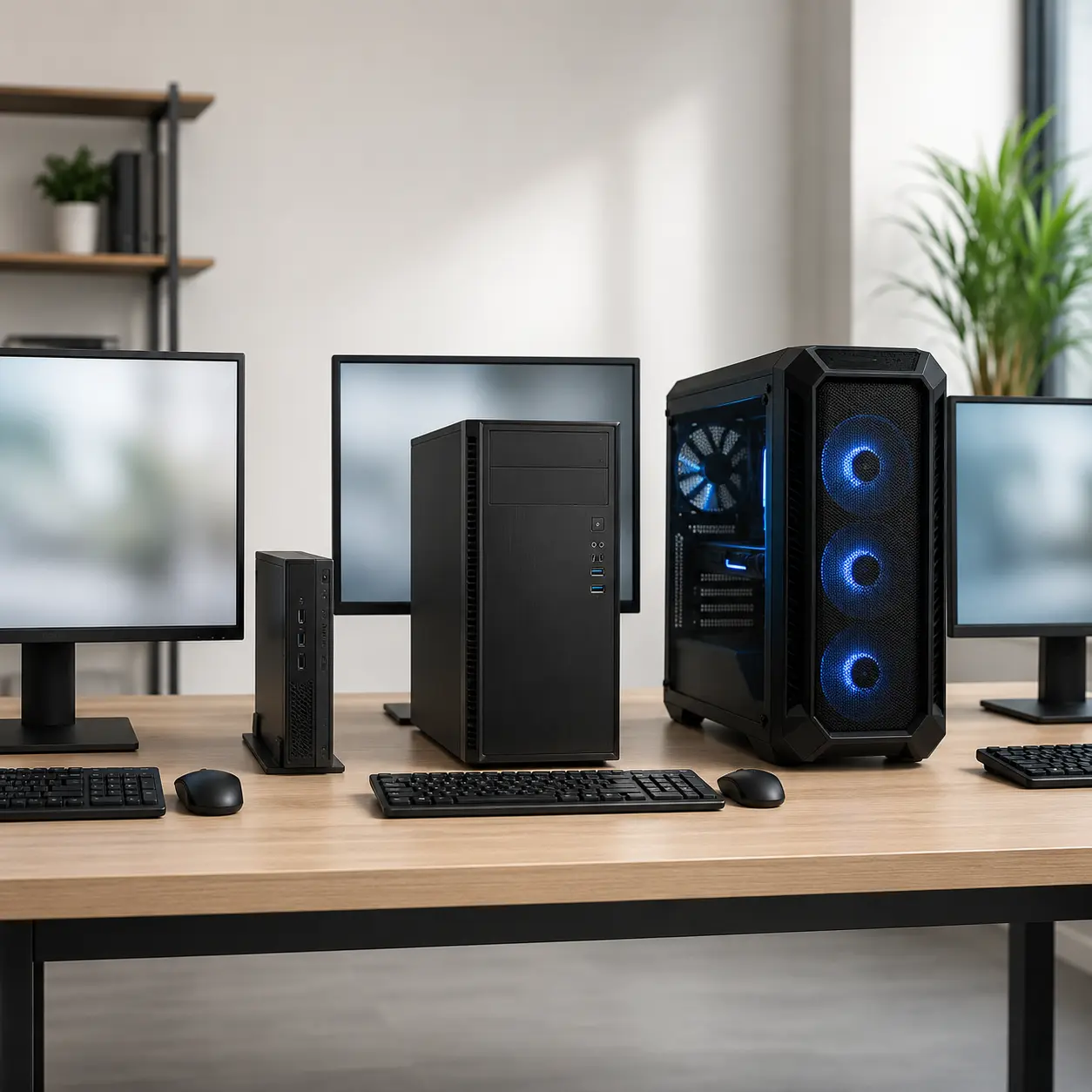
Desktop PCs come in several sizes. Larger tower cases can offer more internal space, better airflow and easier upgrades. Small form factor systems take up less room but may use compact components and offer fewer expansion options.
Measure the available space before buying. Leave enough room around the vents and consider where the ports, power button and optical drive are positioned.
Ports And Display Connections
A desktop PC may need to connect to a monitor, keyboard, mouse, printer, webcam, speakers, headset, external drive and other accessories.
Check both the type and number of ports. Front ports are convenient for temporary devices, while rear ports help keep permanent cables tidy. Monitor connections also matter because not every computer and display use the same connector.
WiFi, Bluetooth And Ethernet
Many desktop computers support wired Ethernet networking, but WiFi and Bluetooth may not always be included.
WiFi can be useful where the router is in another room. Bluetooth may be needed for wireless headphones, controllers, keyboards or mice. Check these features rather than assuming every desktop includes them.
Cooling And Noise
Cooling matters more as component performance increases. Gaming desktops and workstations may use several fans or larger cooling systems to control heat.
More cooling can sometimes mean more noise. If the computer will be used in a bedroom, home office or quiet workspace, check available noise information and user controls where provided.
Upgradeability And Future Use
One advantage of many desktop PCs is the potential to upgrade RAM, storage, graphics or other parts later.
However, upgradeability varies. Compact cases may have limited room, proprietary power supplies or restricted component compatibility. Check the case, motherboard, power supply and manufacturer guidance before planning future upgrades.
Product Type Differentiation And Variants
Traditional Tower Desktop PCs
Tower PCs use a separate upright case and usually offer more internal space than compact systems. They can suit home offices, general computing, gaming and users who may want to upgrade components later.
The limitation is size. A tower needs suitable floor or desk space and should not be placed where its ventilation is blocked.
Small Form Factor Desktop PCs
Small form factor desktops are designed to provide desktop performance in a more compact case. They can suit offices, reception desks, classrooms and smaller home workspaces.
The trade off is internal space. Graphics card size, cooling and storage expansion may be more restricted than in a full tower.
Mini Tower Desktop PCs
Mini tower computers sit between traditional towers and compact business systems. They can offer a reasonable balance between size and upgrade room.
Check the exact internal layout because the term mini tower does not guarantee the same dimensions or expansion options across every model.
Business Desktop PCs
Business desktop computers often focus on reliability, manageability, security, office connectivity and straightforward maintenance.
They may suit offices, home workers, schools and reception areas. Check the operating system, ports, warranty details where supplied and compatibility with your business software.
Gaming Desktop PCs
Gaming desktops usually include dedicated graphics hardware, stronger cooling and components selected for demanding games.
Performance varies significantly between models. Check the processor, graphics card, RAM, storage, cooling and the requirements of the games you intend to play. A gaming appearance does not guarantee suitable performance.
Workstation Desktop PCs
Workstations are designed for demanding professional workloads such as 3D modelling, engineering, scientific applications, large datasets or high resolution content creation.
They can cost more than general purpose desktops. Check compatibility with the specialist software you use and whether any professional graphics or certification requirements apply.
Refurbished Desktop PCs
Refurbished desktops may offer useful specifications at a lower purchase price, depending on condition, age and seller information.
Check the operating system, component age, storage type, included accessories, cosmetic condition and warranty information where supplied. Do not assume every refurbished computer has the same level of preparation.
Suitability By Buyer Type Or Need
| Buyer Type Or Need | What To Prioritise | What To Be Careful About |
|---|---|---|
| Everyday home use | Suitable processor, SSD storage and enough RAM | Avoid paying for graphics power you will not use |
| Home office | Reliability, ports, video call accessories and quiet operation | Check whether a monitor and webcam are included |
| Student use | Software compatibility, storage and multitasking performance | Check course specific requirements |
| Family computer | Simple controls, storage and multiple user suitability | Consider parental controls and account management |
| Gaming | Dedicated graphics, cooling, RAM and storage | Check actual game requirements |
| Creative work | Processor, RAM, display outputs, storage and graphics | Check colour accurate monitor requirements separately |
| Business use | Operating system, security, Ethernet and support | Check business software compatibility |
| Small workspace | Small form factor case and tidy cable layout | Compact systems may have fewer upgrade options |
| Long term upgrading | Standard case, spare slots and suitable power supply | Proprietary parts may limit upgrades |
| Heavy professional work | Workstation class components and software support | Avoid assuming gaming hardware suits every professional task |
Common Mistakes And Misunderstandings
Assuming The Monitor Is Included
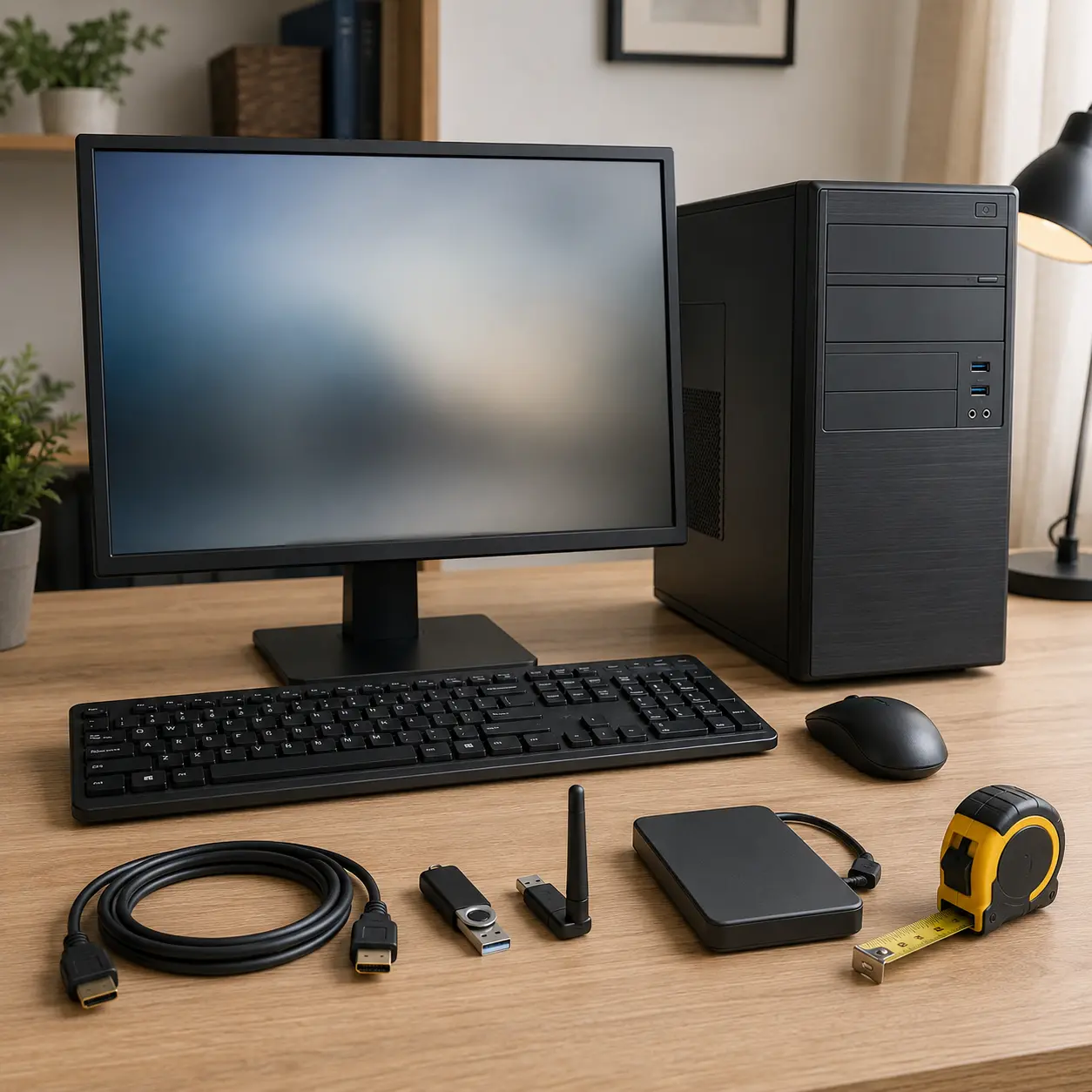
A desktop PC listing may show a complete desk setup even when only the computer tower is supplied.
Check the included items carefully. You may need to buy a monitor, keyboard, mouse, speakers or webcam separately.
Choosing By Processor Name Alone
A familiar processor family name does not tell you everything. Generation and exact model matter, as do RAM, storage and graphics.
Compare the complete specification rather than choosing based on one component.
Ignoring The Graphics Hardware
Graphics may not matter much for standard documents and browsing, but they are important for gaming, design, editing and some specialist software.
Check whether the system uses integrated or dedicated graphics and compare it with the requirements of your applications.
Buying Too Little Storage
A small SSD may feel adequate at first, but the operating system, updates and applications all use space.
Think about how many photos, videos, games and work files you will keep. Also check whether extra drives can be fitted later.
Forgetting About WiFi
A desktop PC may include Ethernet but no built in WiFi. This can cause problems if the router is not close enough for a cable.
Check connectivity before buying. A separate WiFi adapter may be needed where wireless networking is not included.
Assuming Every Desktop Is Easy To Upgrade
Larger standard towers are often easier to upgrade, but compact and proprietary systems can be more restrictive.
Check internal space, memory slots, drive bays, power supply and manufacturer guidance before relying on future upgrades.
Overlooking The Power Supply
The power supply is especially important if you plan to add a stronger graphics card or other demanding components later.
A physically compatible part may still require more power than the system can provide. Upgrades should follow the manufacturer guidance and component requirements.
Buying A Gaming Looking PC Instead Of A Gaming Capable PC
Lighting, glass panels and an aggressive case design do not determine gaming performance.
Look at the actual processor, graphics card, RAM, storage and cooling. The specification matters more than the appearance.
Safety And Suitability Caveats
Use a desktop PC only as intended and follow the manufacturer instructions. Check the product page for power requirements, cooling guidance, included accessories, operating system and supported components.
Do not use damaged power cables, loose plugs, unstable cases or equipment showing signs of overheating. Keep vents clear and place the computer on a stable surface.
Switch off and disconnect the PC before opening the case where the manufacturer allows access. Internal work can involve sharp edges, static electricity and electrical components. Do not open the power supply unit.
If you are unsure about fitting RAM, storage, graphics cards or other internal components, use a suitably experienced technician.
Maintenance, Storage And Lifespan Considerations
Dust can build up around fans, vents and filters. Follow the manufacturer guidance for cleaning and avoid blocking airflow.
Keep operating systems, security tools and drivers updated where appropriate. Back up important files rather than relying on one storage drive.
A desktop PC may last longer if its components match the intended workload and it is kept clean, cool and properly maintained. Upgrade options can also extend useful life, but compatibility should always be checked first.
How To Compare Models Efficiently
- Decide what software, games and tasks the PC must handle.
- Check the recommended requirements for your most demanding applications.
- Compare processor, RAM, storage and graphics together.
- Choose a case size that fits your room and upgrade plans.
- Check monitor connections and available USB ports.
- Confirm whether WiFi and Bluetooth are included.
- Review cooling, fan layout and available noise information.
- Check upgrade options and spare internal slots.
- Confirm whether a monitor, keyboard and mouse are supplied.
- Check the operating system and software compatibility.
- Read the individual product page before buying.
Summary Buyer Decision Checklist
| Buying Check | Why It Matters |
|---|---|
| Processor | Determines general speed and workload suitability |
| RAM | Influences multitasking |
| Storage type | Affects loading and responsiveness |
| Storage capacity | Provides room for files, software and games |
| Graphics | Matters for games and visual workloads |
| Case size | Affects placement, airflow and upgrades |
| Power supply | Supports installed and future components |
| Cooling | Helps control temperature and noise |
| Ports | Connects monitors and accessories |
| WiFi and Bluetooth | Supports wireless networking and peripherals |
| Included accessories | Helps calculate the complete setup cost |
| Product page details | Confirms model specific features before buying |
Frequently Asked Questions
A desktop PC is a computer designed to remain in a fixed workspace. The main components are normally housed in a separate case, with a monitor, keyboard and mouse connected separately.
A desktop can offer more upgrade options, stronger cooling and greater performance flexibility. A laptop offers portability and includes its own display and keyboard. The better choice depends on where and how you work.
The right amount depends on your tasks. Everyday browsing and documents need less memory than gaming, creative work, software development or professional applications. Check the recommended requirements for your software.
An SSD is commonly preferred for the operating system and applications because it can improve loading and start up times. You may also want additional storage if you keep large files or many games.
Not always. Some packages include a monitor, keyboard and mouse, while others only include the computer case. Check the included items before buying.
No. Some desktop PCs include WiFi and Bluetooth, while others may only provide wired Ethernet. Check the connectivity details on the product page.
Many desktop PCs allow upgrades, but the available options depend on the case, motherboard, power supply and manufacturer design. Compact and proprietary systems can be more limited.
A gaming desktop should have a processor, graphics card, RAM and storage that meet the requirements of the games you want to play. Cooling and power supply capacity also matter.
Some small form factor desktops offer strong everyday performance, but their compact cases may limit graphics cards, cooling and future expansion. Check the full specification and internal layout.
Check the processor, RAM, storage, graphics, case size, cooling, power supply, ports, wireless connectivity, operating system, upgrade options and included accessories. Choose the system that fits both your current workload and likely future needs.