
External SSD
External SSDs are designed for people who need fast, portable and reliable storage outside their computer. They are useful for backups, file transfers, photos, videos, documents, games, work projects, school files, travel storage and expanding space on laptops or desktop PCs.
At YPC, you can browse External SSD options for home offices, students, photographers, gamers, creators, business users and everyday computer owners. This category helps you compare capacity, connection type, speed, compatibility, size, durability, security features, cable support and listed specifications before choosing.
- External SSD
iDiskk 2TB NVMe External Solid State Drive with Built-in Cooling Fan
£249.99 *View On Amazon* - External SSD
iDiskk 256GB External SSD, USB 3.2 Gen 2×2, USB-C Portable Drive
£49.99 *View On Amazon* - External SSD
ProGrade Digital PG10 2TB Professional External SSD Drive USB 4.0
£369.99 *View On Amazon* - External SSD
WD_BLACK D50 1TB Game Dock with NVMe SSD, RGB Lighting and Thunderbolt 3
£271.99 *View On Amazon*

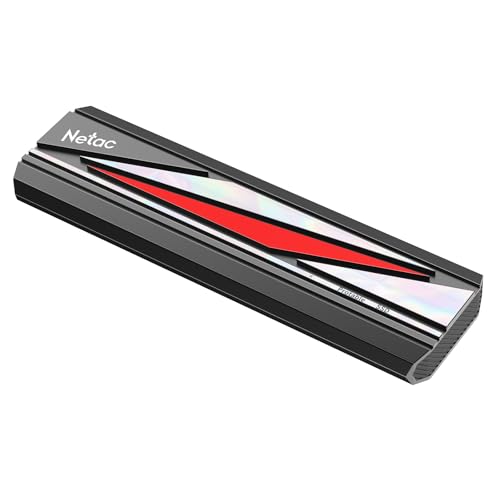


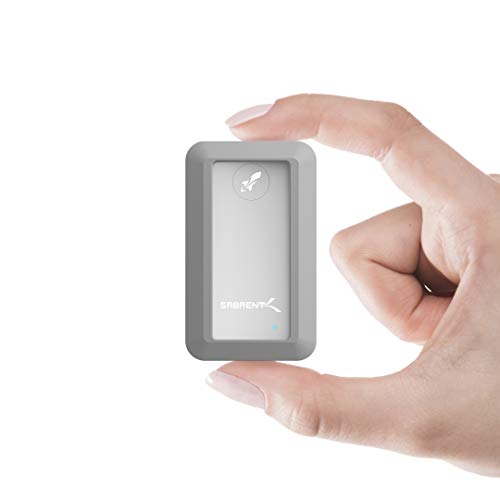


What Is An External SSD?
An External SSD is a portable solid state storage drive that connects to a computer, laptop, tablet, games console or compatible device through a cable or port. Unlike older external hard drives, SSDs use flash memory rather than spinning disks.
This means an External SSD can be compact, quiet and quick to access files, depending on the product and the device it is connected to. Many are small enough to carry in a laptop bag, camera kit, work bag or travel pouch.
Depending on the listing, External SSDs may include USB C support, USB A support, NVMe storage, SATA based storage, rugged casing, password protection, hardware encryption, backup software, water resistance or shock resistance where listed.
What Are External SSDs Used For?
External SSDs are used for storing, moving and backing up digital files. They are useful for documents, photos, videos, music, games, software installers, work folders and media libraries.
They can help free space on a laptop or desktop computer, especially when internal storage is limited. They can also be used to move large files between devices, keep project files separate or create a portable work drive.
External SSDs are also popular with photographers, video editors, designers and gamers because they can offer faster access than many older external hard drives where compatible.
How To Choose The Right External SSD
Start by thinking about what you need to store. Simple documents and photos may not need the same capacity as video projects, games or large creative files.
Next, check device compatibility. The External SSD should connect to your computer or device using a suitable port and cable. USB C, USB A and Thunderbolt style ports can look similar in some setups, but performance and support can vary.
Also consider speed. A very fast SSD will only perform at its listed level when the drive, cable and device port all support the required standard. Always check the listing and your device specifications before buying.
Key Features To Compare
When comparing External SSDs, look at capacity, connection type, listed read and write speeds, cable type, physical size, casing material, durability features, security options, included software and operating system compatibility.
Capacity affects how much you can store. Speed affects how quickly files can be transferred or accessed where supported. Durability affects how practical the drive is for travel, field work and regular carrying.
Also check whether the drive is ready to use with your device or whether formatting may be needed.
External SSDs Compared With External Hard Drives
External hard drives use spinning disks and are often chosen when large storage capacity at a lower price is the main priority. They can be useful for bulk backups, archives and general file storage.
External SSDs use solid state memory, which can make them faster, quieter and more resistant to everyday movement than many hard drives. They are often better suited to portable work, frequent file access and travel.
The trade off is usually capacity and cost. Hard drives may suit large archives, while External SSDs may suit speed, portability and active work.
External SSDs Compared With USB Flash Drives
USB flash drives are small and convenient for simple file transfers, documents and occasional use. They are easy to carry and often plug directly into a computer.
External SSDs are usually chosen when higher capacity, faster performance or more regular use is needed. They can be better for backups, large folders, photo libraries, video files and games where suitable.
If you only need to move a few documents, a flash drive may be enough. If you need serious portable storage, an External SSD is often the more practical option.
External SSDs Compared With Internal SSDs
Internal SSDs are installed inside a laptop or desktop computer. They are useful for operating systems, software, games and everyday system storage where the device supports upgrades.
External SSDs connect outside the computer and are easier to move between devices. They are useful when you do not want to open the computer or when you need portable storage.
Internal SSDs can be better for permanent upgrades. External SSDs are better when flexibility, portability and easy connection matter.
Portable SSDs Compared With Desktop External Storage
Portable External SSDs are small and easy to carry. They are useful for travel, laptops, creative projects, university work, commuting and file transfer between locations.
Desktop external storage products may be larger and more suited to fixed office or home setups. They may offer different capacities, power requirements or drive types depending on the product.
Choose portable storage if you need to carry files with you. Choose a fixed desktop storage option if the drive will mainly stay beside one computer.
USB C External SSDs Compared With USB A External SSDs
USB C External SSDs connect using the smaller reversible USB C connector where supported. Many modern laptops, tablets and computers include USB C ports, but speeds can still vary by device.
USB A External SSDs connect using the older rectangular USB port style. These may suit older laptops, desktops and office computers where USB A is available.
Some drives include cables or adapters for both where listed. Always check what cable is included and whether it supports the performance you need.
Thunderbolt Compatible SSDs Compared With Standard USB SSDs
Some External SSDs may support Thunderbolt where listed, which can allow very fast performance with compatible devices. These drives may suit demanding creative workflows and large file transfers.
Standard USB External SSDs can still be fast and practical for everyday backups, file storage and portable use. They may be more widely compatible with common computers depending on the product.
The right choice depends on your device ports, workload and budget. Do not pay for Thunderbolt level performance unless your device and workflow can use it.
NVMe External SSDs Compared With SATA External SSDs
Some External SSDs use NVMe technology where listed, which can support higher performance when paired with suitable connections and devices.
SATA based External SSDs may still feel fast for many everyday tasks, backups and general file storage, but may not reach the same listed speeds as higher specification NVMe models.
The important point is real setup compatibility. The drive, cable, enclosure and device port all affect performance.
Beginner, Regular User And Professional Buyer Guidance
If you are buying your first External SSD, focus on capacity, compatibility and simple use. A reliable drive with the right connector and enough storage is usually more useful than a drive with features you do not need.
Regular users may want to compare speed, portability, cable support, backup software, casing strength and whether the drive works smoothly across the devices they use.
Professional users may need to look more closely at sustained transfer performance, Thunderbolt or USB support, encryption, project file handling, durability and compatibility with editing or design software.
Use Cases By Routine And Device
For home offices, an External SSD can store work files, backups, scanned documents, spreadsheets, presentations and shared project folders.
For students, it can help keep coursework, research, media files and laptop backups organised. A compact drive is useful when moving between home, college, university or libraries.
For photographers and video creators, an External SSD can be used for photo libraries, video footage, editing projects and travel storage where suitable.
For gamers, an External SSD may be useful for storing games or moving game libraries where the platform supports external storage.
Capacity And Storage Planning
Capacity is one of the most important choices. Smaller capacities may suit documents, photos and everyday files. Larger capacities may be useful for videos, games, creative projects and long term backups.
Think about future needs as well as current files. A drive that feels large today may fill quickly if you store high resolution photos, videos or multiple game installations.
Always check the formatted capacity shown by your device after setup, as usable space may appear slightly different from the advertised capacity due to formatting and system differences.
Speed And Real World Performance
External SSD speed depends on the drive, connection type, cable, device port, file size and computer performance. Listed speeds are useful for comparison, but real world results can vary.
Large video files may transfer differently from many small documents. Older computers or slower USB ports may limit performance even when the drive itself is capable of higher speeds.
If speed matters, check the listed read and write speeds and make sure your device can support the same connection standard.
Connection Types And Cables
External SSDs may connect through USB C, USB A, Thunderbolt or other compatible connections depending on the product. The cable can be just as important as the drive.
A cable that charges a device may not support high speed data transfer. If a drive includes a specific cable, use the supplied cable where recommended.
If you need a replacement cable, choose one that supports the drive’s required data standard and connector type where listed.
Compatibility With Windows, Mac And Other Devices
External SSD compatibility can depend on operating system, file format and connection support. Some drives may work with Windows, Mac, tablets, games consoles or other devices where listed.
A drive may need formatting before use with a different operating system. Formatting can erase data, so always back up important files first.
If you plan to use one drive between Windows and Mac, check file system compatibility and product guidance carefully.
External SSDs For Backups
External SSDs can be useful for backups because they are portable, quick to connect and easy to store. They can hold copies of important documents, photos, work files and project folders.
A backup drive should not be the only place important files exist. It is usually better to keep more than one copy, such as one on the computer and one on an external drive.
For important files, consider a backup routine that is simple enough to follow regularly.
External SSDs For Photos And Video
Photographers and video creators often use External SSDs for storing shoots, moving files and working on projects between devices where compatible.
Video files can be large, so capacity and speed matter. Faster drives may help with copying footage and editing workflows where supported by the computer and software.
For field work or travel, a compact and durable design may be useful where listed. Always keep backup copies of important footage.
External SSDs For Gaming
External SSDs may be useful for storing games, moving game libraries or expanding storage on compatible computers and games consoles where supported.
Game support can vary by platform. Some devices may allow games to be stored externally, while others may only allow certain game types or media files. Always check your console or computer requirements before buying.
For gaming, capacity, connection type and speed can all matter, but compatibility should come first.
External SSDs For Travel And Remote Work
External SSDs are useful for travel because they are compact and can hold a large amount of work or personal data. They can fit into laptop bags, camera bags, tech pouches and hand luggage.
For remote work, an External SSD can keep files available even when internet access is unreliable. It can also help separate work files from personal files where appropriate.
If travelling with sensitive data, consider password protection or encryption features where listed, and keep important files backed up elsewhere.
External SSDs For Creative Workflows
Creative workflows can involve large files, multiple project versions and frequent transfers. An External SSD can help keep project files organised and portable.
Designers, editors, musicians and content creators may use external drives for active projects, scratch storage, samples, media libraries or backups where suitable.
Before relying on an External SSD for professional work, check software requirements, connection speed, operating system support and backup planning.
File Systems, Formatting And Setup
External SSDs may arrive formatted for a particular operating system or may require formatting before first use. The file system affects compatibility between devices.
Common choices can vary by platform and use, so follow the product guidance or your device instructions. Formatting usually erases existing data, so do not format a drive that contains files you need unless they are safely backed up.
If you are unsure, set up the drive before relying on it for important work.
Security, Passwords And Encryption
Some External SSDs may include password protection, hardware encryption or security software where listed. These features can be useful for business files, travel, personal records and sensitive documents.
Security features vary by product and may require specific software or operating system support. Check the listing and setup guidance before assuming a drive includes these protections.
Even with security features, keep backups of important files. A forgotten password or damaged drive can still make data difficult to recover.
Durability, Casing And Everyday Handling
External SSDs are often more resistant to movement than external hard drives because they have no spinning disk, but they can still be damaged by drops, crushing, water, heat or poor handling.
Some models may include rugged casing, drop resistance or water resistance where listed. These features can be useful for travel, outdoor work and busy bags.
Durability claims vary by product, so check the listing carefully and use the drive sensibly.
Size, Weight And Portability
One of the main benefits of External SSDs is portability. Many are small enough to carry in a pocket, laptop sleeve, camera bag or desk drawer.
Smaller drives are easier to carry, but they can also be easier to misplace. A case, pouch or labelled cable can help keep everything together.
For fixed desk use, size may matter less than cable length, speed and capacity. For travel, compact size and low weight become more important.
Power Requirements And Device Support
Most portable External SSDs are powered through the data cable, but this depends on the product and device. Some setups may need a powered hub or suitable port where listed.
Low power devices, tablets or older computers may not always provide enough power for every external drive. Check device support before buying.
If a drive disconnects during use, power, cable quality or port compatibility may be part of the problem.
Cable Management And Desk Organisation
External SSDs can help keep files organised, but the physical setup matters too. Short cables may suit laptops and tidy desks, while longer cables may be useful for desktops.
Avoid placing the drive where it can be knocked, pulled by the cable or trapped under other equipment. A small pouch or desk organiser can help keep drives and cables in one place.
For multiple drives, labelling them can help avoid confusion between backups, work drives and media storage.
Safety And Data Protection Considerations
An External SSD can fail, be lost or become damaged, just like any storage device. Do not keep important files in only one place.
Safely eject or unmount the drive before unplugging it where required by your operating system. This can help reduce the risk of file corruption during transfers.
Keep drives away from liquids, strong heat, heavy pressure and rough handling. For sensitive information, use suitable security features where available.
Care, Cleaning And Maintenance
Keep External SSDs clean, dry and protected from dust and impact. Wipe the casing gently where suitable and avoid moisture near ports and connectors.
Do not bend cables sharply or leave the drive hanging from a laptop by its cable. Cable strain can damage connectors over time.
Check the drive occasionally by opening files and confirming backups are accessible. A backup is only useful if it can be restored when needed.
Storage And Organisation
Store External SSDs in a safe, dry place when not in use. A case, pouch or dedicated drawer can protect the drive from scratches and knocks.
Keep important drives labelled, especially if you use more than one. Labels such as backup, photos, work or travel can make file organisation easier.
Store cables with the drive so you are not left with a device you cannot connect when needed.
Useful Accessories To Consider
External SSDs work well with practical computer and travel accessories. Useful items may include USB C cables, USB A adapters, Thunderbolt cables where compatible, drive cases, tech pouches, docking stations, USB hubs, laptop cases and cable organisers.
For creative work, memory card readers, external monitors and backup drives may also be useful. For gaming, check whether additional cables or console storage guidance is needed.
Choose accessories based on the drive, device and connection standard rather than buying items that may limit performance.
Why Buy From YPC?
At YPC, we understand active lifestyles and the need for practical products that work in real use. External SSDs should be compatible, portable and suitable for the files, devices and workflows you actually need to manage.
This category helps you compare capacity, connection type, speed, compatibility, durability, security features, cable support, size and listed specifications without overcomplicating the choice. Browse the External SSD options at YPC, compare the available drives and choose the storage solution that suits your laptop, desktop PC, console, camera workflow, travel kit or backup routine.
FAQs
What is an External SSD used for?
An External SSD is used for portable storage, backups, file transfers, photos, videos, games, work projects and expanding storage on compatible devices.
Is an External SSD better than an external hard drive?
An External SSD is usually faster, quieter and more portable than many external hard drives. External hard drives may still be useful for lower cost bulk storage depending on your needs.
What capacity External SSD do I need?
The right capacity depends on what you store. Documents need less space, while videos, games, photo libraries and creative projects usually need more. Choose with future storage needs in mind.
Will an External SSD work with my laptop?
It should work if the connection type, operating system and file format are compatible. Check your laptop ports and the product listing before buying.
Can I use an External SSD with both Windows and Mac?
Some External SSDs can be used with both, but formatting and file system compatibility matter. You may need to format the drive, which can erase existing data.
Are External SSDs good for backups?
Yes, External SSDs can be useful for backups, but important files should not be stored in only one place. Keep at least one extra copy where possible.
Can I use an External SSD for gaming?
Some computers and consoles support external storage for games or game libraries where compatible. Check your platform requirements before buying.
How do I look after an External SSD?
Keep it dry, avoid drops and cable strain, store it in a safe place, use the correct cable and safely eject the drive before unplugging where required.
 Getting ready for Summer? View our Home and Garden Products

Heading outdoors this winter? Take a look at our Outdoor Clothing.