BUYERS GUIDE
All In One Printer Buyers Guide
An all in one printer combines several office functions in one machine. Most models can print, scan and copy, while selected products also include faxing, automatic document feeding, duplex printing and direct mobile or cloud connectivity.
These printers can suit home offices, families, students, small businesses and shared workspaces. However, two machines that look similar may have very different running costs, printing speeds, scan features and paper capacities.
The purchase price is only part of the decision. Ink or toner costs, cartridge yields, replacement drums, maintenance boxes, paper handling and subscription requirements can all affect the printer’s long term value.
This guide explains how to compare all in one printers, understand the difference between inkjet and laser models and identify the features that matter for everyday use.
Quick Answer
Choose an all in one printer by estimating how many pages you expect to print, whether you mainly need colour or black and white output and how often you scan or copy multi-page documents. Inkjet models can suit general home use, photographs and mixed colour printing, while laser printers often suit frequent document printing. Check ink or toner yields, automatic duplex printing, document feeder capacity, scan functions, connectivity, paper trays and the cost of replacement consumables. Specifications vary by model, so always check the individual product page before buying.
Quick Product Comparison Framework
| Feature | What It Means | Why It Matters | What To Check |
|---|---|---|---|
| Printer technology | Method used to place ink or toner on the page | Affects print quality, speed and running costs | Inkjet, ink tank, mono laser or colour laser |
| Main functions | Tasks the machine can perform | Determines whether it replaces separate devices | Printing, scanning, copying and faxing where listed |
| Print speed | Pages produced within a stated period | Matters for larger documents and shared use | Black and colour speeds and testing standard |
| Duplex printing | Automatic printing on both sides | Saves paper and reduces manual handling | Automatic or manual duplex |
| Automatic document feeder | Feeds several pages into the scanner | Speeds up copying and scanning | Capacity and whether duplex scanning is supported |
| Flatbed scanner | Glass scanning surface | Useful for books, photographs and delicate originals | Maximum document size and scan resolution |
| Ink or toner yield | Estimated number of pages per consumable | Helps compare running costs | Standard and high-yield options |
| Paper capacity | Number of sheets held by the printer | Affects how often paper needs replacing | Main tray, rear feed and output capacity |
| Connectivity | Methods used to connect computers and mobile devices | Determines setup flexibility | USB, WiFi, Ethernet, mobile and cloud support |
| Print resolution | Level of image detail the printer can output | Matters for photographs and fine graphics | Stated resolution and intended print type |
| Scan resolution | Level of detail captured by the scanner | Affects document and photograph quality | Optical rather than interpolated resolution |
| Duty cycle | Suggested or maximum monthly workload | Helps indicate workload suitability | Recommended monthly volume where supplied |
| Physical size | Printer width, depth and height | Determines placement | Dimensions with trays and doors open |
| Consumables | Replaceable items used during operation | Affects long term cost and maintenance | Ink, toner, drums, waste containers and maintenance boxes |
Key Decision Criteria Explained
Start With Expected Print Volume
The most suitable printer depends heavily on how many pages you expect to produce.
A household printing a few school documents each month has different needs from a business producing several hundred invoices, labels or reports every week.
Estimate:
- Typical pages per week or month
- Percentage of colour pages
- Number of users
- Average document length
- Whether large print jobs are common
- How often scanning and copying are needed
- Whether the printer may remain unused for long periods
A low-cost printer can become expensive if its cartridges have small yields. A larger business model may be unnecessary if printing is occasional.
Inkjet Or Laser
Inkjet printers spray liquid ink onto the paper. They can suit mixed home use, photographs, colour graphics, craft projects and lower-volume document printing.
Laser printers use toner powder and heat to fuse the image to the page. They are commonly chosen for fast document printing and regular office workloads.
Broadly:
- Inkjet can suit photographs and mixed media
- Ink tank systems can suit higher-volume inkjet printing
- Mono laser can suit frequent black and white documents
- Colour laser can suit reports, charts and business graphics
- Photo quality varies considerably within each category
Choose according to the actual work rather than assuming one technology is always better.
Standard Cartridge Inkjet Printers
Standard inkjet printers use replaceable ink cartridges.
The printer itself may be affordable, but cartridge yields and replacement costs vary. Some cartridges combine several colours in one unit, while others use separate colour cartridges.
Separate cartridges can reduce waste where one colour is used more quickly than the others. However, the complete set may still be expensive.
Check whether the printer accepts standard, high-yield or subscription-based cartridges.
Ink Tank Printers
Ink tank printers use refillable reservoirs rather than small conventional cartridges.
They can provide a lower cost per page for regular users, although the initial printer price may be higher.
Ink tank systems can suit:
- Busy households
- Home businesses
- Students
- Colour documents
- High-volume worksheets
- Craft and educational printing
Refilling should be carried out carefully to avoid spills. Ink bottles are normally model or series specific, so compatibility must be checked.
Mono Laser Printers
A mono laser all in one printer produces black and white output.
It can suit invoices, reports, correspondence, shipping documents and general office paperwork. Mono models are often simpler and less expensive to run than colour laser machines.
They are not suitable where regular colour printing is essential.
Colour Laser Printers
Colour laser printers can produce fast text and business graphics.
They can suit reports, presentations and shared office use. However, they are usually larger and require several toner cartridges.
Colour laser output may look professional for charts and diagrams without matching a good photo inkjet for photographic prints.
Check the cost of all toner colours, imaging drums and waste containers before buying.
Print, Scan And Copy Functions
Most all in one printers include printing, scanning and copying.
Do not assume every model provides the same level of each function. A basic device may have a simple flatbed scanner, while a business printer may support duplex document feeding, network scanning and searchable PDF creation.
Check the features within each function rather than relying only on the term all in one.
Fax Capability
Some office-focused all in one printers include faxing.
Fax may remain useful for certain industries, legal processes or legacy systems. Many home and modern office users will not need it.
Check whether a telephone line is required and whether internet-based fax services are supported separately.
Print Speed
Print speed is usually stated in pages per minute.
Black text printing is often faster than full-colour printing. The first page may also take longer because the printer must wake, warm up or process the document.
Speeds can vary according to:
- Quality setting
- Colour or mono output
- Duplex mode
- Paper type
- Document complexity
- Connection method
- Printer warm-up
- Testing standard
Compare figures measured using the same standard where possible.
First Page Out Time
The first page out time indicates how quickly the initial sheet appears after a job begins.
This can matter more than maximum speed for users who print short documents throughout the day.
Laser printers may require warm-up time, while inkjet models may run nozzle checks or preparation routines.
Print Quality
Text, graphics and photographs have different requirements.
For documents, look for sharp text and consistent black areas. For charts and presentations, colour accuracy and smooth gradients matter. For photographs, ink formulation, paper support and borderless printing can be important.
A high resolution figure does not automatically guarantee excellent output. Paper, ink, print head design and software processing all contribute to quality.
Borderless Printing
Borderless printing allows an image to cover the full sheet without a white edge.
This can be useful for photographs, invitations and craft projects. It may only be supported on selected paper sizes and types.
Check the maximum supported borderless size and whether the feature is available through all devices and apps.
Photo Printing
Buyers interested in photographs should check:
- Supported photo paper
- Borderless sizes
- Number and type of inks
- Colour ink arrangement
- Maximum print resolution
- Rear paper feed
- Direct memory card or camera support
- Replacement ink cost
- Photo print speed
A general office inkjet may print acceptable photographs without matching a dedicated photo printer.
Ink And Toner Running Costs
The long term cost of printing can be more important than the initial price.
Estimate cost per page using the replacement consumable price and the stated page yield. Remember that advertised yields are measured under standard test conditions and may differ from real use.
High-coverage graphics, photographs, cleaning cycles and frequent short jobs can reduce actual yields.
Check the total cost of all consumables, not only the black cartridge.
Starter Cartridges And Toner
Printers may include starter or setup consumables with lower yields than normal replacement products.
This can mean the first replacement purchase is needed sooner than expected.
Check whether the box includes:
- Full-yield cartridges
- Starter cartridges
- Setup ink
- Trial toner
- Standard ink bottles
- Subscription trial supplies
Do not assume the included consumables match the yield of retail replacements.
Standard And High-Yield Consumables
Many printers accept both standard and high-yield cartridges.
High-yield products usually cost more but can reduce the cost per page and the frequency of replacement.
However, they may not be worthwhile for very occasional users, particularly where ink could remain unused for long periods.
Individual Or Combined Colour Cartridges
Some inkjet printers use a combined colour cartridge containing cyan, magenta and yellow ink.
When one colour runs out, the whole cartridge may need replacing. Printers with individual colour cartridges allow each colour to be changed separately.
Separate cartridges may reduce waste for uneven colour use, although the machine and consumable prices should still be compared.
Drums And Other Laser Consumables
Toner is not always the only consumable in a laser printer.
Depending on the model, replacement items may include:
- Imaging drum
- Transfer belt
- Fuser
- Waste toner container
- Maintenance kit
- Pick-up rollers
Some toner cartridges include the drum, while other printers use a separate long-life drum.
Check the replacement schedule and cost for the entire system.
Inkjet Maintenance Boxes
Some inkjet printers use a maintenance box or waste ink container.
This collects ink used during cleaning and preparation cycles. It may eventually require replacement.
On some printers the part is user replaceable. Others may require servicing when the internal waste ink system reaches its limit.
Automatic Duplex Printing
Automatic duplex printing turns the paper and prints on both sides without manual intervention.
It can reduce paper use and produce more professional reports or handouts.
Check whether duplex is available for:
- Black and colour documents
- Different paper sizes
- Mobile printing
- Copying
- Scanning
Automatic two-sided printing is not the same as duplex scanning.
Automatic Document Feeder
An automatic document feeder, or ADF, feeds several sheets through the scanner.
It is useful for copying or scanning contracts, invoices and multi-page documents.
Check:
- Feeder capacity
- Maximum paper size
- Supported paper weights
- Single-sided or duplex scanning
- Maximum scan speed
- Whether mixed document sizes are supported
Small receipts, photographs and damaged pages may still need the flatbed scanner.
Duplex Scanning
Duplex scanning captures both sides of a page.
Some printers scan both sides in one pass, while others reverse the sheet and scan again.
Single-pass duplex scanning can be faster and may reduce paper handling, especially in busy offices.
Flatbed Scanner
The flatbed is the glass surface beneath the scanner lid.
It suits:
- Books
- Photographs
- Identity documents
- Delicate originals
- Receipts
- Bound pages
- Small objects with a flat surface
Check whether the lid can raise to accommodate thicker items.
Optical Scan Resolution
Optical scan resolution reflects the scanner’s actual hardware capability.
Interpolated resolution uses software to create additional pixels and should not be treated as equivalent to optical detail.
General document scanning requires less resolution than archiving photographs or detailed artwork.
Scan To Email, Folder Or Cloud
Business printers may support direct scanning to:
- Shared network folders
- USB storage
- Cloud services
- Document management systems
- Mobile apps
These features can reduce the need to operate the scanner through a connected computer.
Check setup requirements, account support and whether security or network administration is needed.
Optical Character Recognition
Optical character recognition, or OCR, converts scanned text into searchable or editable content.
OCR may be supplied through desktop software, a mobile app, cloud processing or printer firmware.
Accuracy depends on document quality, language, font, layout and software.
Paper Tray Capacity
A larger input tray reduces how often paper needs replacing.
Check:
- Main tray capacity
- Output tray capacity
- Rear feed
- Multipurpose tray
- Photo paper tray
- Envelope support
- Additional tray compatibility
A printer described as supporting several paper sizes may require manual adjustment or separate feeding.
Paper Sizes
Most home printers support standard document sizes, while office models may support a wider selection.
Check requirements for:
- A4
- A5
- A6
- Envelopes
- Labels
- Photo sizes
- Legal or longer documents where relevant
- Custom dimensions
The scanner, copier and document feeder may support fewer sizes than the print mechanism.
Paper Weight And Media Types
Printers are designed for a specific range of paper weights.
Thicker card, labels, glossy sheets, envelopes and transfer papers may need a rear or straight-through path.
Using unsupported media can cause jams, poor feeding or damage.
Check the manufacturer’s paper specifications before using specialist materials.
Manual Feed And Rear Feed
A manual or rear feed can help with envelopes, photo paper, card and other occasional media.
A straighter path may reduce bending and improve feeding for thicker sheets.
Check whether the printer can hold several specialist sheets or only one at a time.
Duty Cycle And Recommended Volume
Maximum monthly duty cycle represents an upper workload limit rather than the ideal regular usage level.
The recommended monthly volume is generally more useful when deciding whether a printer suits normal workload.
Consistently operating near the maximum may increase wear and maintenance.
Printer Memory And Processing
Printer memory affects how quickly complex jobs can be received and processed.
Large graphics, high-resolution files and several network users can benefit from additional memory.
This is usually more important for office laser models than basic home inkjets.
USB Connectivity
A USB connection provides a direct wired link to one computer.
It can be simple and reliable but may not make the printer available to other devices unless the computer shares it across a network.
Check whether a USB cable is included.
WiFi Printing
WiFi allows several compatible devices to use the printer without a direct cable.
Setup may require:
- Wireless network name
- Password
- Mobile app
- Temporary direct connection
- Compatible router frequency
- Firmware update
Printer placement, walls and network interference can affect wireless reliability.
WiFi Direct
WiFi Direct allows a device to connect to the printer without joining the main network.
It can be useful for visitors, temporary devices and locations without a router.
The printer may still need normal network access for cloud services or firmware updates.
Ethernet Networking
Ethernet provides a wired network connection.
It can suit shared offices where stable connectivity is more important than flexible placement.
Check whether the printer includes an Ethernet port, as some home models support only USB and WiFi.
Mobile Printing
Mobile printing can allow documents and photographs to be printed from phones and tablets.
Support may include:
- Manufacturer apps
- Operating system printing
- Email-to-print
- WiFi Direct
- Cloud services
- Bluetooth setup where listed
Check whether full printer functions or only basic printing are available through the mobile device.
Cloud And Remote Printing
Some printers allow jobs to be submitted through online services.
This can be useful when working away from the printer, although it may require accounts, internet access and manufacturer servers.
Review privacy, security and service availability before relying on cloud features.
Touchscreens And Control Panels
A touchscreen or larger control panel can make copying, scanning and maintenance easier.
Basic models may use buttons and a small display.
The best interface depends on whether most work is started from computers or directly at the printer.
Memory Card And USB Printing
Selected printers can print directly from memory cards or USB drives.
This can suit photographs and documents where a computer is not available.
Check supported file formats and storage capacities.
Operating System Compatibility
Confirm compatibility with the computers and mobile devices that will use the printer.
Check:
- Current operating systems
- Driver availability
- Mobile apps
- Network scanning software
- OCR software
- Older computers
- Business systems
- Chromebook-style devices where relevant
A printer may support basic printing without providing every scanning or maintenance feature on all platforms.
Subscription Ink Services
Some manufacturers offer subscription plans that send ink or toner according to usage.
These can provide predictable monthly costs for suitable users. However, plans can include:
- Page limits
- Overage charges
- Internet connection requirements
- Special subscription cartridges
- Account conditions
- Cancellation rules
Compare subscription costs with buying consumables normally. Check what happens to supplied cartridges if the plan ends.
Cartridge Region And Compatibility
Cartridges may be region specific.
A printer purchased from another country may not accept locally supplied consumables. Firmware changes can also affect third-party cartridge compatibility.
Check the printer’s intended market and use compatible consumables.
Noise
All in one printers can make noise while feeding paper, scanning, cleaning or warming up.
A printer used in a bedroom, quiet home office or reception area may need lower noise than one kept in a separate workroom.
Check quiet modes where available, although they may reduce speed.
Physical Size And Placement
Printer dimensions can increase significantly when paper trays, document feeders and output supports are open.
Allow space for:
- Scanner lid
- Document feeder
- Rear paper feed
- Front paper tray
- Output tray
- Cartridge access
- Ventilation
- Power and data cables
Measure the intended area using the printer’s operating dimensions rather than its closed dimensions.
Product Type Differentiation And Variants
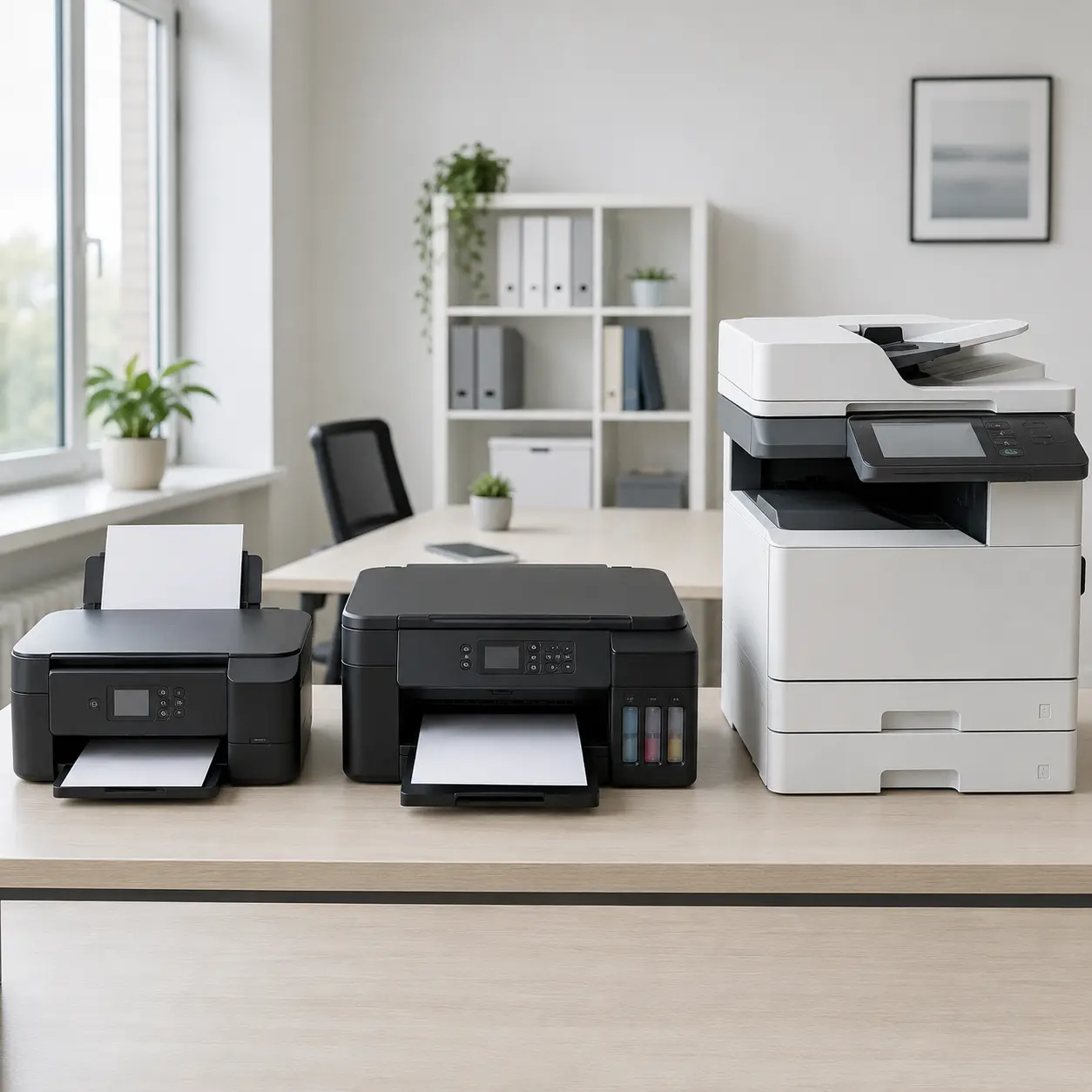
Home Inkjet All in One Printers
Home inkjet models suit occasional documents, schoolwork, photographs and general family use.
They are usually compact and affordable, but cartridge running costs can be higher than those of larger tank systems.
Check whether automatic duplex and an ADF are included.
Ink Tank All in One Printers
Ink tank printers suit users who print regularly and want lower ink costs per page.
They may cost more initially but can include enough bottled ink for substantial printing.
Check refill design, replacement bottle prices and whether the machine includes a maintenance box.
Photo All in One Printers
Photo-focused models prioritise colour output, borderless printing and photo paper support.
They can still scan and copy everyday documents, but printing speed may be secondary to image quality.
Check ink configuration and supported photo sizes.
Mono Laser All in One Printers
Mono laser all in one printers suit frequent black and white document printing.
They can be practical for invoices, reports, shipping papers and home office work.
They do not provide colour output, even though the scanner may capture colour originals.
Colour Laser All in One Printers
Colour laser all in one printers suit offices producing reports, presentations and general business graphics.
They can be fast and robust but may be large and expensive once all toner and maintenance items are considered.
Business Inkjet All in One Printers
Business inkjets are designed for faster documents, larger cartridges and heavier use than basic home models.
They can provide colour output with lower power consumption than some laser systems, depending on the model.
Check recommended monthly volume and paper handling.
Compact All in One Printers
Compact machines suit bedrooms, student accommodation and small home offices.
The trade-offs may include smaller paper trays, slower speed, no document feeder and limited controls.
Measure the machine with trays open before buying.
Fax Enabled All in One Printers
Fax-enabled models add conventional fax functions to printing, copying and scanning.
They can suit organisations that still receive or send fax documents.
Check telephone line and setup requirements.
ADF All in One Printers
Models with an automatic document feeder suit users who regularly scan or copy multi-page documents.
Check whether the feeder is single-sided, reversing duplex or single-pass duplex.
Wide Format All in One Printers
Wide-format models can print larger documents, posters or artwork.
Some can scan and copy only standard-sized originals, while others also support larger scanning.
They require more workspace and can have higher ink and paper costs.
Refurbished All in One Printers
A refurbished printer may offer business features at a lower price.
Check:
- Page count
- Drum or maintenance life
- Included consumables
- Scan feeder wear
- Network features
- Warranty information
- Driver support
- Cosmetic condition
Older printers may no longer receive current software or security updates.
Suitability By Buyer Type Or Need
| Buyer Type Or Need | What To Prioritise | What To Be Careful About |
|---|---|---|
| Occasional home use | Compact size and straightforward operation | Cartridges may dry or run cleaning cycles |
| Busy family | Paper capacity, duplex and lower running costs | Check mobile device compatibility |
| Student | Affordable printing, scanning and compact size | Include replacement ink in the budget |
| Home office | ADF, duplex, scan to computer and network support | Starter cartridges may run out quickly |
| Small business | Recommended monthly volume, speed and paper capacity | Check maintenance and support costs |
| Frequent mono printing | Mono laser and high-yield toner | Colour output will not be available |
| Frequent colour printing | Ink tank, business inkjet or colour laser | Compare total consumable costs |
| Photography | Photo inkjet, borderless printing and photo paper support | Office laser printers may not suit photos |
| Multi-page scanning | Duplex ADF and scan workflow features | Flatbed-only models will be slower |
| Shared office | Ethernet, security, user controls and larger trays | Home models may not handle the workload |
| Craft printing | Rear feed, card and borderless support | Check media weight limits |
| Limited space | Compact footprint and front-loading paper | Allow space to open the scanner lid |
| Accessibility needs | Clear controls, large display and mobile operation | Interface quality varies by model |
| Low running cost | High-yield toner or refillable ink tanks | Higher purchase price may take time to recover |
Common Mistakes And Misunderstandings
Choosing By Purchase Price Alone
A cheap printer can have expensive cartridges.
Compare replacement consumables and estimated page yields before buying.
Ignoring Page Yield
Two cartridges with similar prices may provide very different output.
Check whether yields refer to standard test pages and whether high-yield alternatives are available.
Assuming Included Ink Is Full Size
Setup cartridges may contain less ink or toner than replacements.
Check the supplied consumable type before estimating when the first replacement will be needed.
Assuming All All in One Printers Have An ADF
Some models include only a flatbed scanner.
A multi-page document must then be scanned one page at a time.
Confusing Duplex Printing With Duplex Scanning
Automatic two-sided printing does not confirm that the scanner can capture both sides automatically.
Check each feature separately.
Buying Inkjet For Very Infrequent Use Without Considering Maintenance
Inkjet printers may run cleaning cycles and can experience blocked nozzles if left unused.
Occasional users should follow maintenance guidance and print suitable test pages periodically where recommended.
Buying Laser For Photographs
Colour laser printers are useful for charts and office graphics but may not produce the same photographic quality as a good photo inkjet.
Choose according to the main output type.
Ignoring The Cost Of All Colour Toners
A colour laser printer uses several toner cartridges.
Replacing a full set can cost a substantial amount, even if cartridges are changed individually.
Forgetting Drum And Maintenance Costs
Toner cartridges may not include every wear item.
Check drums, transfer belts, fusers, waste containers and maintenance kits.
Assuming Mobile Printing Means Full Mobile Control
A phone may be able to print without supporting advanced scanning, maintenance or paper settings.
Check the capabilities of the manufacturer app.
Assuming WiFi Will Work Everywhere
Weak wireless coverage can cause failed setup and interrupted jobs.
Consider printer placement, router distance and whether Ethernet is available.
Overlooking Paper Capacity
A small tray may need frequent refilling in a busy household or office.
Check input and output capacity.
Ignoring Paper Weight Limits
Heavy card, labels and glossy sheets can jam if the printer does not support them.
Use the correct feed path and approved media.
Buying A Printer That Is Too Large For The Space
The scanner lid, rear feed and output tray can increase the operating footprint.
Measure the full working area before buying.
Assuming A Subscription Is Always Cheaper
Subscription plans suit predictable printing patterns but may not offer value for every user.
Compare monthly allowances, overage charges and cancellation terms.
Buying An Imported Model
Imported printers may use different cartridges, plugs, warranties or wireless standards.
Check regional compatibility before ordering.
Ignoring Software Support
An older printer may still work physically but lack current drivers or mobile app support.
Check compatibility with every device that needs to use it.
Safety And Suitability Caveats
Use the printer according to the manufacturer instructions.
Laser printers contain hot internal components. Allow the machine to cool before accessing areas near the fuser or removing paper from internal paths.
Do not touch electrical contacts, imaging drums or moving parts unless instructed.
Handle toner carefully and avoid breathing loose powder. Follow the manufacturer’s cleanup guidance rather than using unsuitable household equipment.
Keep ink away from eyes, skin, clothing and food preparation areas. Clean spills according to the ink manufacturer’s instructions.
Place the printer on a stable surface with suitable ventilation and enough clearance for trays, covers and cables.
Use compatible power cables and stop using equipment with damaged plugs, exposed wiring, unusual smells or signs of overheating.
Keep children and pets away from open ink bottles, toner, moving paper mechanisms and hot internal components.
Maintenance, Storage And Lifespan Considerations
Keep the scanner glass, document feeder rollers and paper path clean according to the manufacturer guidance.
For inkjet printers:
- Print periodically where recommended
- Run cleaning cycles only when needed
- Keep cartridges installed
- Avoid touching print head contacts
- Store ink bottles upright
- Replace maintenance boxes where required
For laser printers:
- Keep toner sealed until required
- Avoid exposing drums to strong light
- Clean loose toner using approved methods
- Monitor drum and fuser life
- Replace waste toner containers where required
Use dry, correctly stored paper to reduce jams and poor feeding.
Keep firmware and software updated where appropriate, particularly for network-connected business printers.
Printer lifespan depends on workload, maintenance, paper quality, consumables, parts availability and continued software support.
How To Compare Models Efficiently
- Estimate the expected monthly print volume.
- Decide whether colour is essential.
- Choose between inkjet, ink tank, mono laser and colour laser.
- Compare ink or toner page yields.
- Check starter consumable capacity.
- Review drums and other maintenance items.
- Decide whether automatic duplex printing is needed.
- Check whether an ADF is included.
- Confirm single-sided or duplex scanning.
- Compare paper tray and output capacity.
- Check supported paper sizes and weights.
- Review USB, WiFi and Ethernet connectivity.
- Confirm mobile and operating system compatibility.
- Measure the full operating footprint.
- Compare subscription and standard consumable costs.
- Check recommended monthly print volume.
- Read the individual product page before buying.
Summary Buyer Decision Checklist
| Buying Check | Why It Matters |
|---|---|
| Expected print volume | Determines the suitable printer class |
| Inkjet or laser | Influences quality, speed and running cost |
| Colour or mono | Avoids paying for unnecessary colour hardware |
| Print speed | Matters for regular and large jobs |
| First page time | Affects short frequent jobs |
| Print quality | Must suit documents, graphics or photographs |
| Ink or toner yield | Helps estimate running costs |
| Starter consumables | Determines how soon replacements are needed |
| Drum and maintenance items | Affect long-term cost |
| Automatic duplex | Saves paper and manual handling |
| ADF capacity | Speeds up multi-page scanning |
| Duplex scanning | Captures both sides automatically |
| Flatbed scanner | Supports books, photos and delicate originals |
| Paper capacity | Reduces refilling |
| Media support | Determines compatibility with card, labels and photo paper |
| USB, WiFi and Ethernet | Control how devices connect |
| Mobile printing | Supports phones and tablets |
| Software compatibility | Ensures printing and scanning features work |
| Printer dimensions | Confirms suitable placement |
| Recommended volume | Indicates workload suitability |
| Product page details | Confirm the exact model specification |
Frequently Asked Questions
An all in one printer combines printing, scanning and copying in one machine. Selected models also include faxing, document feeding and other office functions.
The terms are commonly used for the same type of device. Multifunction printer is often used for business models, while all in one printer is common in home and retail categories.
Inkjet can suit photographs, colour graphics and mixed home use. Laser can suit frequent document printing. The right choice depends on volume, colour requirements and running costs.
They can provide a low cost per page for regular users. However, their initial purchase price may be higher, and actual value depends on print volume.
An enclosure can improve temperature stability and reduce access to moving parts. It is particularly useful for certain engineering filaments. It does not automatically replace suitable ventilation.
A mono laser printer produces black and white output only. It can still scan colour documents where the scanner supports colour.
Automatic duplex printing allows the printer to print on both sides of a sheet without the user manually turning the paper.
An ADF feeds several pages into the scanner automatically. It is useful for copying and scanning multi-page documents.
No. Some scan one side only, some reverse the paper and others scan both sides in one pass. Check the exact specification.
A flatbed scanner captures one item placed on glass and suits books, photos and delicate originals. A feeder moves loose pages through the scanner automatically.
Compare replacement consumable prices with stated yields. Include colour cartridges, drums, maintenance boxes and other wear items.
Starter cartridges or toner are supplied with some new printers and may have lower yields than normal retail replacements.
Many do. Some toner cartridges include an integrated drum, while other printers use a separate drum that must eventually be replaced.
Many all in one printers support mobile printing through WiFi, WiFi Direct, operating system services or manufacturer apps. Features vary by model.
Many can connect directly to a computer through USB. Selected models also include Ethernet. Check whether the required cable is supplied.
Some can scan directly to email, cloud storage, USB or a network folder. Basic models may require a connected computer or mobile app.
Selected models support heavier paper through a rear or manual feed. Check the maximum paper weight and recommended media.
Check printer technology, colour requirements, running costs, page yields, duplex printing, ADF, scan features, paper capacity, connectivity, software support, size and maintenance items.